
 Use cases
 Messaging
 Taxi Companies
 Private Transport
 Transportation Entrepreneurs
 Last Mile
 SuperApp
 Software
 Taxi dispatch
 Corporate transportation
 Auction
 Products
 Booking Software
 Dispatch Platform
 Driver App
 Passenger App
 Web Widget
 Functions
 Schedule & Booking
 Driver Management
 Custom
 Corporate Portal
 Security & Support
 Resources
 Learn
Learn



Requesting an instant or scheduled trip
On the home screen for logged-in users, you'll see the map along with options to enter your destination address in the "Where to?" field, or pick from your favorite or recently saved addresses.
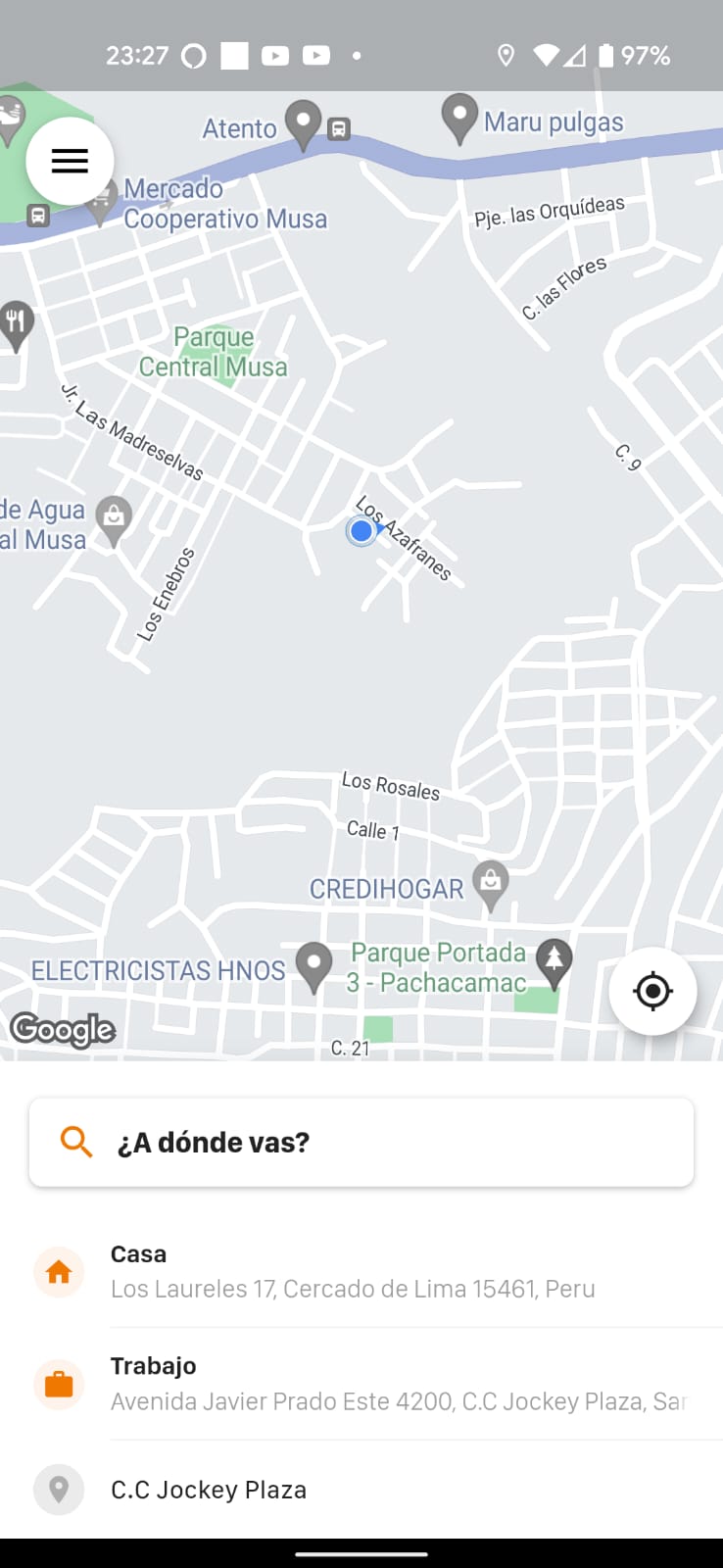
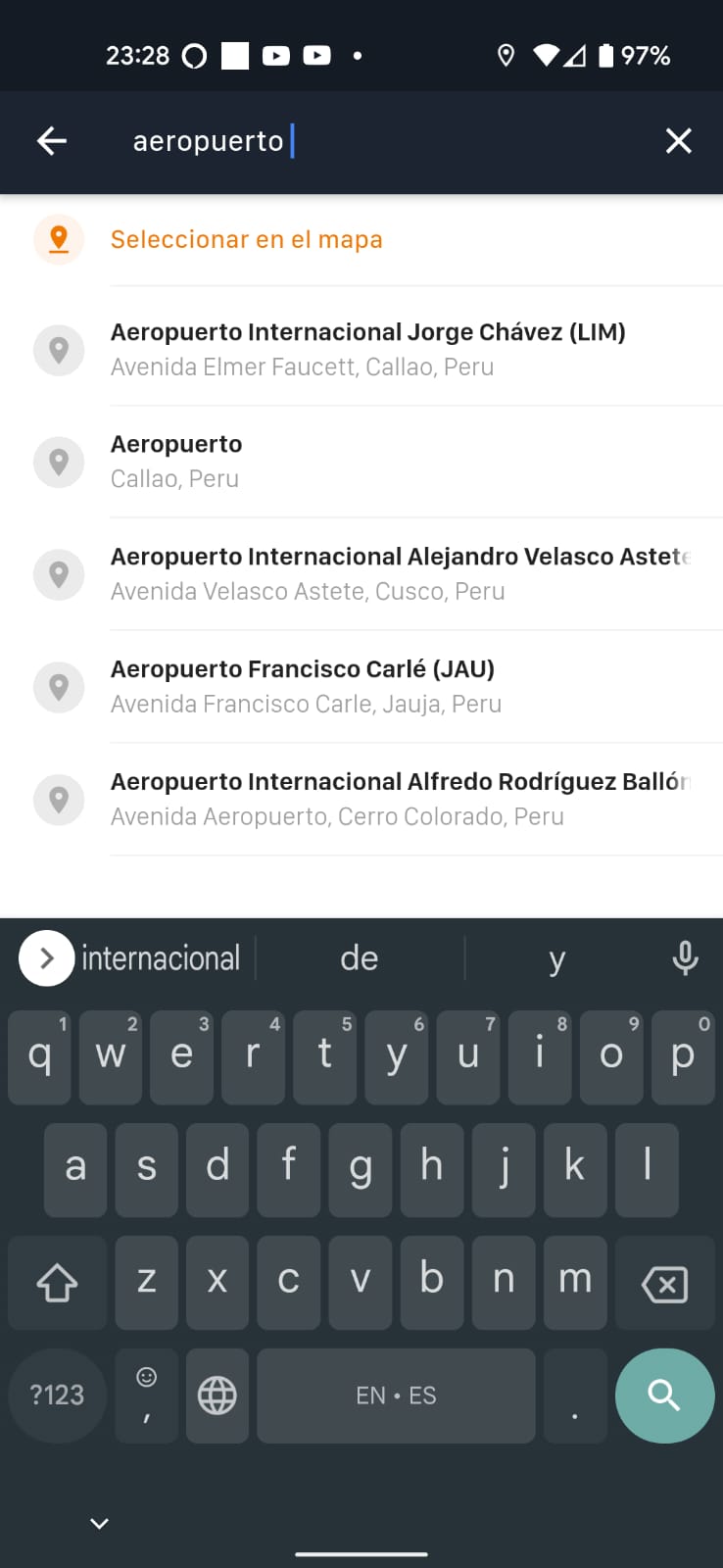
You can enter an address, place, or landmark so the app can autocomplete the result using Google Maps data. If you'd rather search by location on the map, you can do so with the "Select on map" option.
Once you've set the destination, a screen appears showing the optimal route suggested by Google Maps. You can adjust the pickup and destination addresses at the top.
Below, you'll see the products created in the web panel, each with its price set by rate cards.
You can change the payment method on this screen and add a note for the driver.
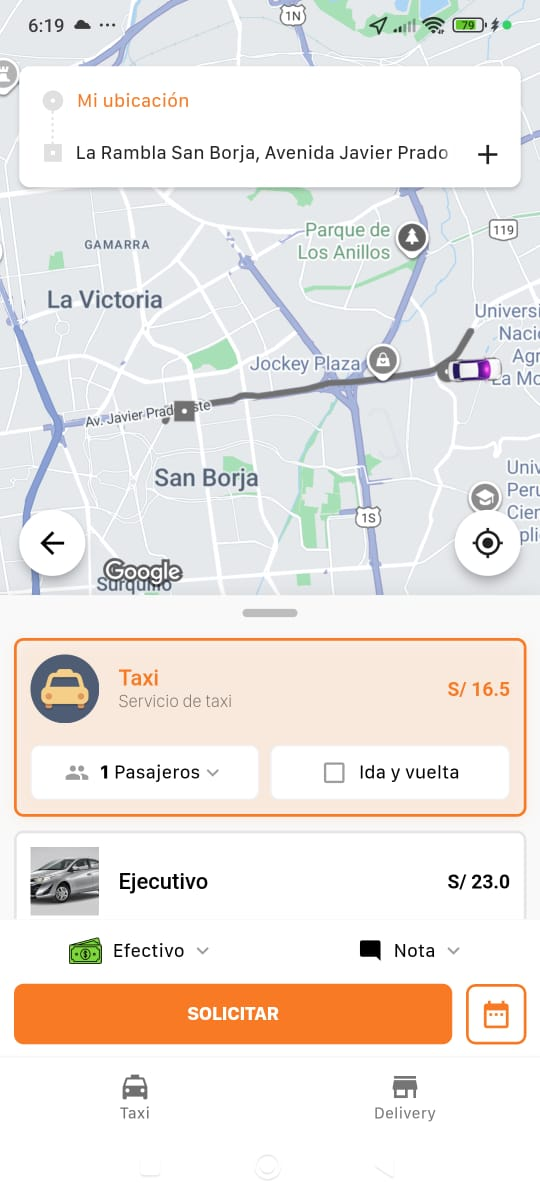
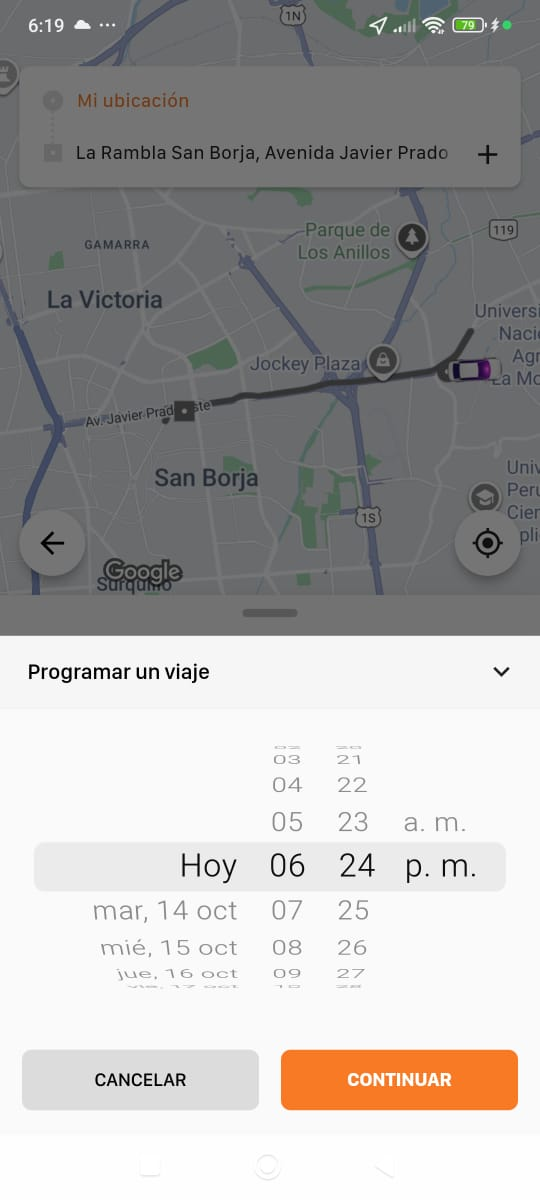
You can request a trip right away or schedule it for later. To schedule, tap the calendar button and choose the date and time to book the trip.
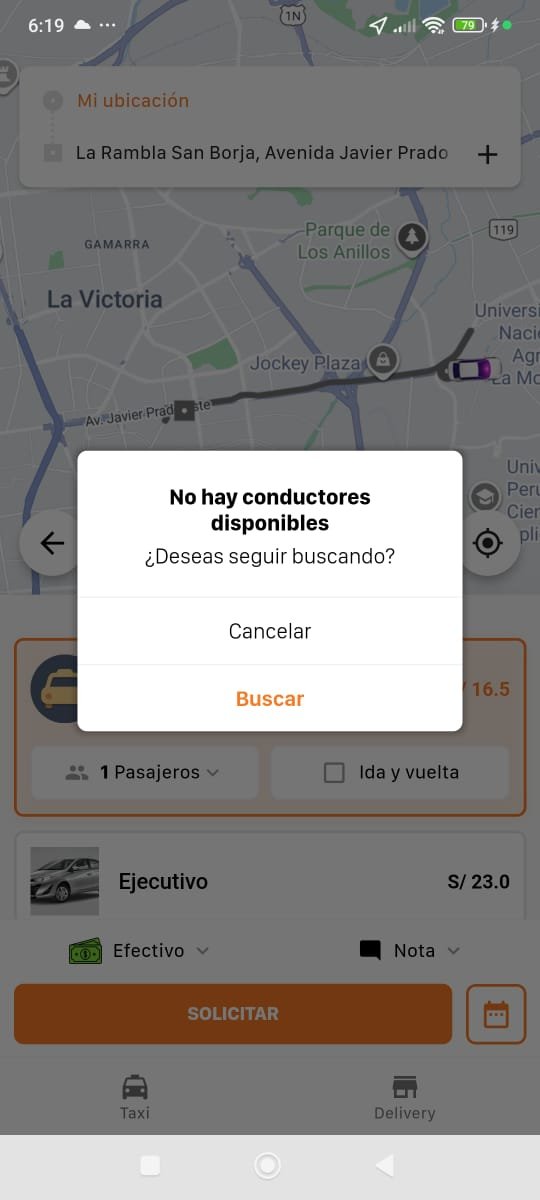
If no nearby driver is found when you request an instant trip, or if nearby drivers don't have the products enabled, a message like the one below appears, where you can cancel the trip or request it again to check whether any drivers matching the search filter have come online.
Was this article helpful?
Getting Started
- Customer: sign up / log in
- Requesting a Trip from the App
- Requesting an instant or scheduled trip
- Reviewing trips (history and scheduled)
- Schedule a trip for a different date