
 Use cases
 Messaging
 Taxi Companies
 Private Transport
 Transportation Entrepreneurs
 Last Mile
 SuperApp
 Software
 Taxi dispatch
 Corporate transportation
 Auction
 Products
 Booking Software
 Dispatch Platform
 Driver App
 Passenger App
 Web Widget
 Functions
 Schedule & Booking
 Driver Management
 Custom
 Corporate Portal
 Security & Support
 Resources
 Learn
Learn



Driver Forms: Document Expiration
This module lets you add extra fields to each driver and vehicle record, supporting field types such as text, dropdowns, checkboxes, and more.
These fields can be shown both in the app and in the web panel, depending on your settings.
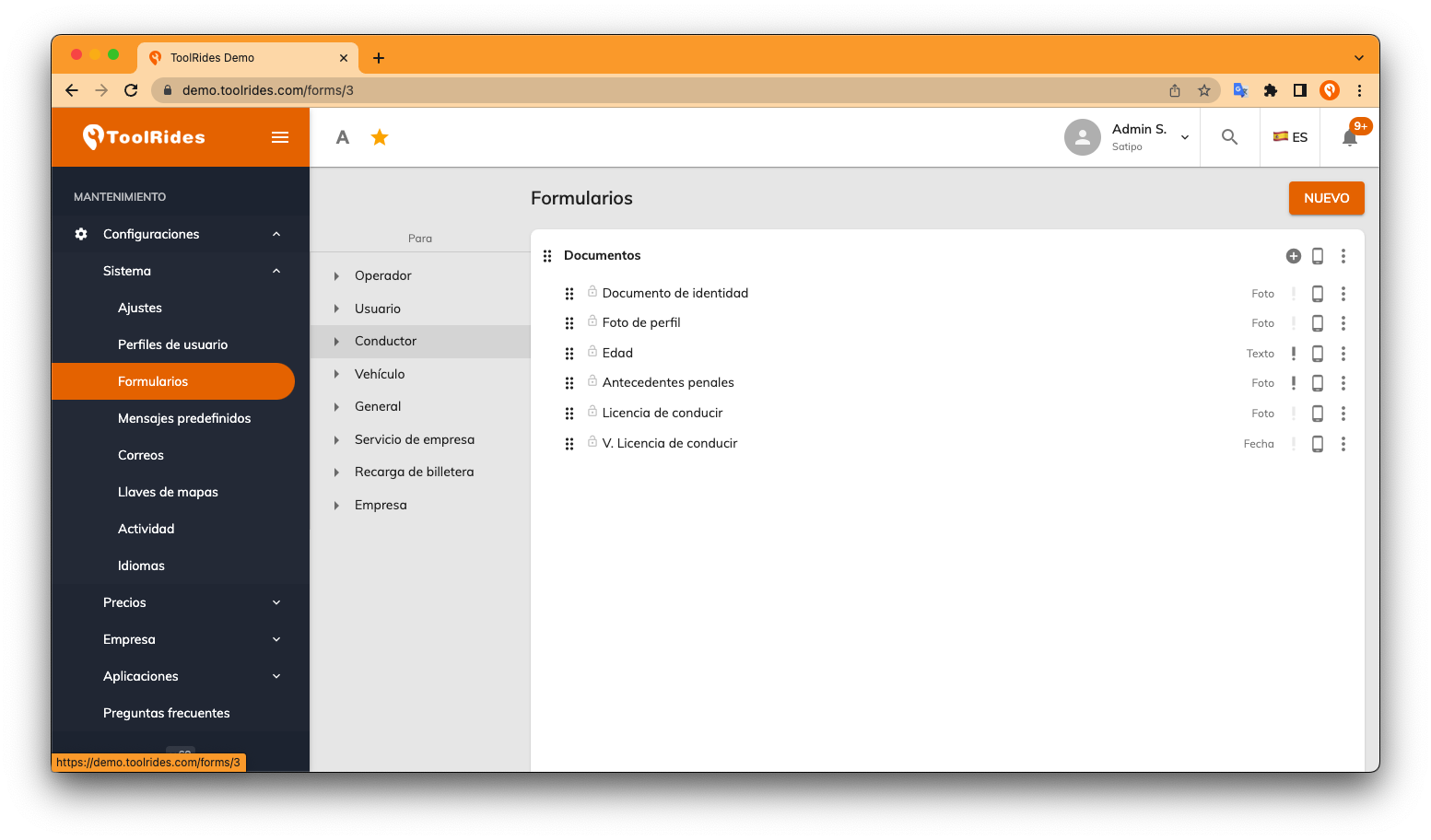
Go to Settings > System > Forms > Driver.
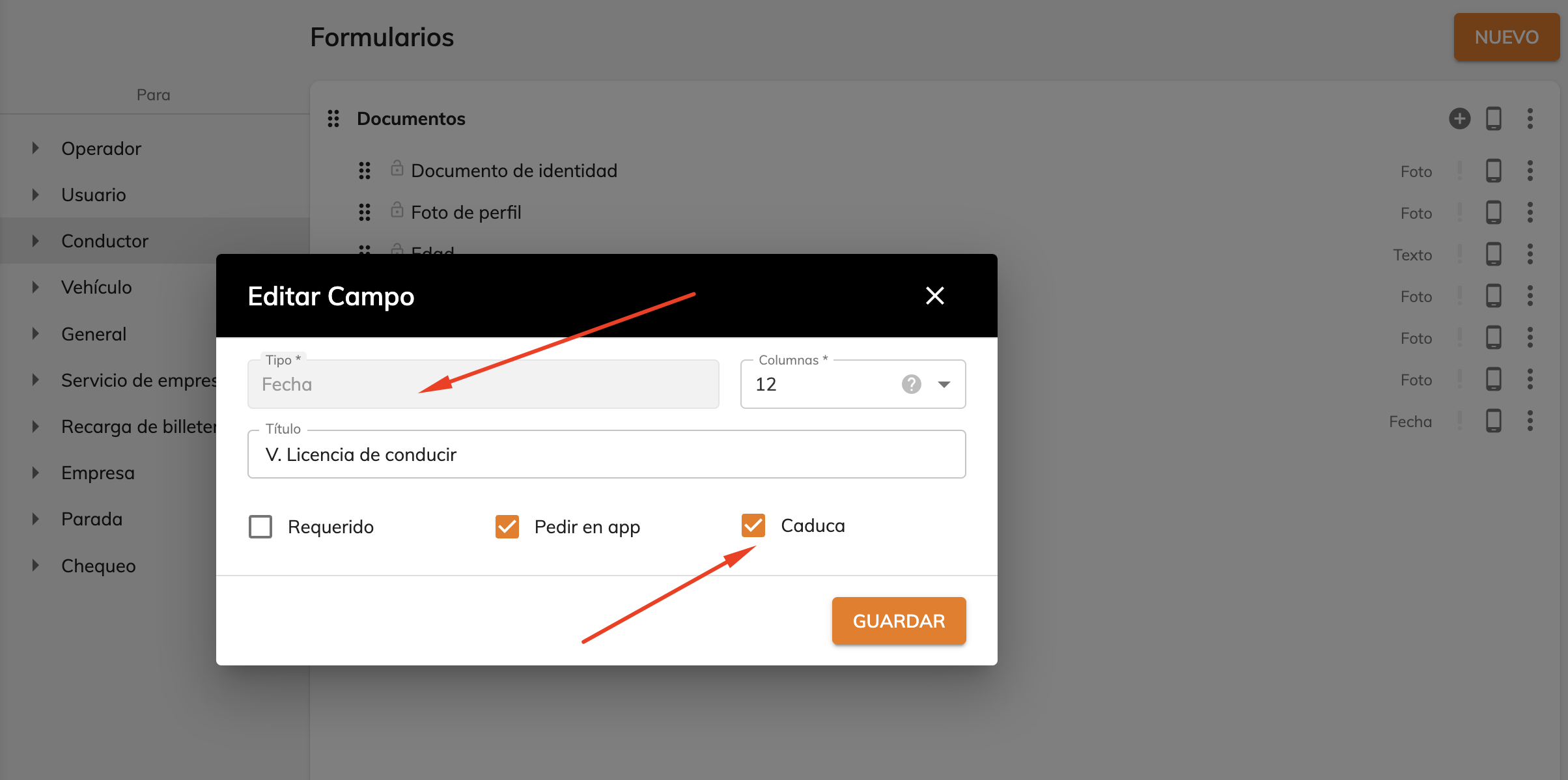
Next, add any fields that need an expiration or due date. These fields must be of the Date type and must have the "Expires" option enabled, as shown in the image below.
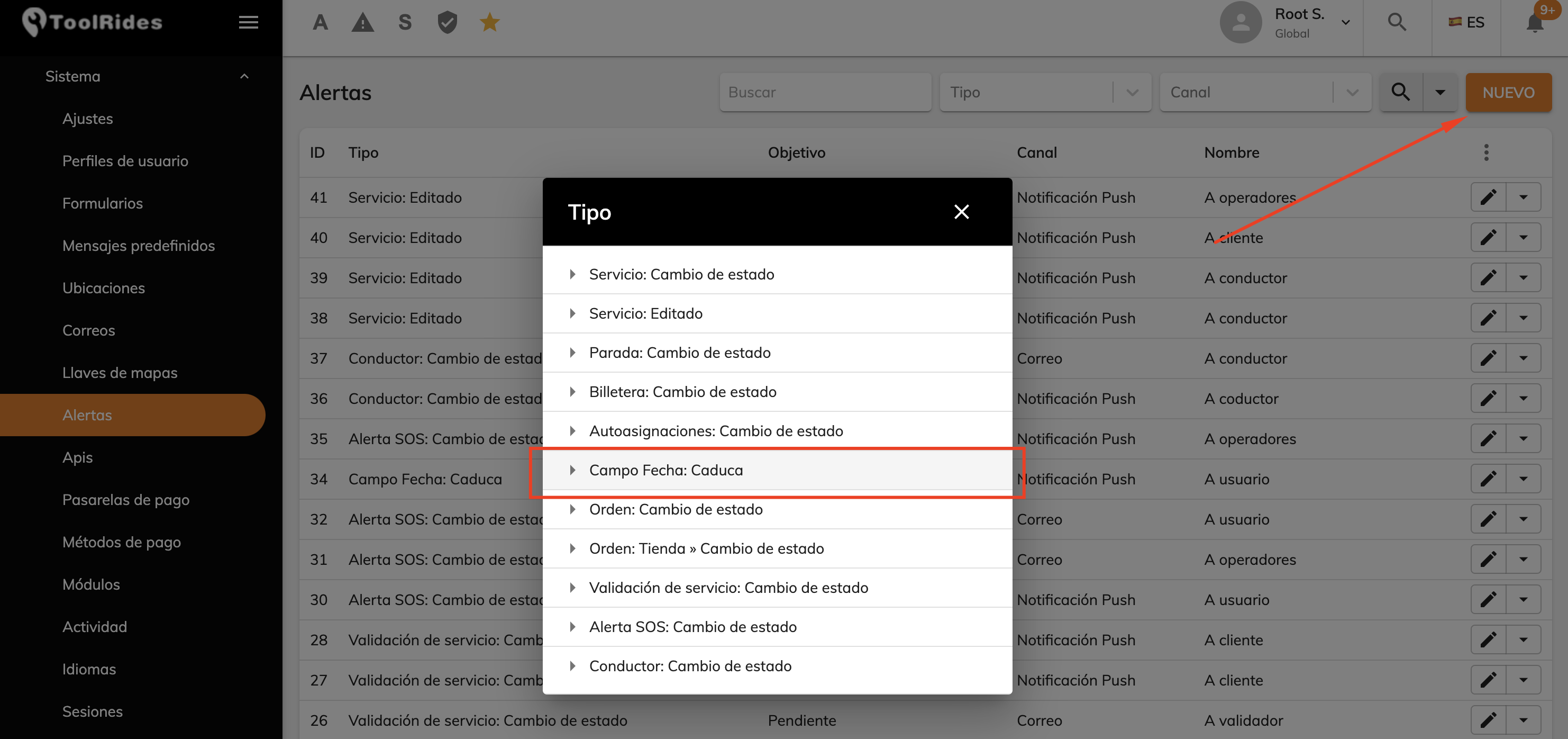
Now go to the Alerts module to set up the channels used to send expiration notices.
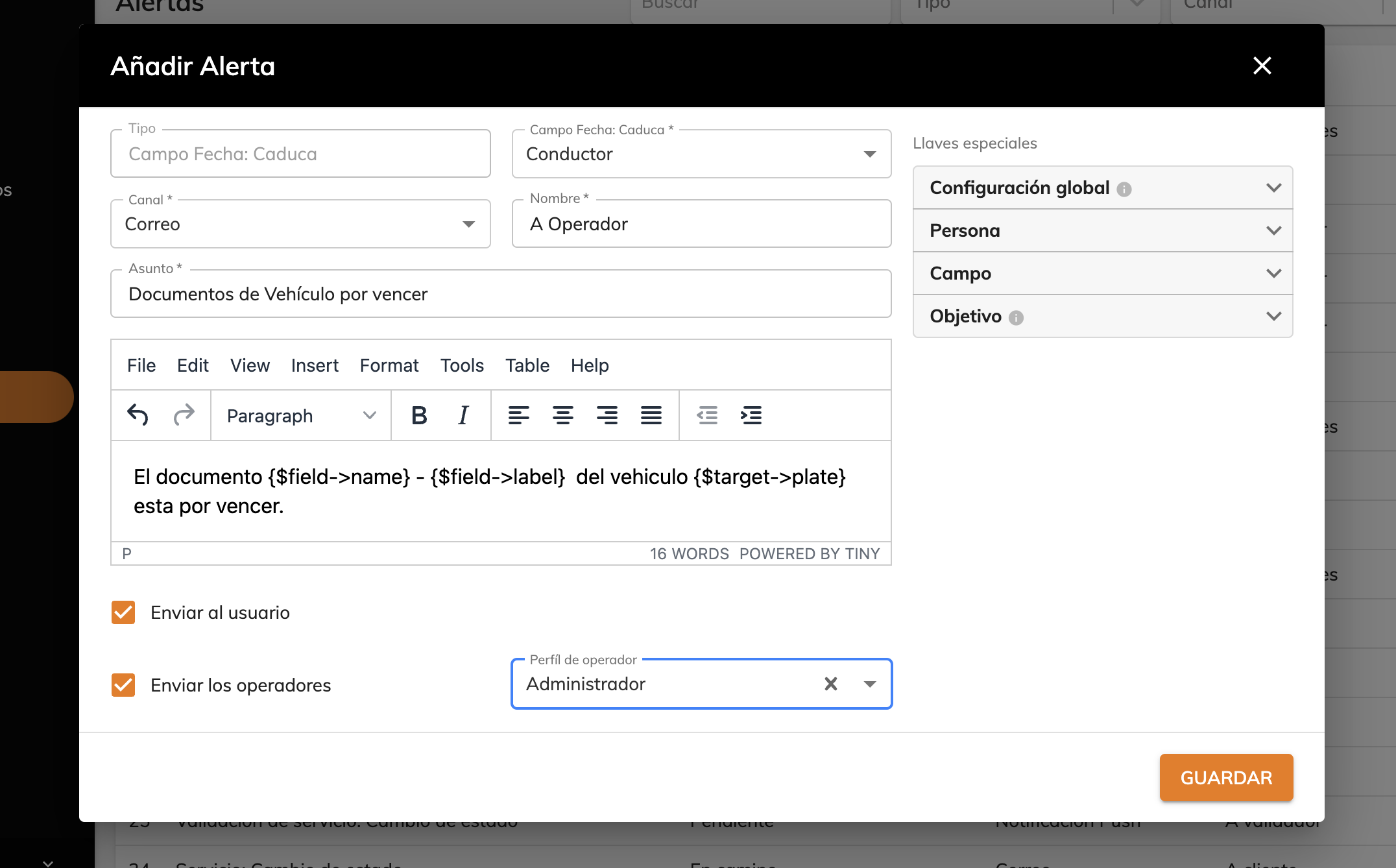
The alert works for both driver and vehicle documents, and can be set to be sent through the Email or Notification channel. Feel free to use this template as a starting point to configure it.
Was this article helpful?
Drivers and Vehicles
- Web Panel: Registering Drivers and Vehicles
- Web Panel: Approving Drivers and Vehicles
- Web panel: trip self-assignment for drivers
- Forms: Additional fields for Drivers and Vehicles
- Web Panel: Set up connection shifts for drivers
- Driver Forms: Document Expiration
- Cancel a Trip from the Driver App When the Customer Is a No-Show
- Adding extra charges when finishing a trip
- Web Panel: Changing vehicle images
- Guide to auto-assignment in the web panel