
 Use cases
 Messaging
 Taxi Companies
 Private Transport
 Transportation Entrepreneurs
 Last Mile
 SuperApp
 Software
 Taxi dispatch
 Corporate transportation
 Auction
 Products
 Booking Software
 Dispatch Platform
 Driver App
 Passenger App
 Web Widget
 Functions
 Schedule & Booking
 Driver Management
 Custom
 Corporate Portal
 Security & Support
 Resources
 Learn
Learn



Forms: Additional fields for Drivers and Vehicles
In this module, you can add extra fields to each driver and vehicle record, with field types such as text, dropdowns, checkboxes, and more.
These fields can be displayed in both the app and the web panel, depending on your configuration.
Go to Settings > System > Forms.
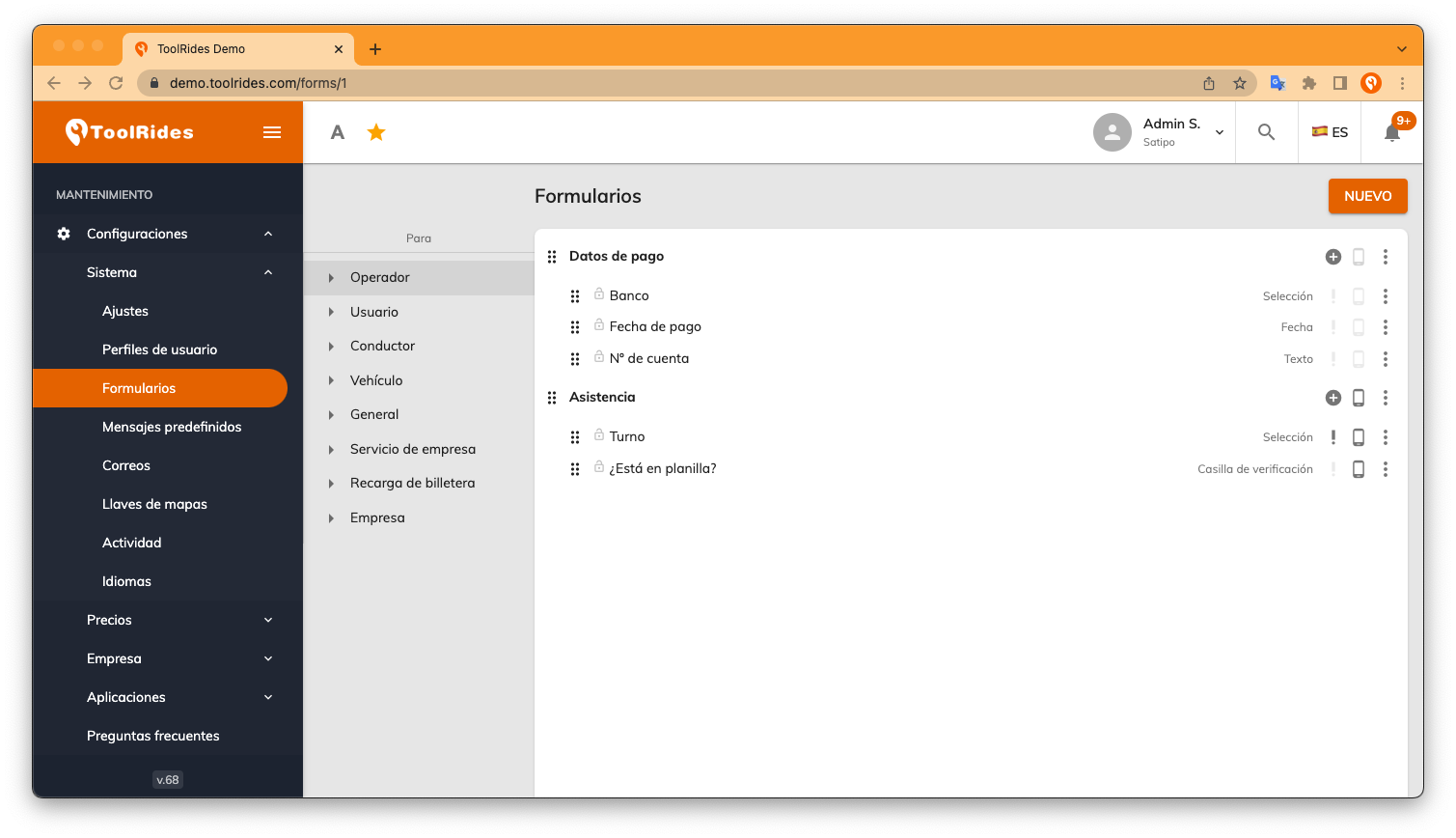
Driver
Within this section, you'll find subsections that make it easier to manage your additional fields. In this example, we'll set up fields for drivers and vehicles:
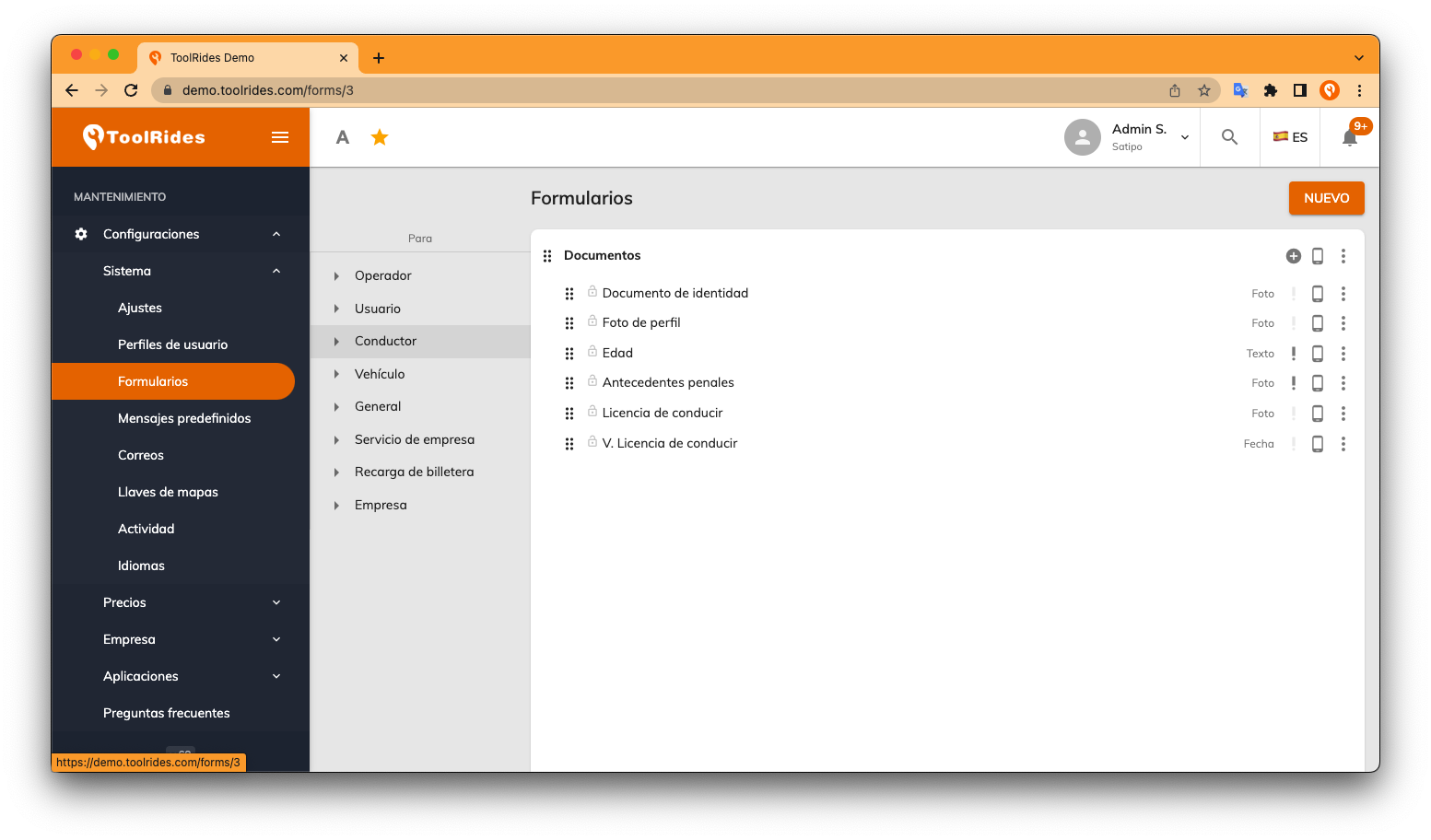
After selecting the Driver subsection, you can create new forms (to group fields together) or add fields to an existing form. In this case, you'll see a form called "Documents" with a (+) button to its right for adding additional fields.
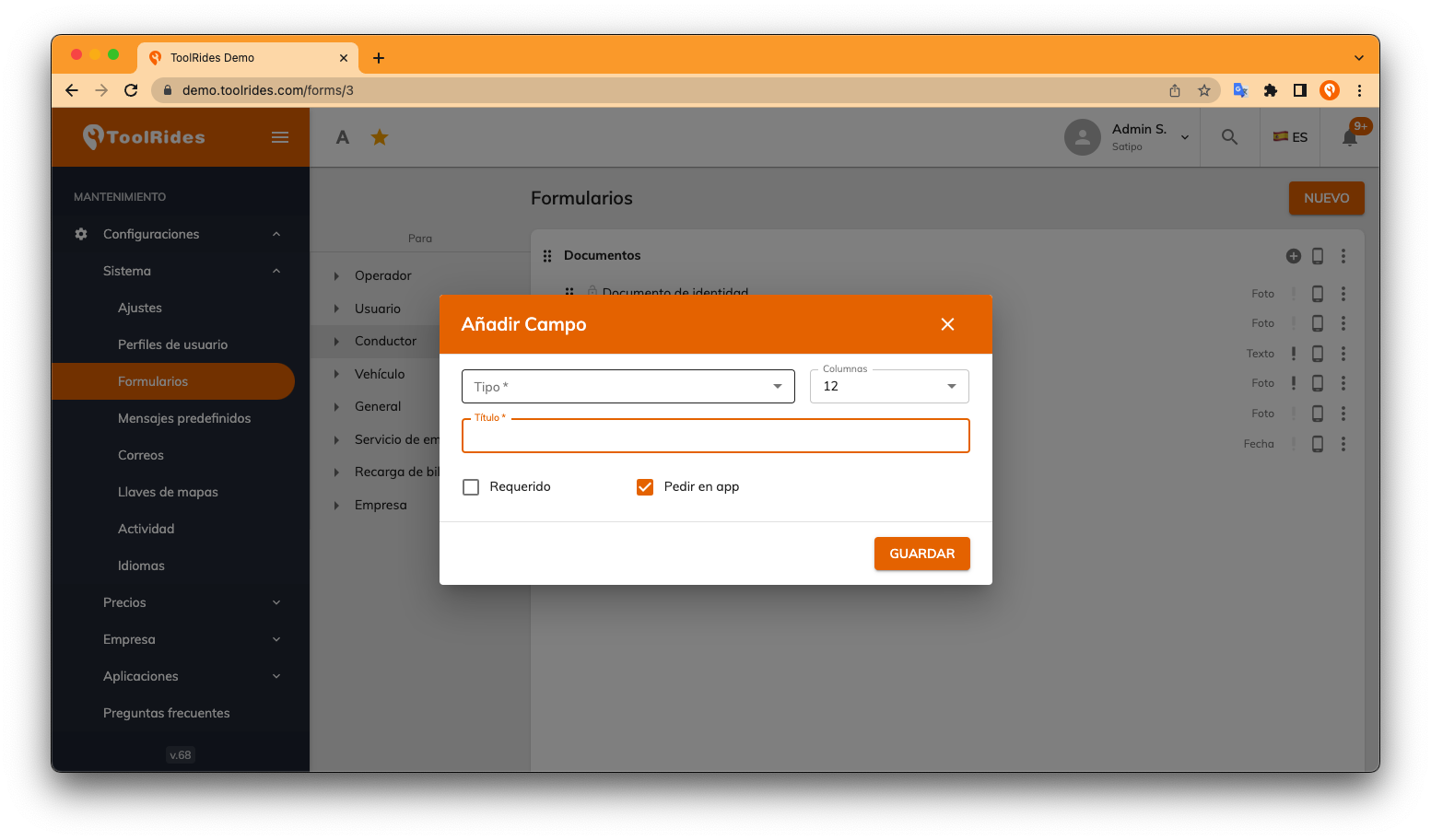
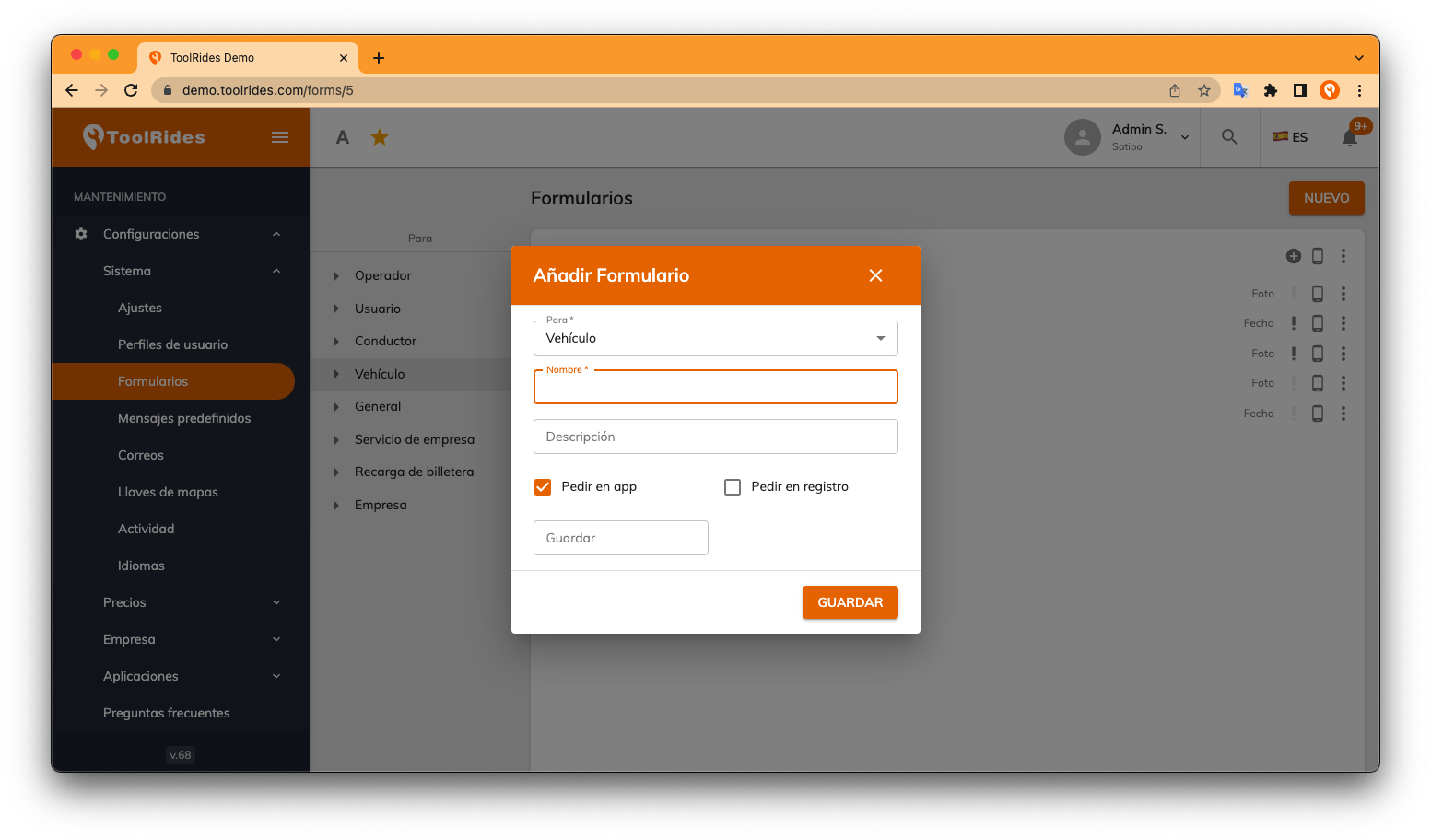
In this window, choose the field type, which can be text, dropdown, checklist, photo, date, and so on. Leave the columns field at the default of 12 so the field spans the full width; the title is the label that the field will appear under in the records.
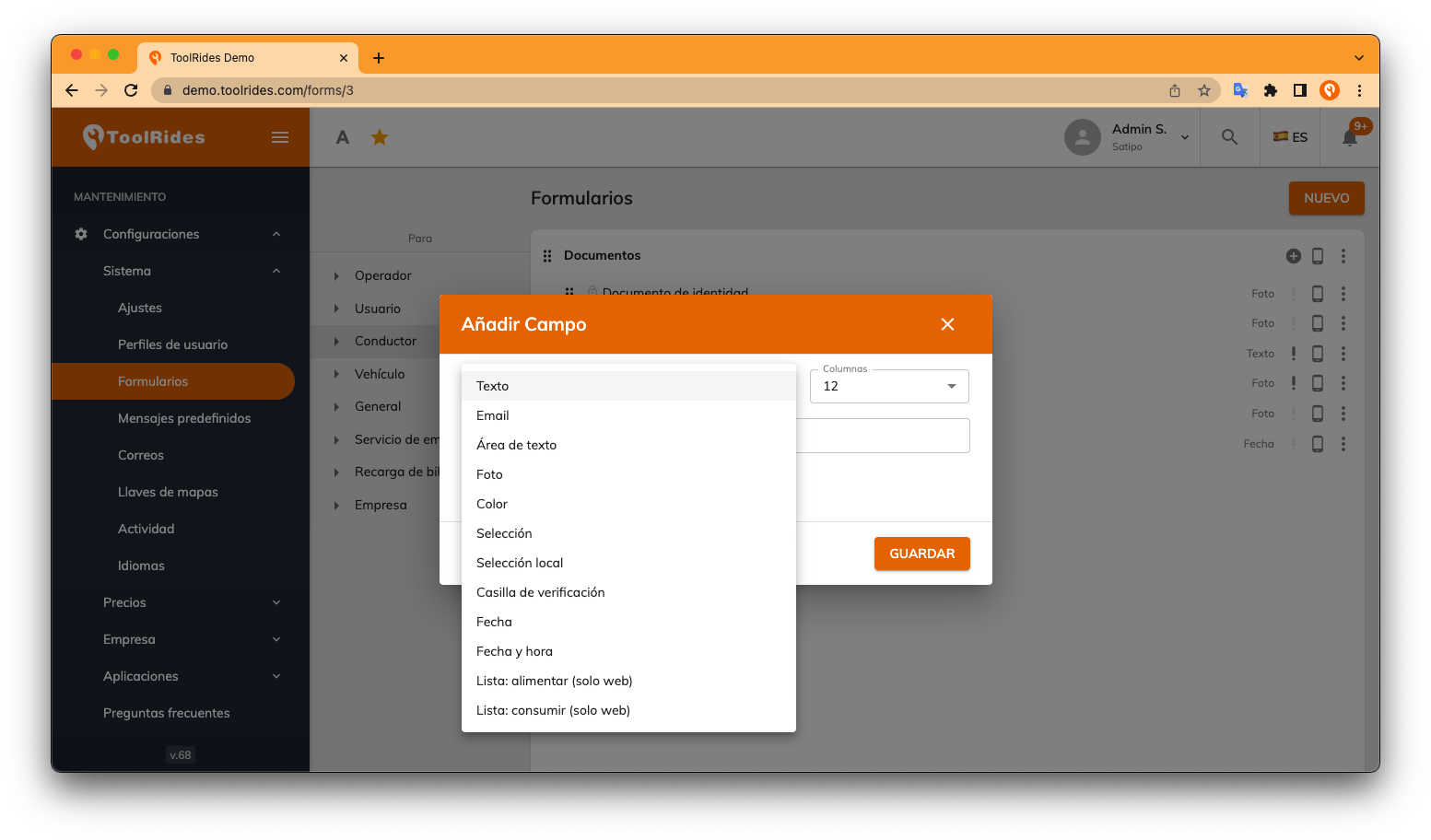
Finally, the Required option makes the field mandatory, and Request in App also shows the field in the app.
Vehicle
To add additional fields to the vehicle record, follow the same steps as for drivers, but now choose the Vehicle subsection.
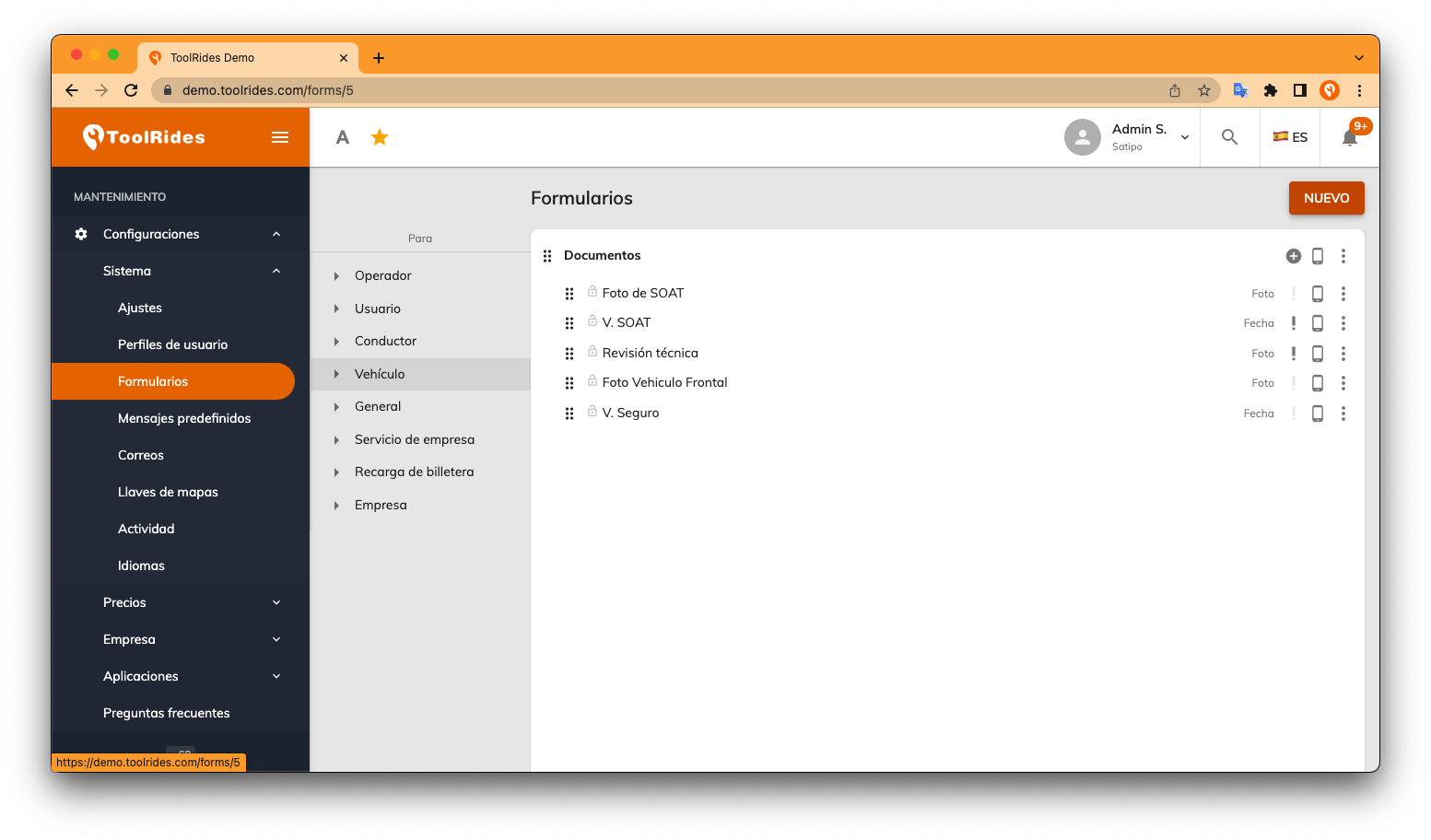
Then follow the same steps to add a field, or if you want to add a new group of fields, click
NEW.
Was this article helpful?
Drivers and Vehicles
- Web Panel: Registering Drivers and Vehicles
- Web Panel: Approving Drivers and Vehicles
- Web panel: trip self-assignment for drivers
- Forms: Additional fields for Drivers and Vehicles
- Web Panel: Set up connection shifts for drivers
- Driver Forms: Document Expiration
- Cancel a Trip from the Driver App When the Customer Is a No-Show
- Adding extra charges when finishing a trip
- Web Panel: Changing vehicle images
- Guide to auto-assignment in the web panel