
 Use cases
 Messaging
 Taxi Companies
 Private Transport
 Transportation Entrepreneurs
 Last Mile
 SuperApp
 Software
 Taxi dispatch
 Corporate transportation
 Auction
 Products
 Booking Software
 Dispatch Platform
 Driver App
 Passenger App
 Web Widget
 Functions
 Schedule & Booking
 Driver Management
 Custom
 Corporate Portal
 Security & Support
 Resources
 Learn
Learn



Referrals: benefits for users and drivers
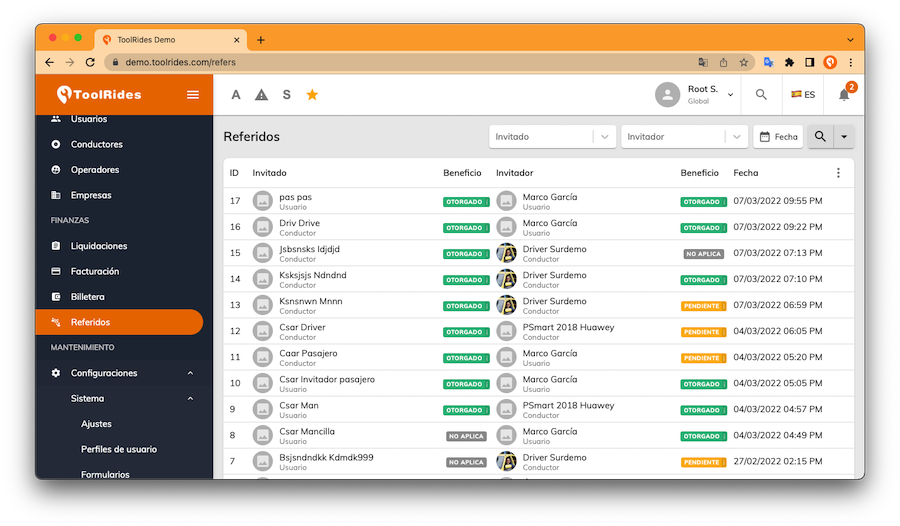
Go to the Finance > Referrals module. Here you can see every user and driver who enters a referral code to earn a benefit, which you'll configure in another module covered in this tutorial.
To get started with referral setup, you first need to create promotions and turn on the "Private" option. To do this, go to Settings > Pricing > Promotions.
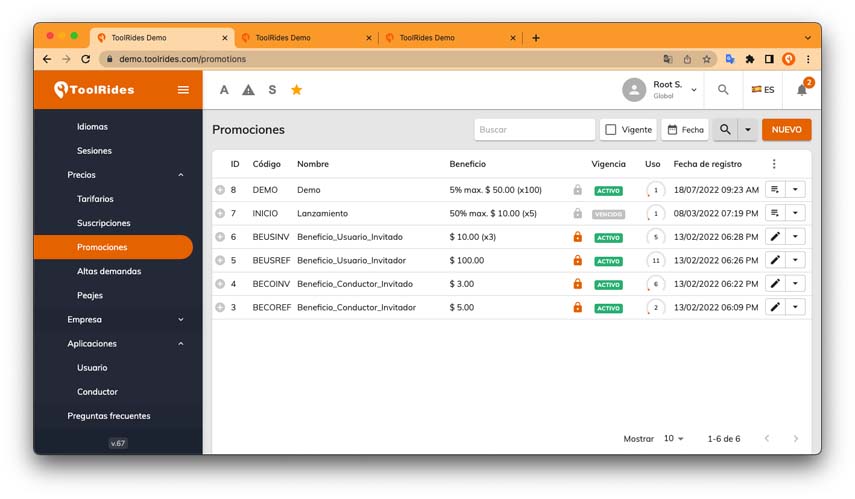
Now click the "New" button to create the promotions you'll later use for referrals.
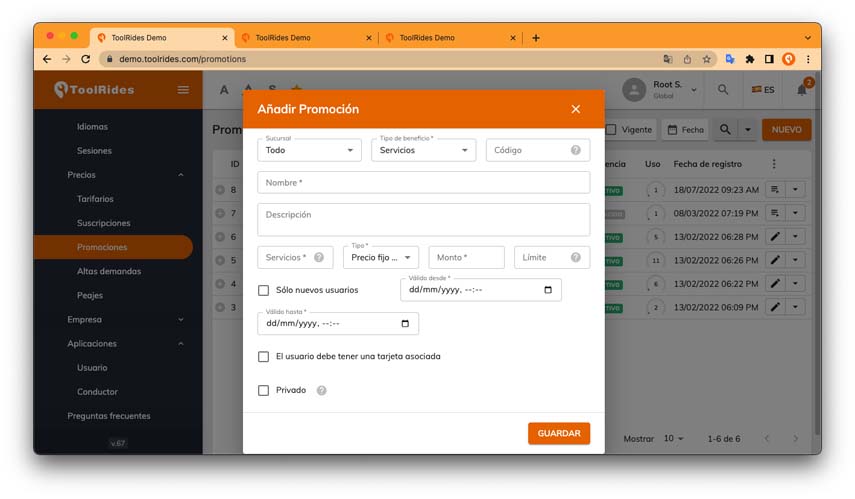
The "services" benefit type means the promo code can be used for a set number of trips. For example, if you set 10 trips, the promo code can be used in the app by a customer for up to 10 trips.
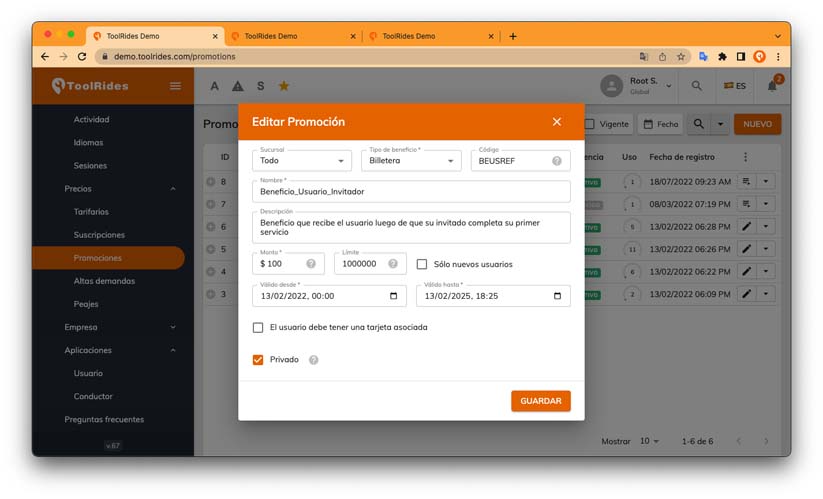
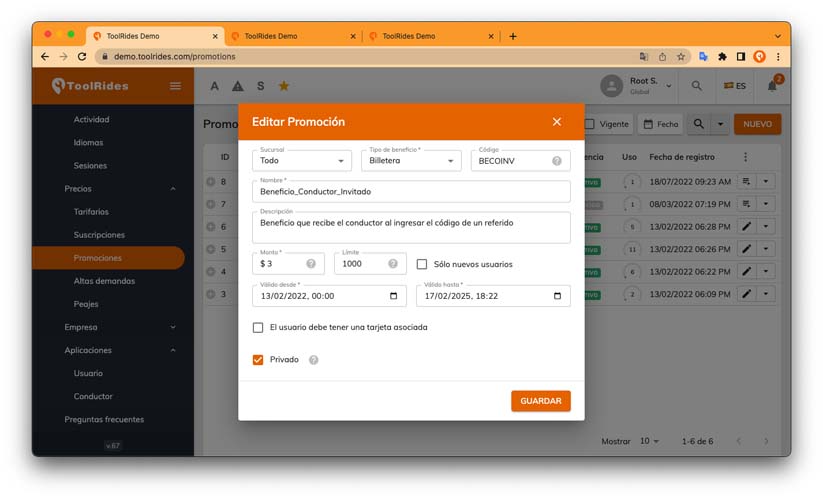
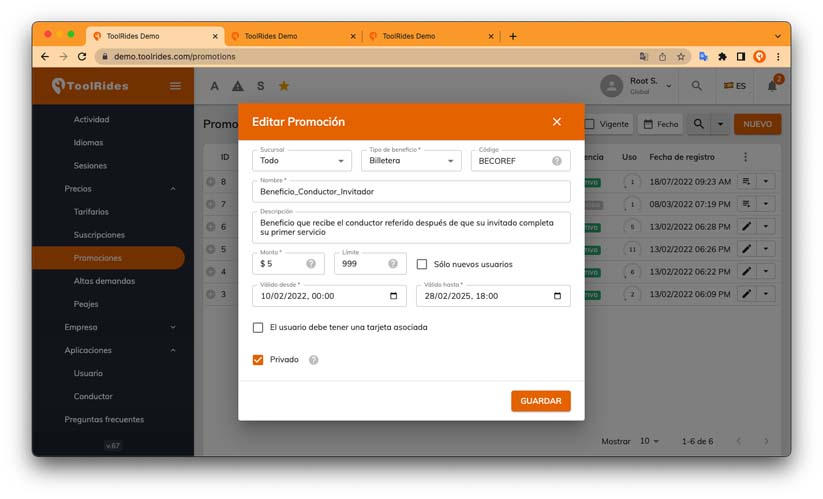
The "wallet" benefit type means the promo code adds a set amount to the beneficiary's wallet.
The limit field sets how many people can use the promo code.
Here's an example of the benefit for the invited user:
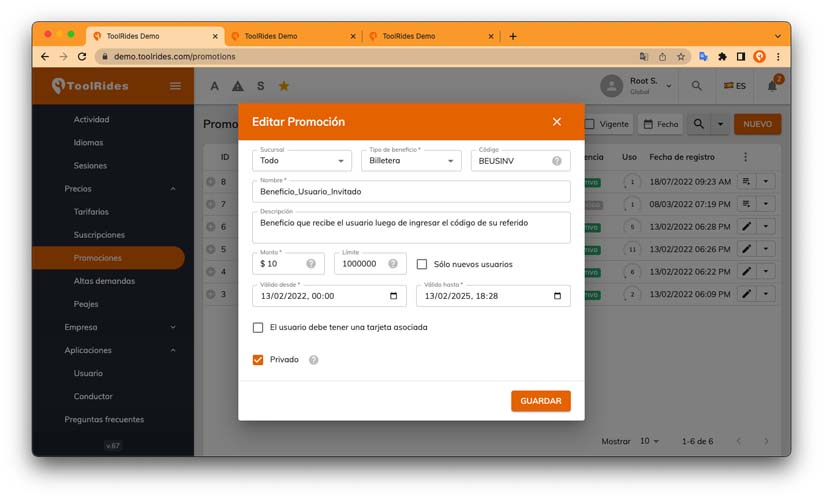
Here's an example of the benefit for the referring user:
 Here's an example of the benefit for the invited driver:
 Here's an example of the benefit for the referring driver:
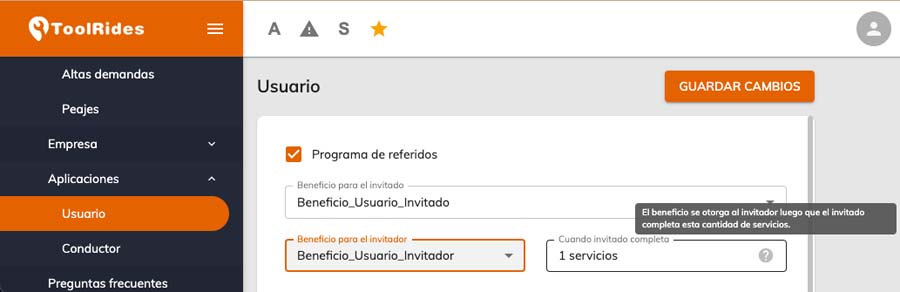
Now you need to assign these promotions to the user and/or driver benefits. The image below shows how the benefit is assigned to the user. Go to Settings > Apps > User.
Next, turn on the "Referral program," choose the benefit for the invitee and the referrer, and optionally set the number of trips the invitee must complete for the referrer to earn the benefit.
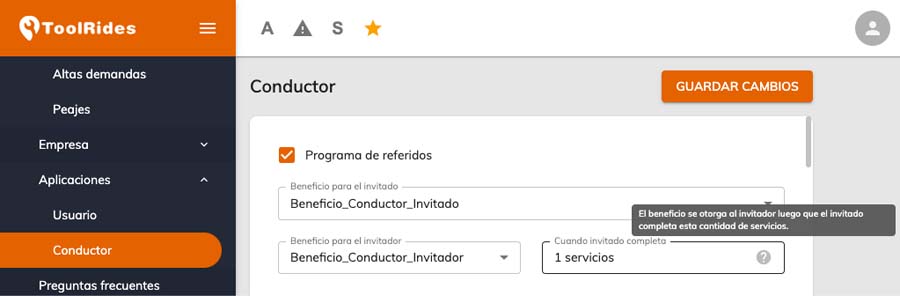
The image below shows how the benefit is assigned to the driver. Go to Settings > Apps > Driver.
Next, turn on the "Referral program," choose the benefit for the invitee and the referrer, and optionally set the number of trips the invitee must complete for the referrer to earn the benefit.
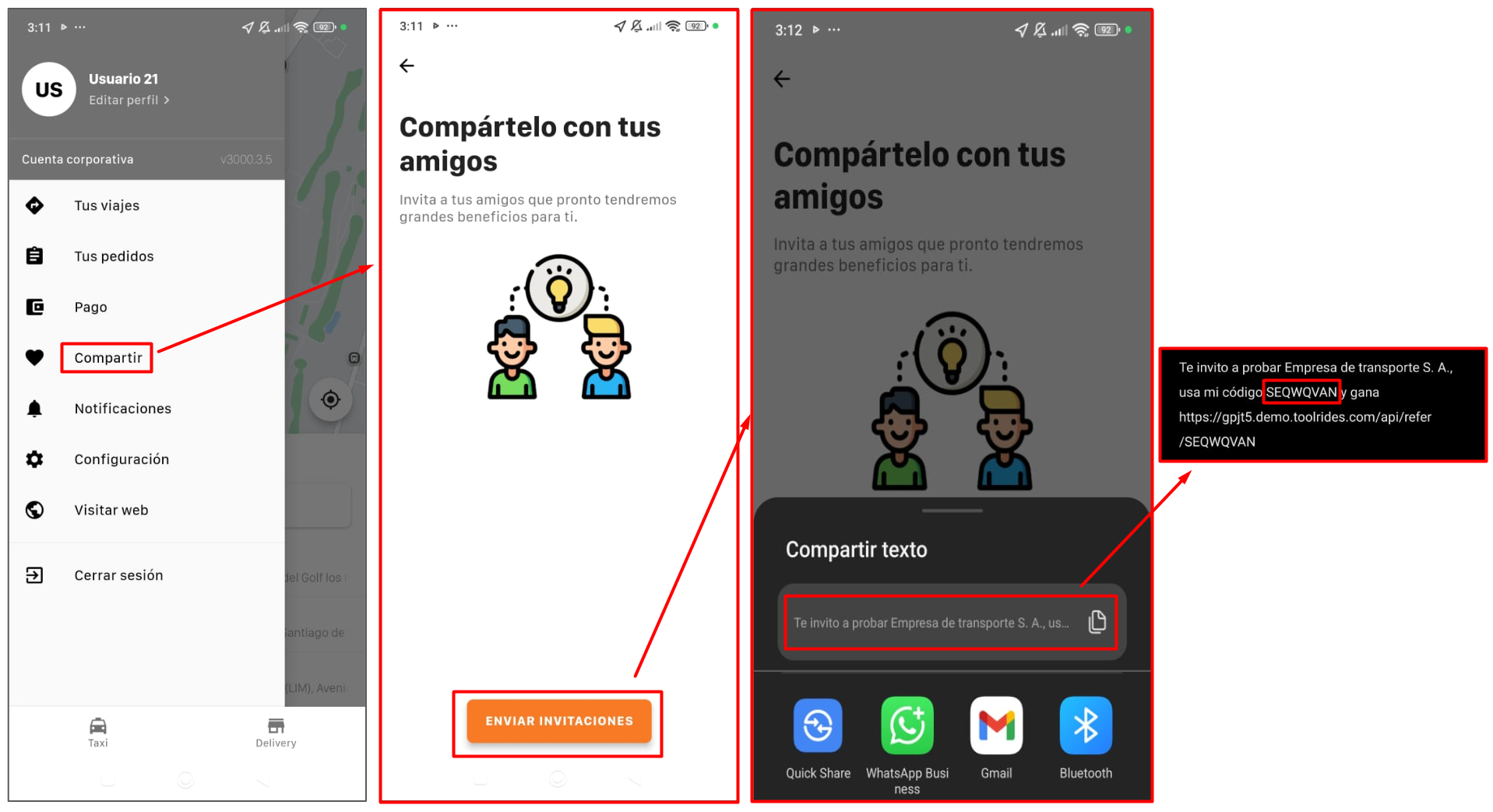
Keep in mind that the referral code can't be edited, and each user and driver has one that's generated automatically.
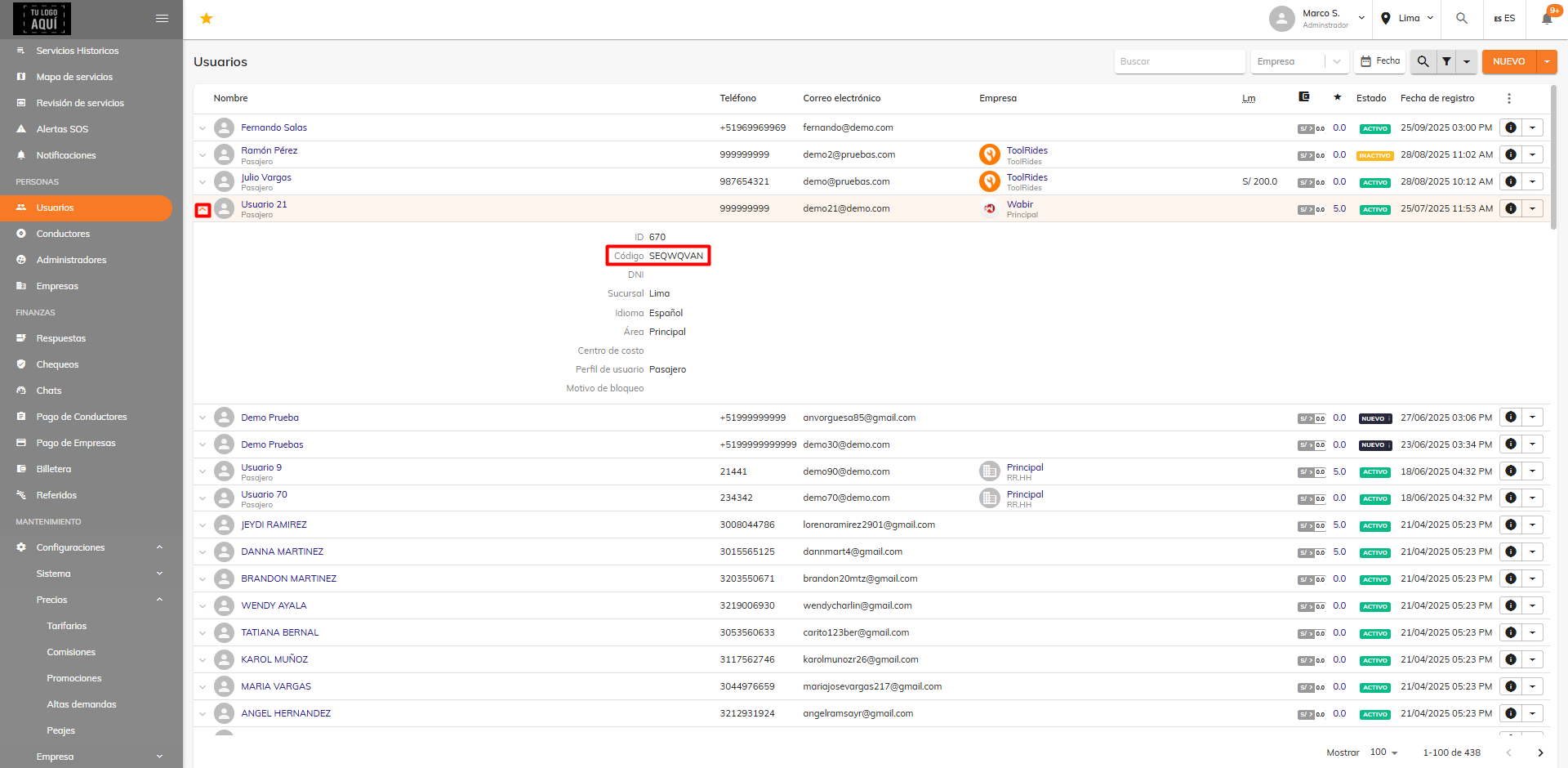
The referral code is located in the user's record.
Was this article helpful?