
 Use cases
 Messaging
 Taxi Companies
 Private Transport
 Transportation Entrepreneurs
 Last Mile
 SuperApp
 Software
 Taxi dispatch
 Corporate transportation
 Auction
 Products
 Booking Software
 Dispatch Platform
 Driver App
 Passenger App
 Web Widget
 Functions
 Schedule & Booking
 Driver Management
 Custom
 Corporate Portal
 Security & Support
 Resources
 Learn
Learn



Setting Up Trip Validation for Company Users
To set up trips requested by Company Users so they must be validated by authorized people at each Company, follow these steps:
Go to the Users section and filter by the company where you want to enable the option.
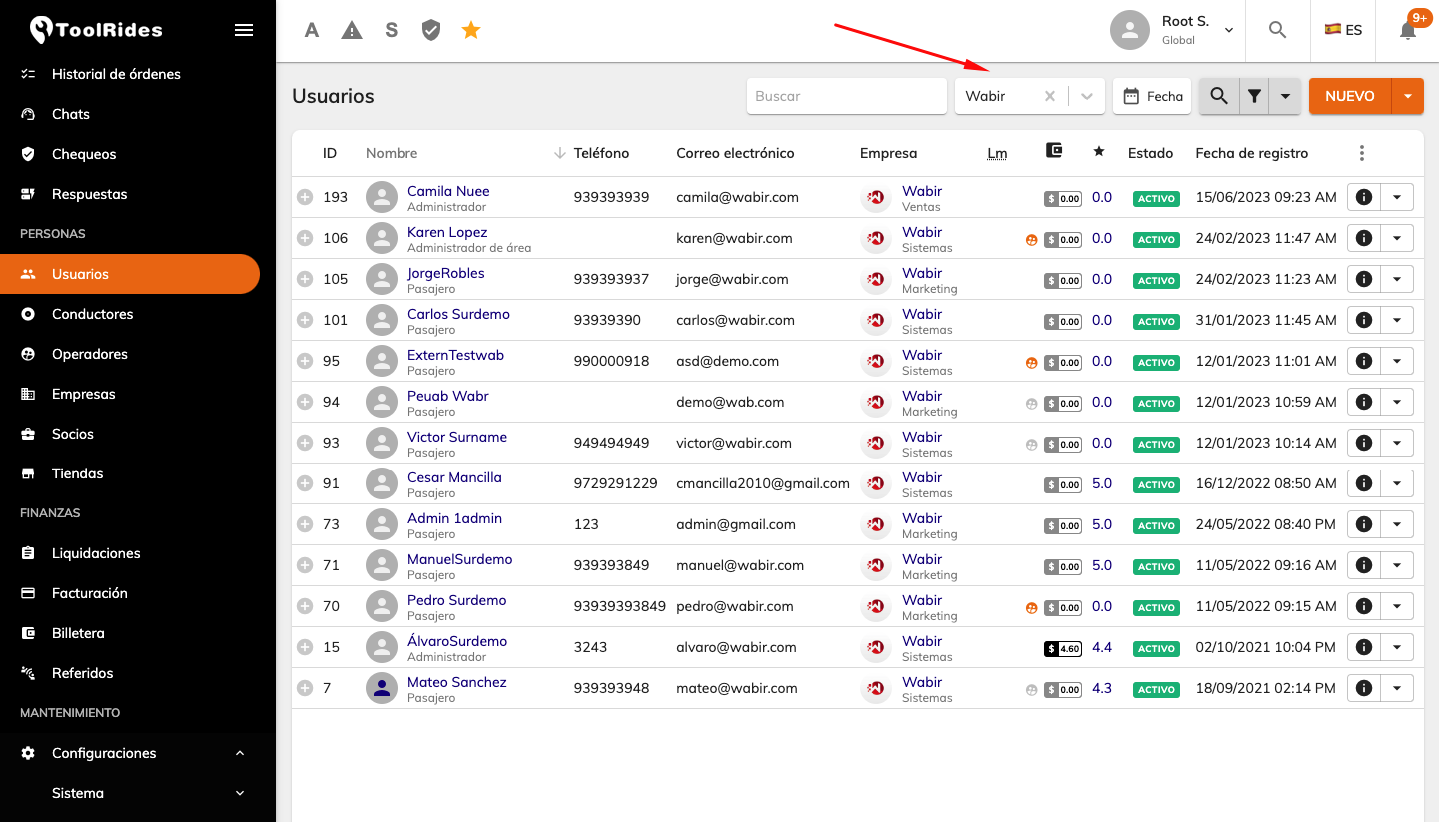
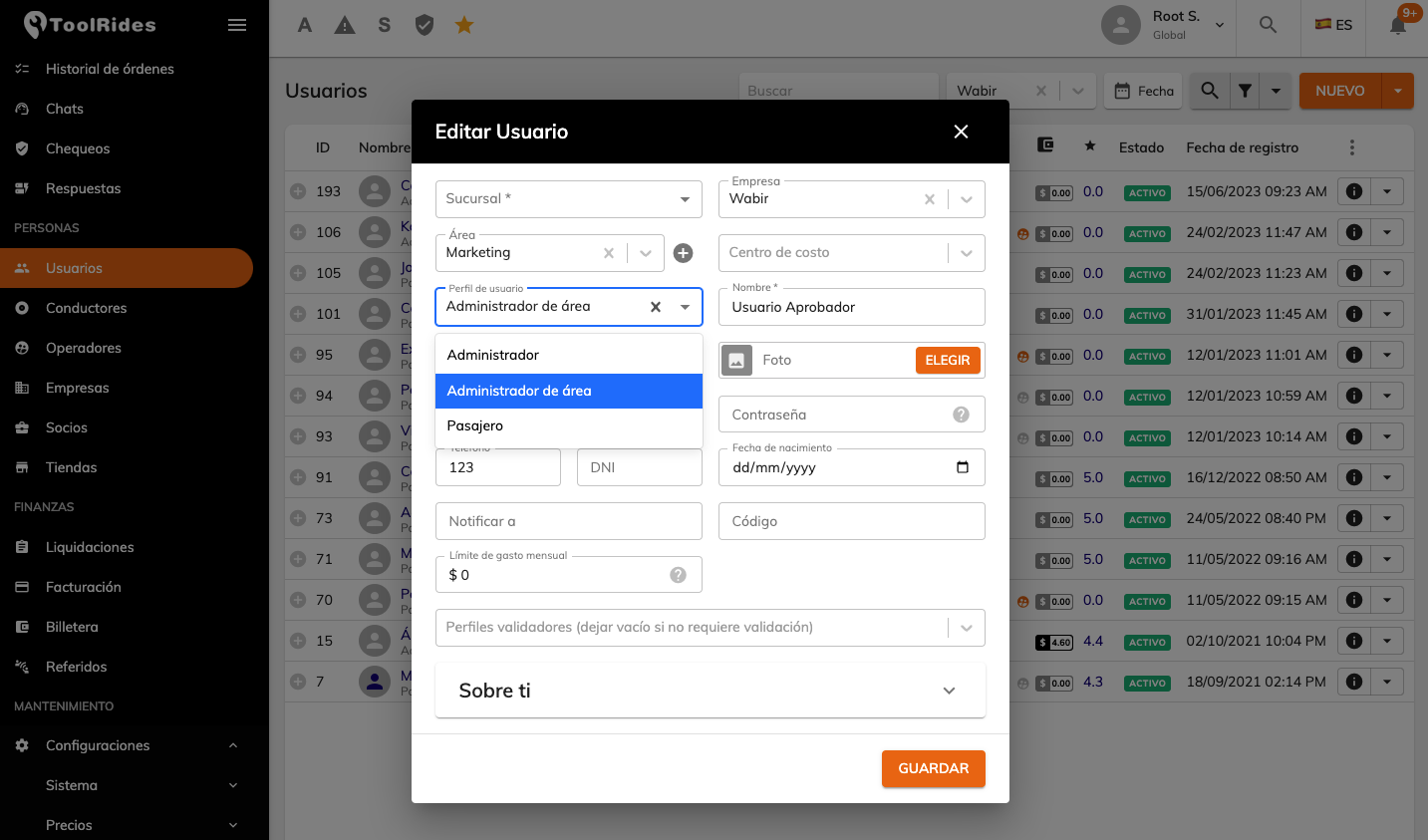
Set Up the Users Who Will Authorize Trips
First, we'll set up the users who will authorize or approve the requested trips. To do this, click the Edit button, then choose the User Profile option, which can be Area Administrator or General Administrator to have the ability to approve trips.
Set Up the Users Who Need Trip Authorization
Now we'll set up the users who will need their trips approved. For this, their User Profile must be "Passenger", and then we need to choose a Validator profile option:
If we select:
Administrator: Any administrator user can approve the user's trips.
Area administrator: Only administrators in their area can approve the trips.
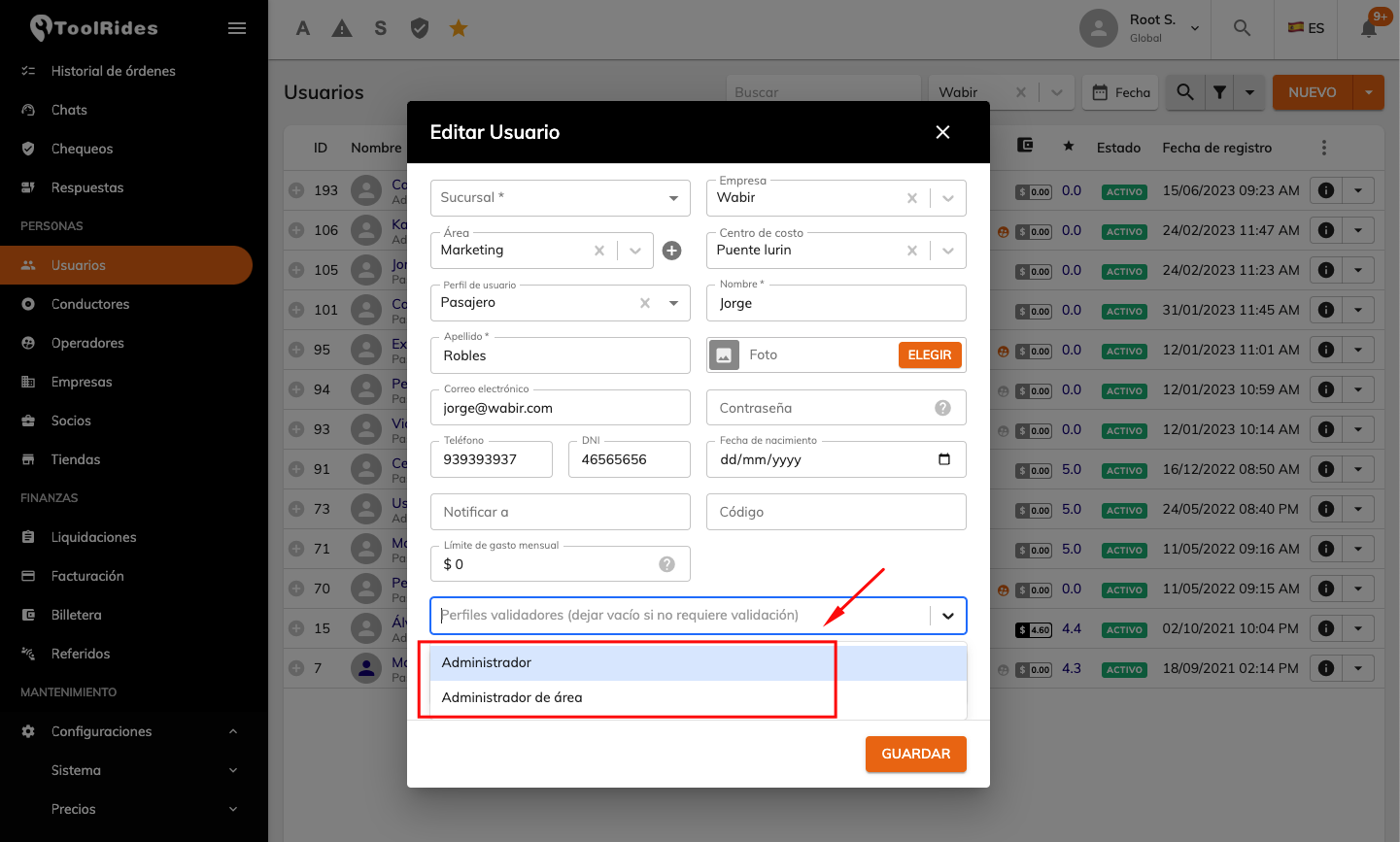
An "Choose user" box will now be enabled. This option lets you pick the approver when making the booking; if it's not active, the trip is sent to all administrators so that any of them can approve it.

If the "Choose User" option is enabled, when the user logs in via web or app, they can pick the authorizing user as follows:
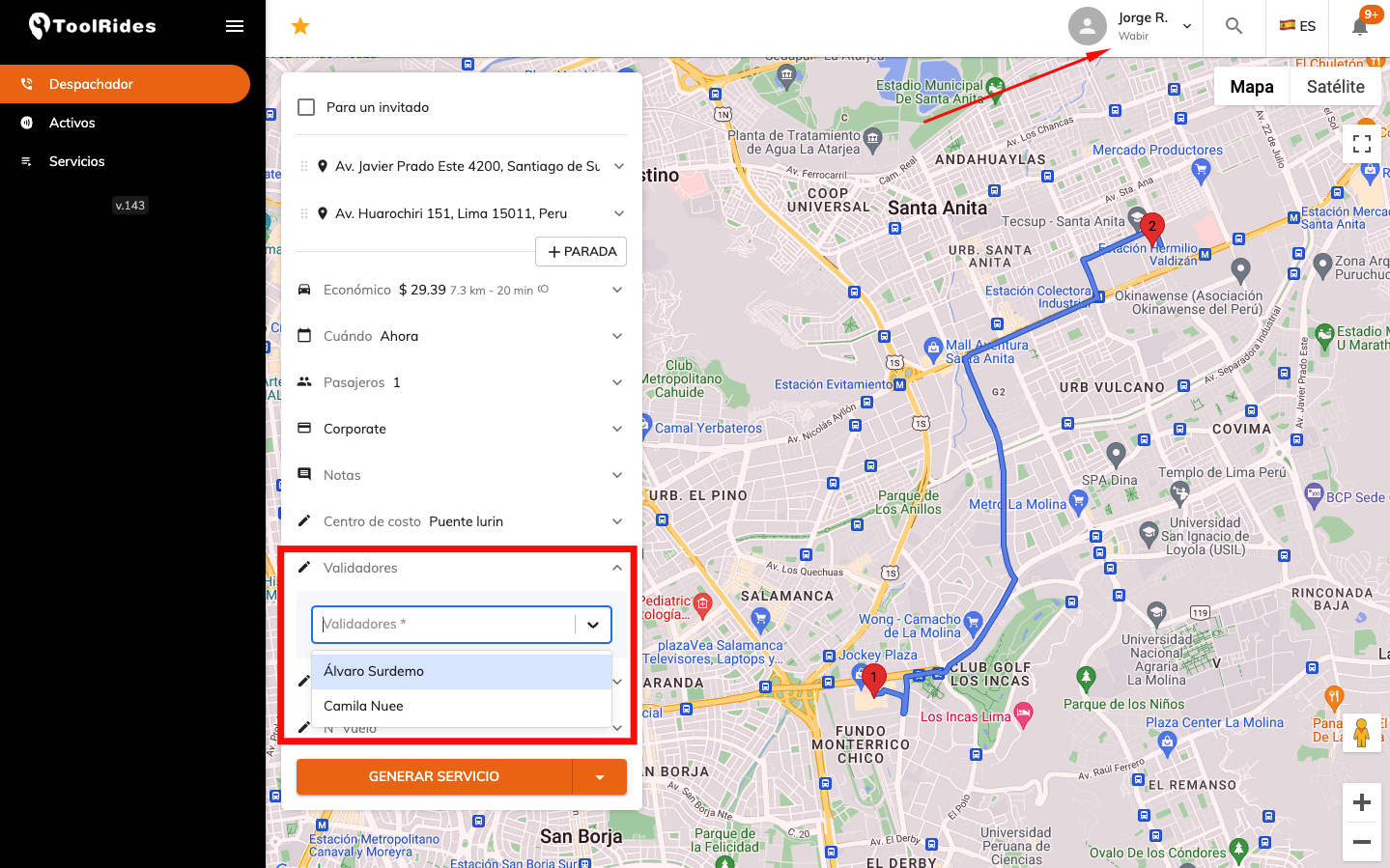
After booking the trip, it can't be assigned to drivers until an approver authorizes the scheduled trip.

If they log in via the app, they can pick the authorizing user this way:
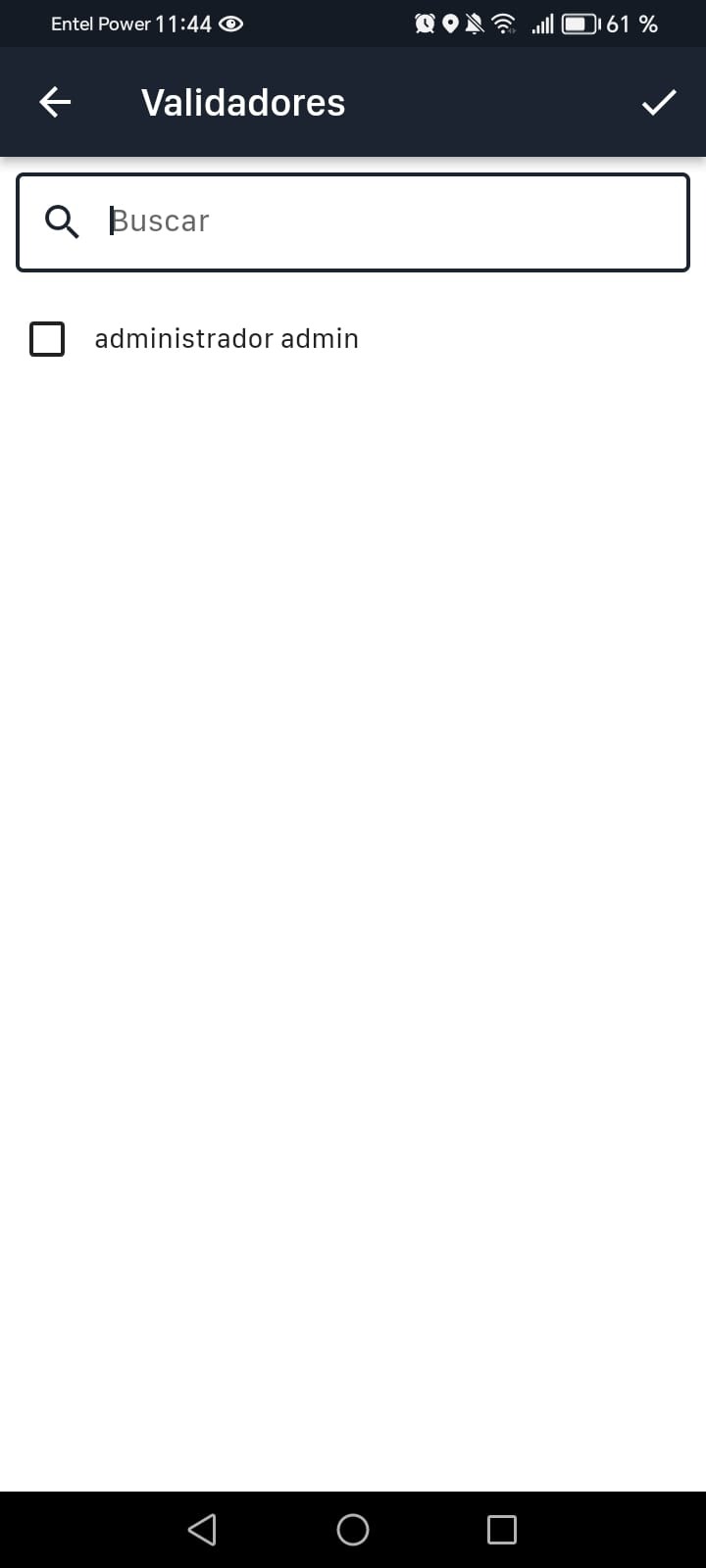
Approve the trip
The trip authorizer will need to log in via web or app to authorize the trip from the following section:
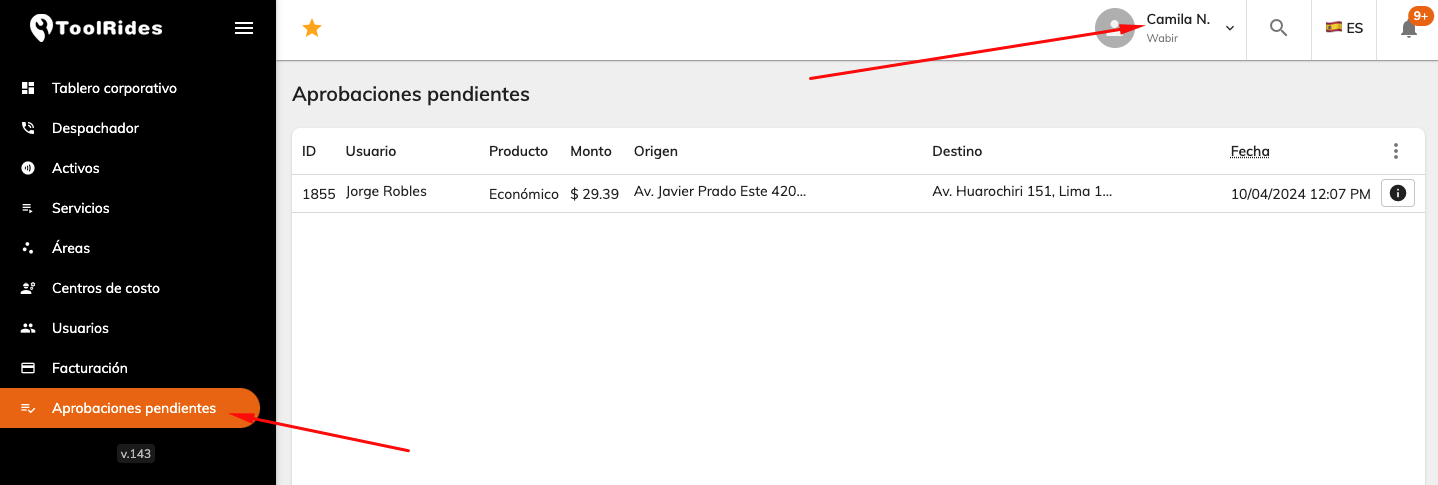
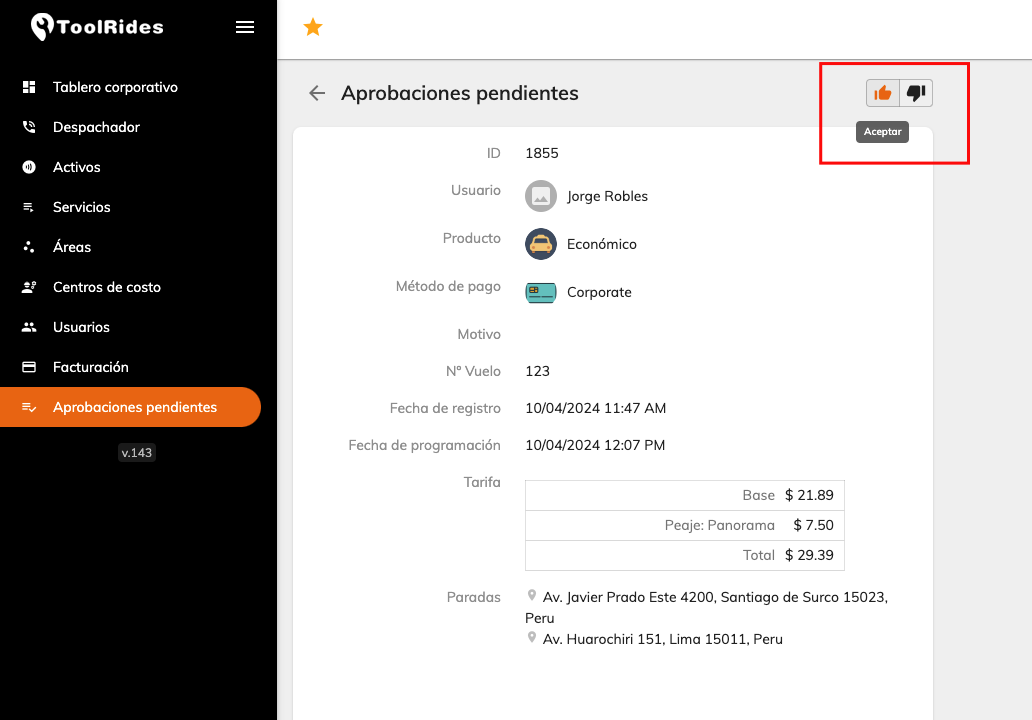
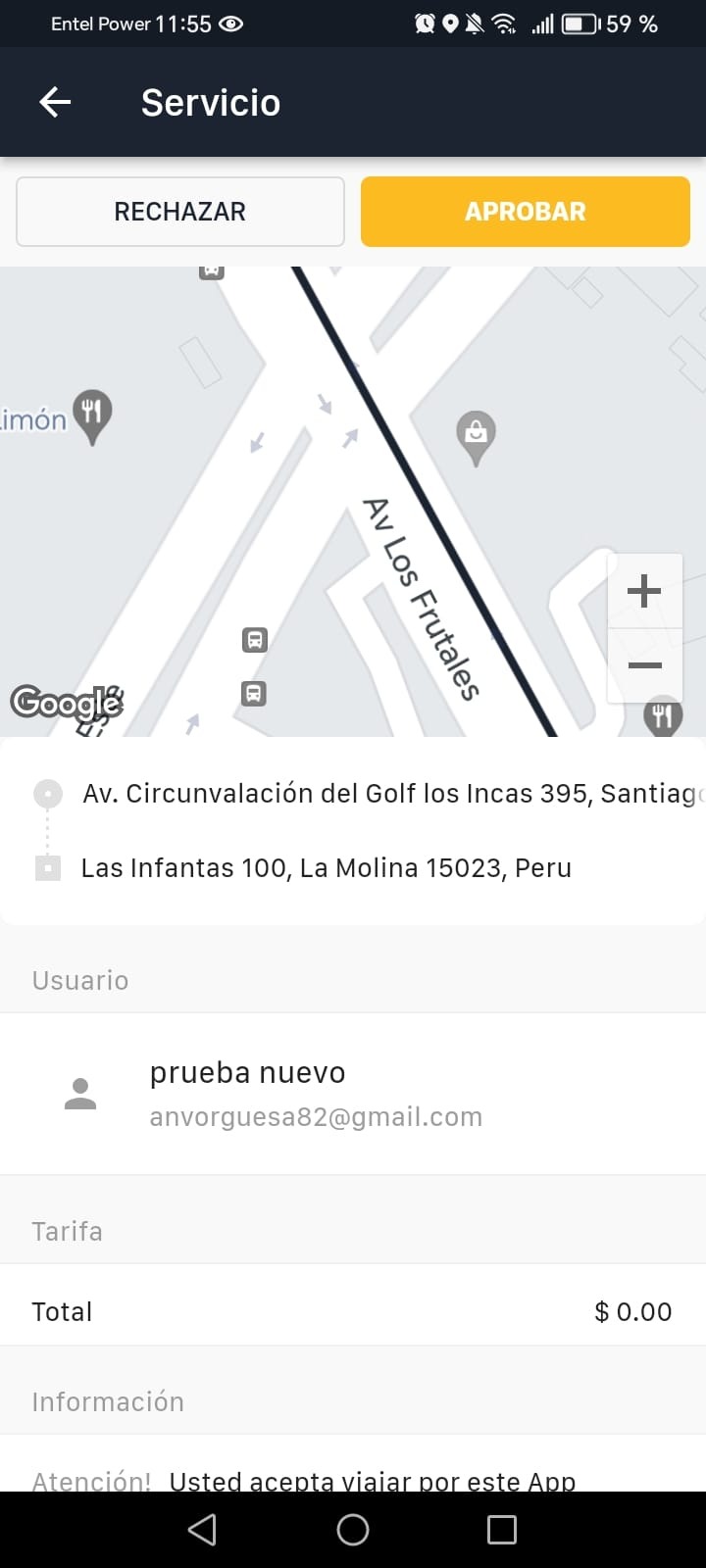
When they open the trip details, they'll see the user and trip information to decide whether to approve it or not, using the highlighted buttons:
In the app, to approve the trip, they'll need to go to 'pending approvals', where the trips awaiting approval will appear.
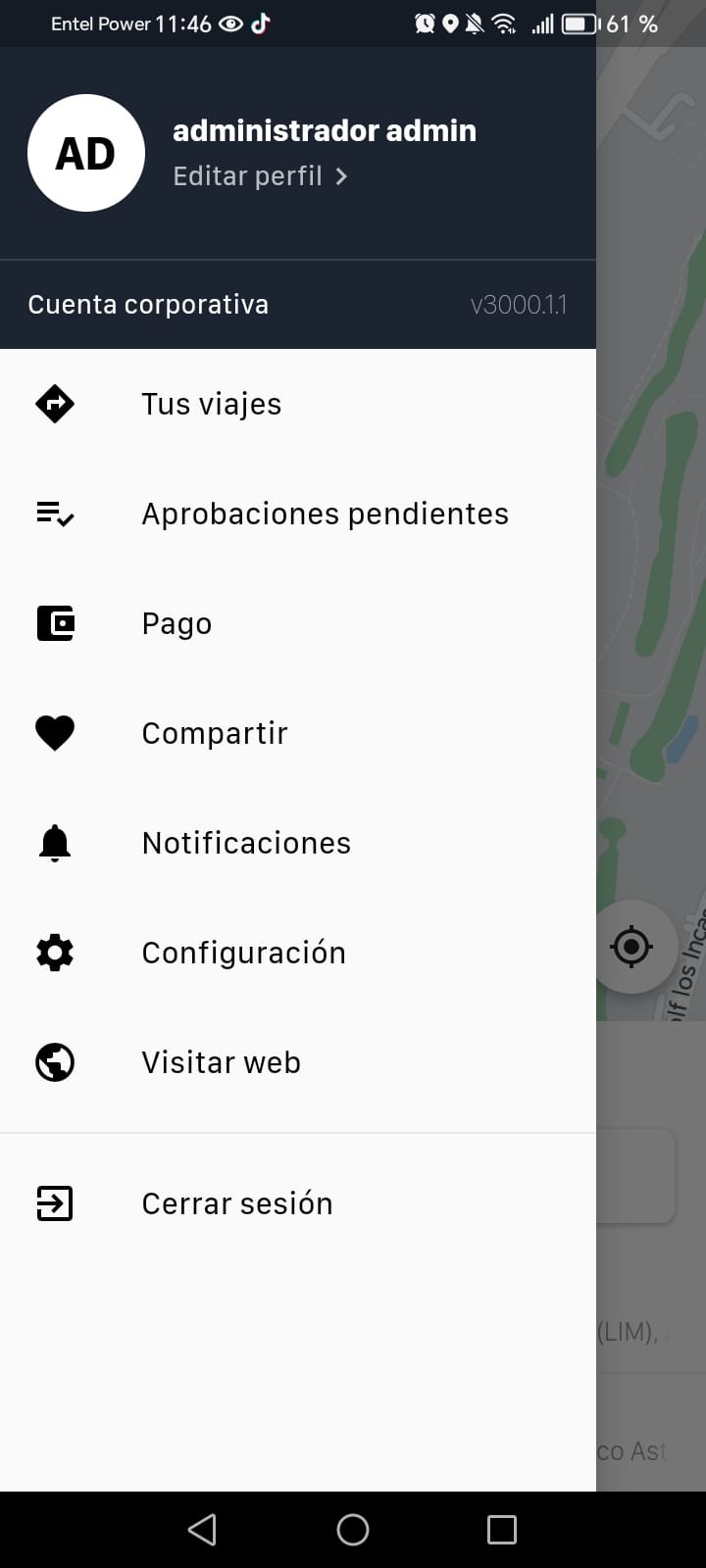
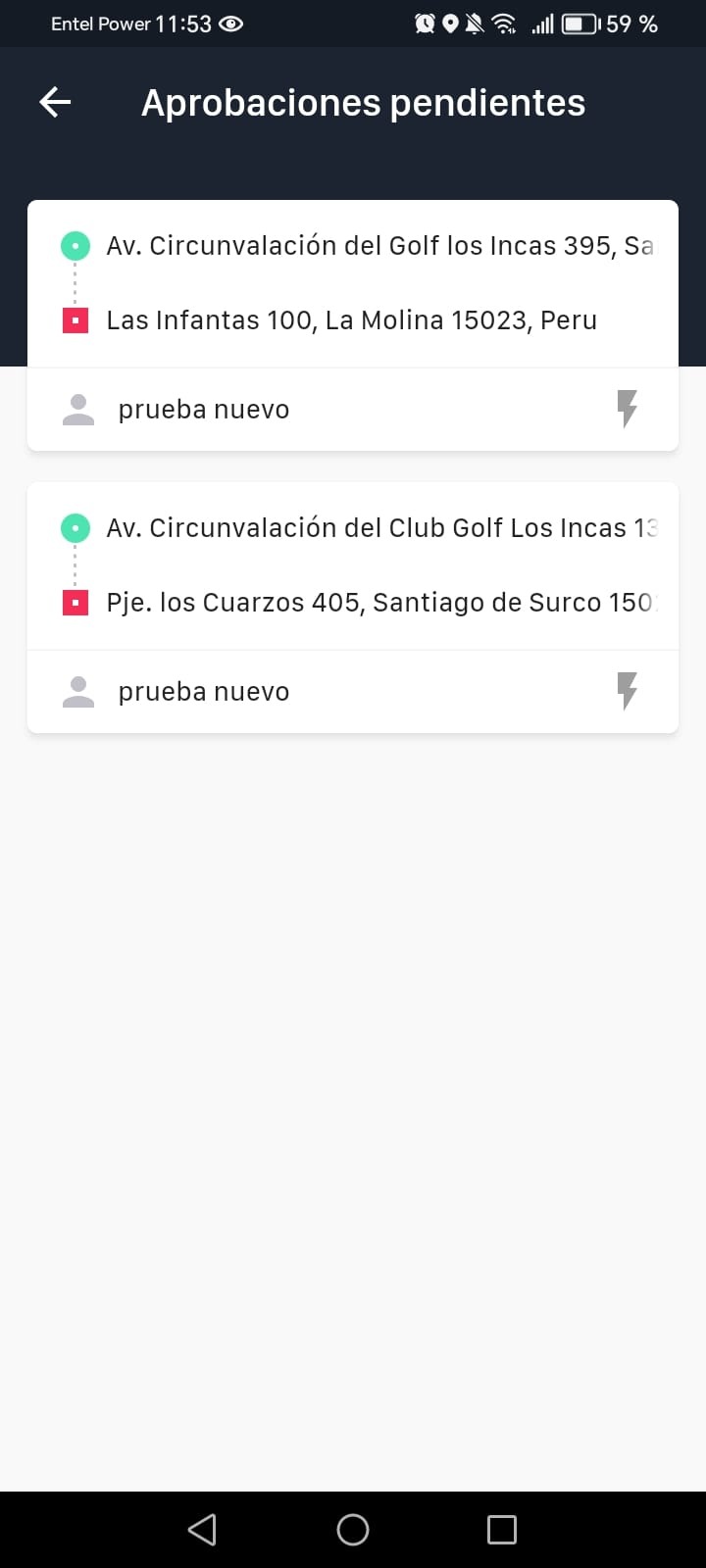
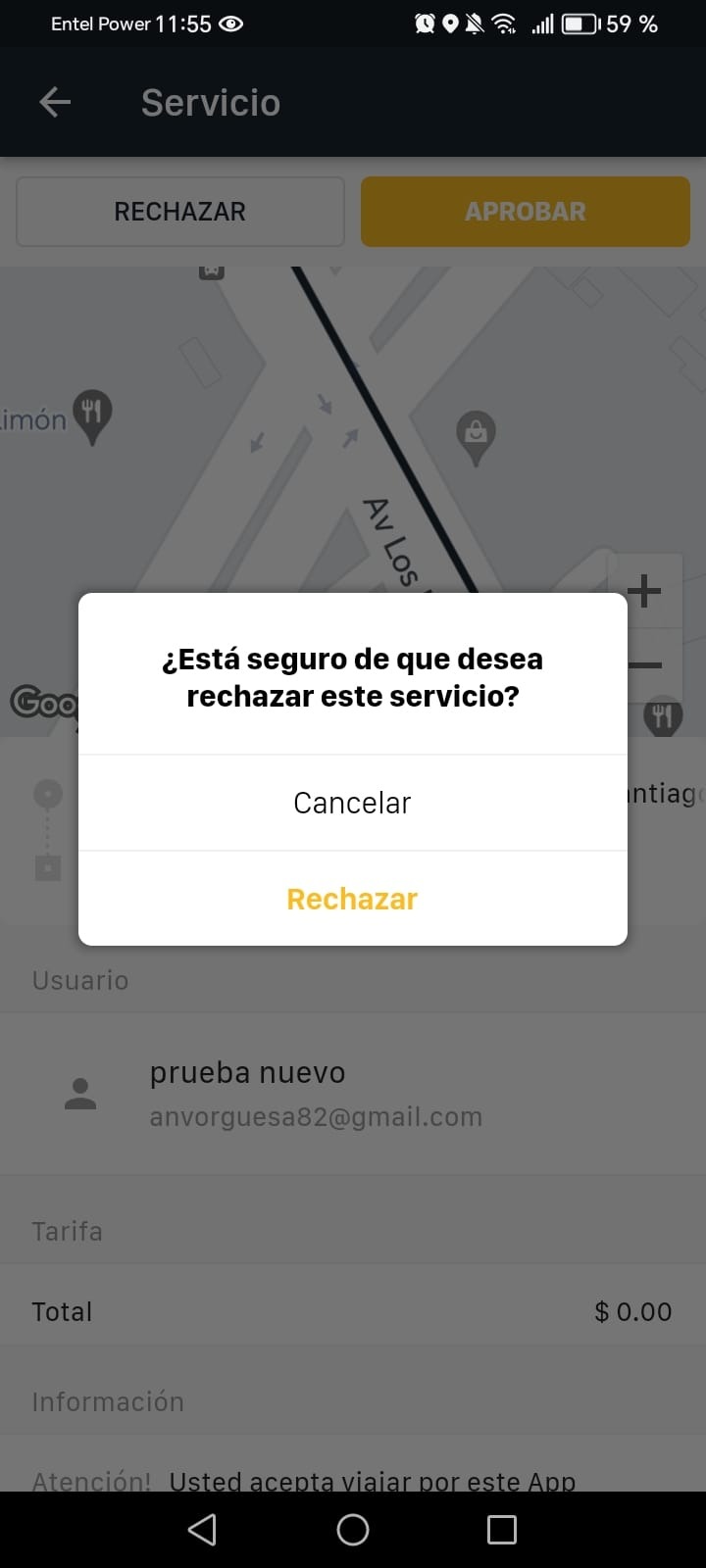
and from here they can choose whether to approve or reject the service
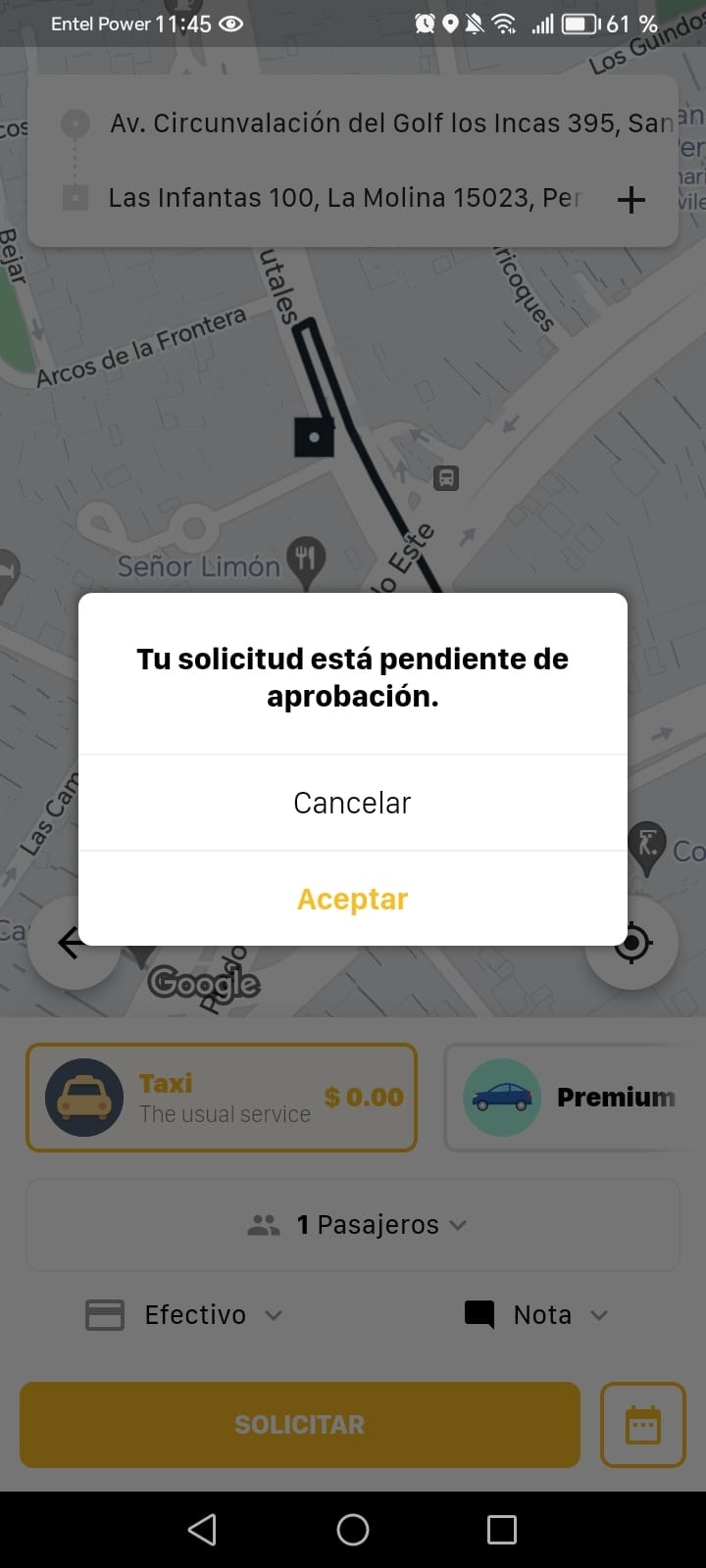
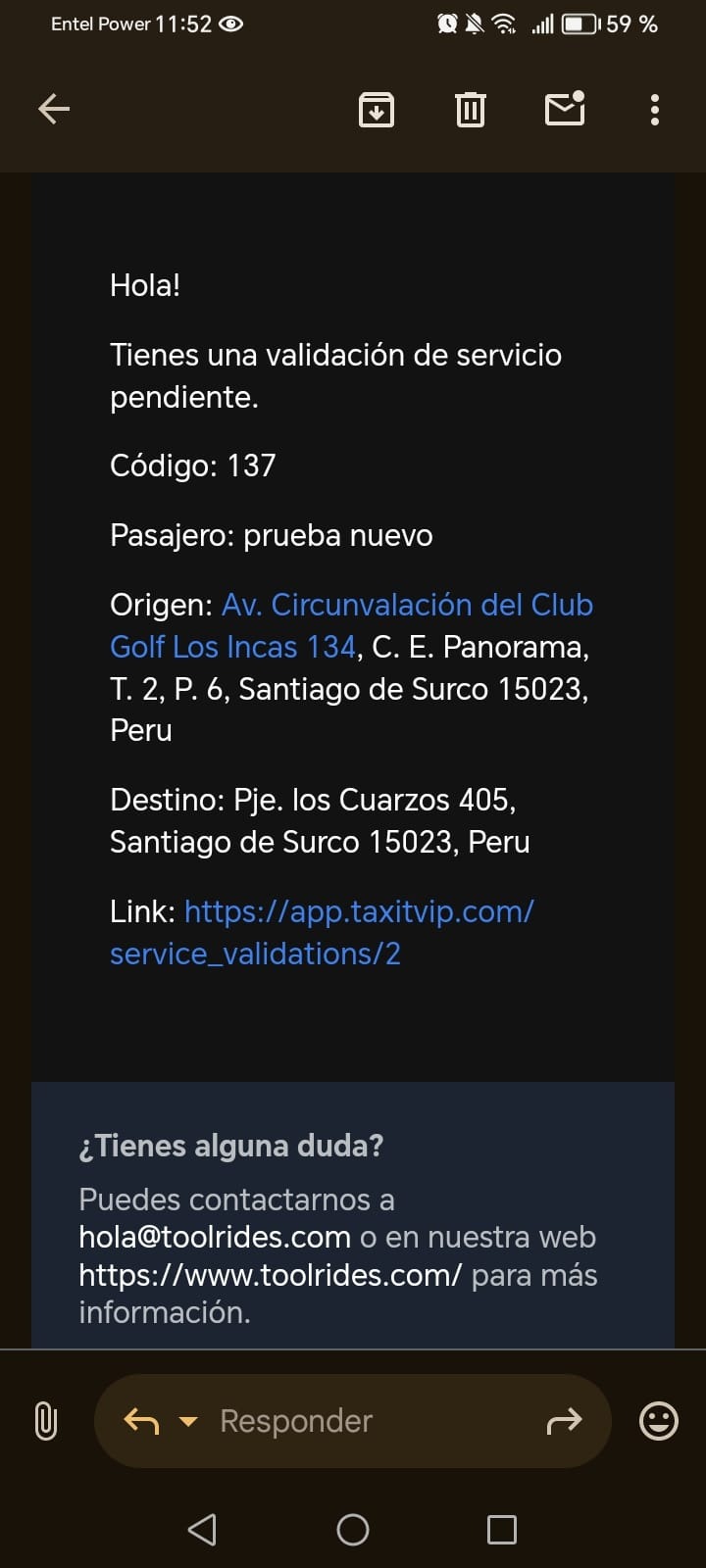
When the service validation request is sent, depending on what's configured in Alerts, an email, a notification, or both will be sent to the person we selected to validate the trip.
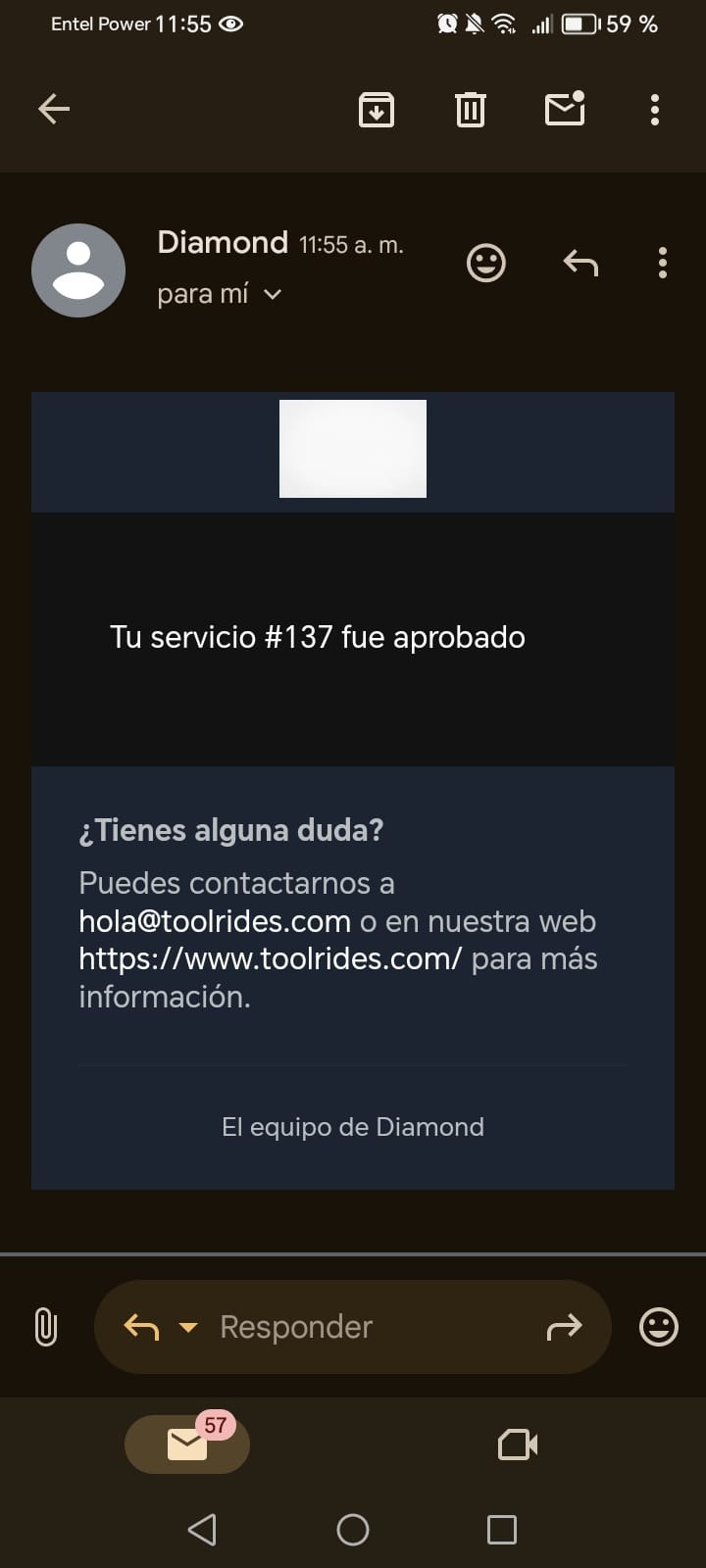
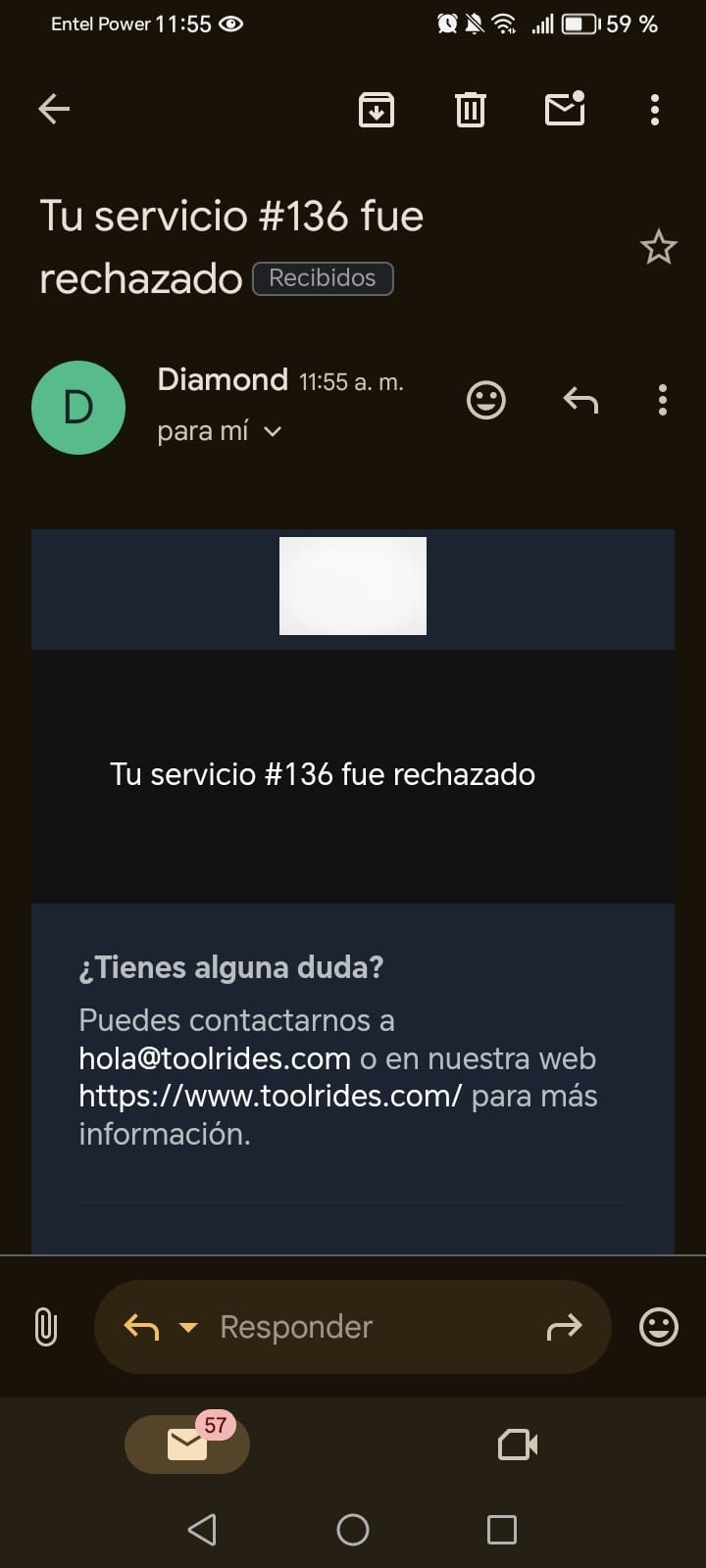
Likewise, when a request is approved or rejected, the user will receive a notification or email. In this case, an approval would look like this.
And a rejection like this:
Was this article helpful?
Companies (Corporate Services)
- Creating Companies and Corporate Users
- Signing In as a Company User: Admin / Passenger
- Corporate users: Changing your password
- Setting Up Trip Validation for Company Users
- Bulk user import for companies
- Bulk import of ride bookings
- Forms: Dynamic field for company rides
- Groupings
- Bulk-deactivating users for a company