
 Use cases
 Messaging
 Taxi Companies
 Private Transport
 Transportation Entrepreneurs
 Last Mile
 SuperApp
 Software
 Taxi dispatch
 Corporate transportation
 Auction
 Products
 Booking Software
 Dispatch Platform
 Driver App
 Passenger App
 Web Widget
 Functions
 Schedule & Booking
 Driver Management
 Custom
 Corporate Portal
 Security & Support
 Resources
 Learn
Learn



How do I create an Android developer account on Google Play?
Creating an Android developer account is an essential step for any developer who wants to publish their app on the Play Store. Follow these steps to set up your developer account and publish your app.
Step 1: Set up a Google Account
First of all, you'll need a Google account. It can be personal, but if it's for a company or organization, that's ideal for keeping things professional. If you don't have one, you can easily create one by following this link.
Step 2: Sign up for the Google Play Console
With your Google account ready, the next step is to sign up for the Google Play Console, the platform Google uses to manage apps in its store. You can do this through this link.
https://play.google.com/console
Registration requires a one-time payment of 25 dollars, which is a standard fee for all developers.
When setting up your Google Play developer account, it's crucial to choose the right account type, since you won't be able to change it once it's set. Google Play offers two main options: personal and organization accounts, each with its own requirements and features.
Developer Account Types on Google Play
Personal Account:
- Ideal for individual developers.
- Requires basic identity verification.
- You need to meet specific testing requirements before launching apps:
- Run a closed test with at least 20 testers who have been active for the last 14 consecutive days.
- Only after successfully completing this closed test can you request to publish your app on the Play Store.
Organization Account:
- Designed for companies and organizations.
- Requires additional information during the verification process, such as a D-U-N-S number.
- Ideal for larger development teams or apps intended for corporate use.
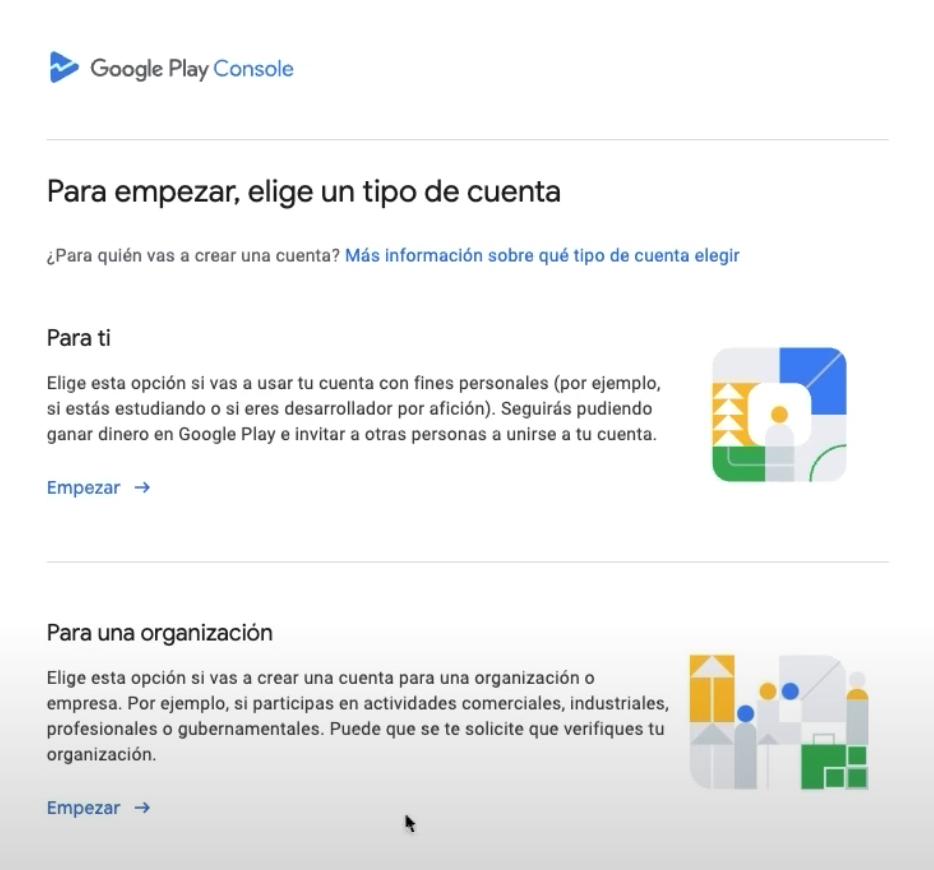
Important: Once you've chosen and registered your account type, you won't be able to change it. That's why it's essential to carefully evaluate your needs and goals before making a decision.
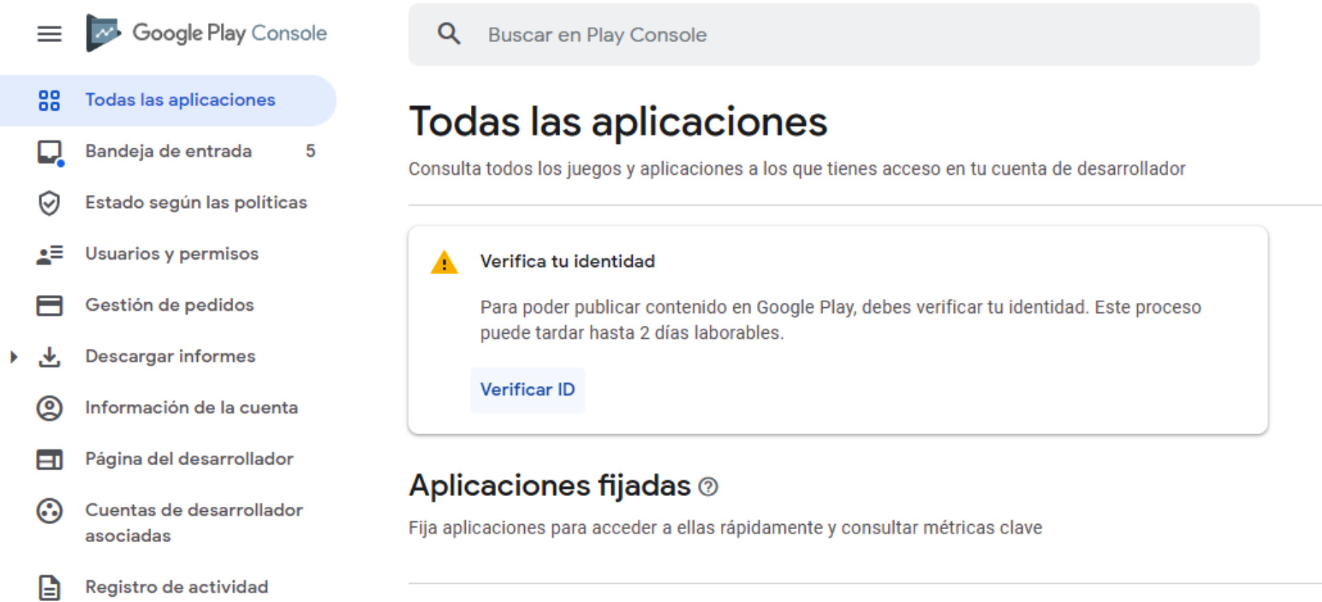
Step 3: Verify your identity
The final step is to verify your account with the documents Google requests. Verification usually takes about 48 hours, and if there's any issue with the information, you'll be notified by email.
Was this article helpful?
Apple & Android Developer Accounts
- iOS: How to invite users to TestFlight
- How do I create an Android developer account on Google Play?
- How do I create an Apple iOS developer account?
- How to Transfer Apps to Another Google Play Developer Account