
 Use cases
 Messaging
 Taxi Companies
 Private Transport
 Transportation Entrepreneurs
 Last Mile
 SuperApp
 Software
 Taxi dispatch
 Corporate transportation
 Auction
 Products
 Booking Software
 Dispatch Platform
 Driver App
 Passenger App
 Web Widget
 Functions
 Schedule & Booking
 Driver Management
 Custom
 Corporate Portal
 Security & Support
 Resources
 Learn
Learn



Opening and Verifying a WebPay Account
Before you can use WebPay on the platform, you need to run a few tests. Here's the step-by-step guide:
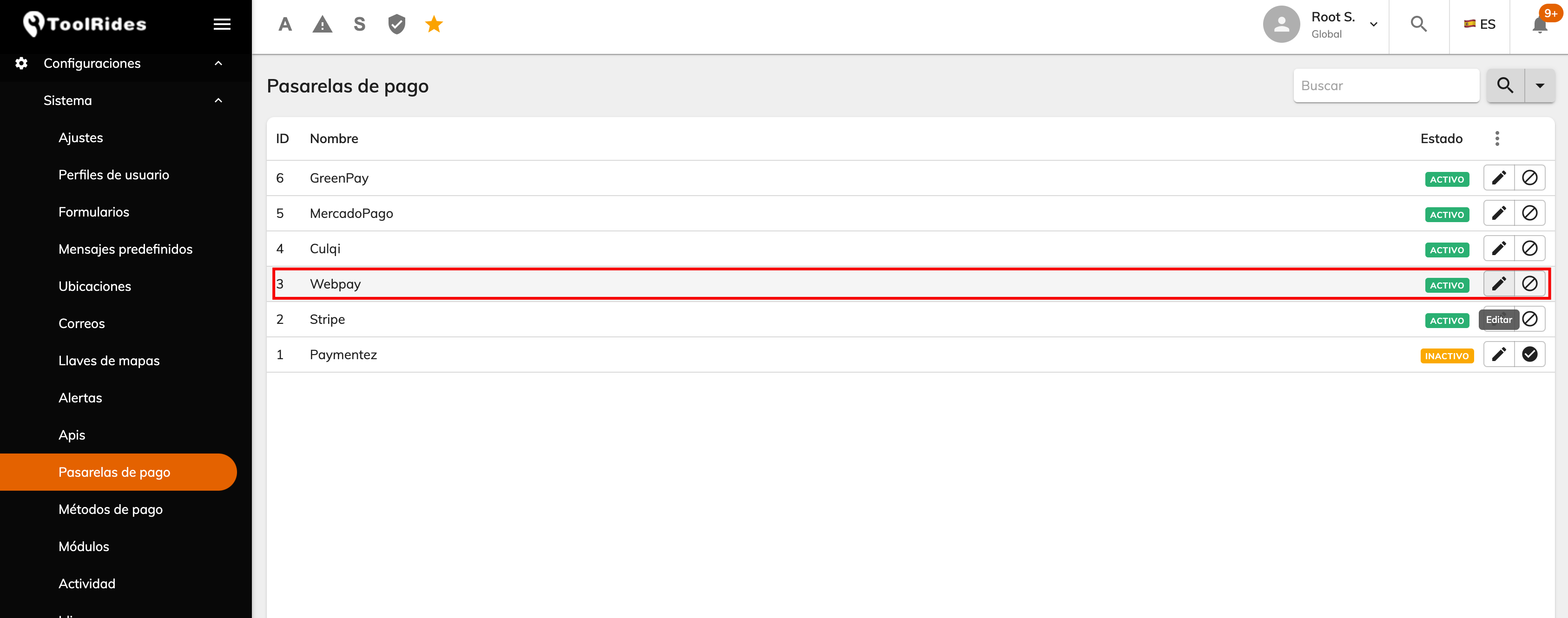
Go to the Web Panel > Payment gateways, find Webpay in this section, and click edit (the pencil button).
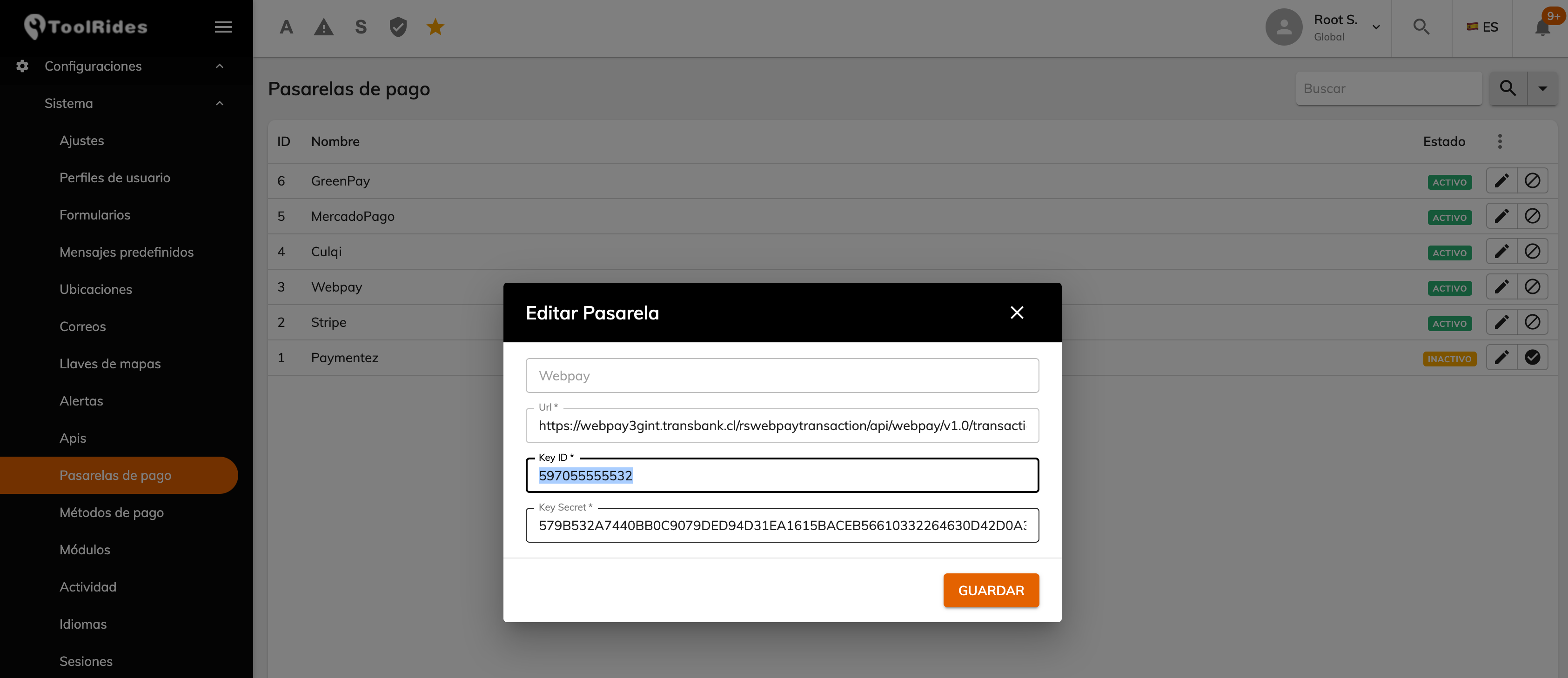
Enter the following details:
URL: https://webpay3gint.transbank.cl/rswebpaytransaction/api/webpay/v1.0/transactions
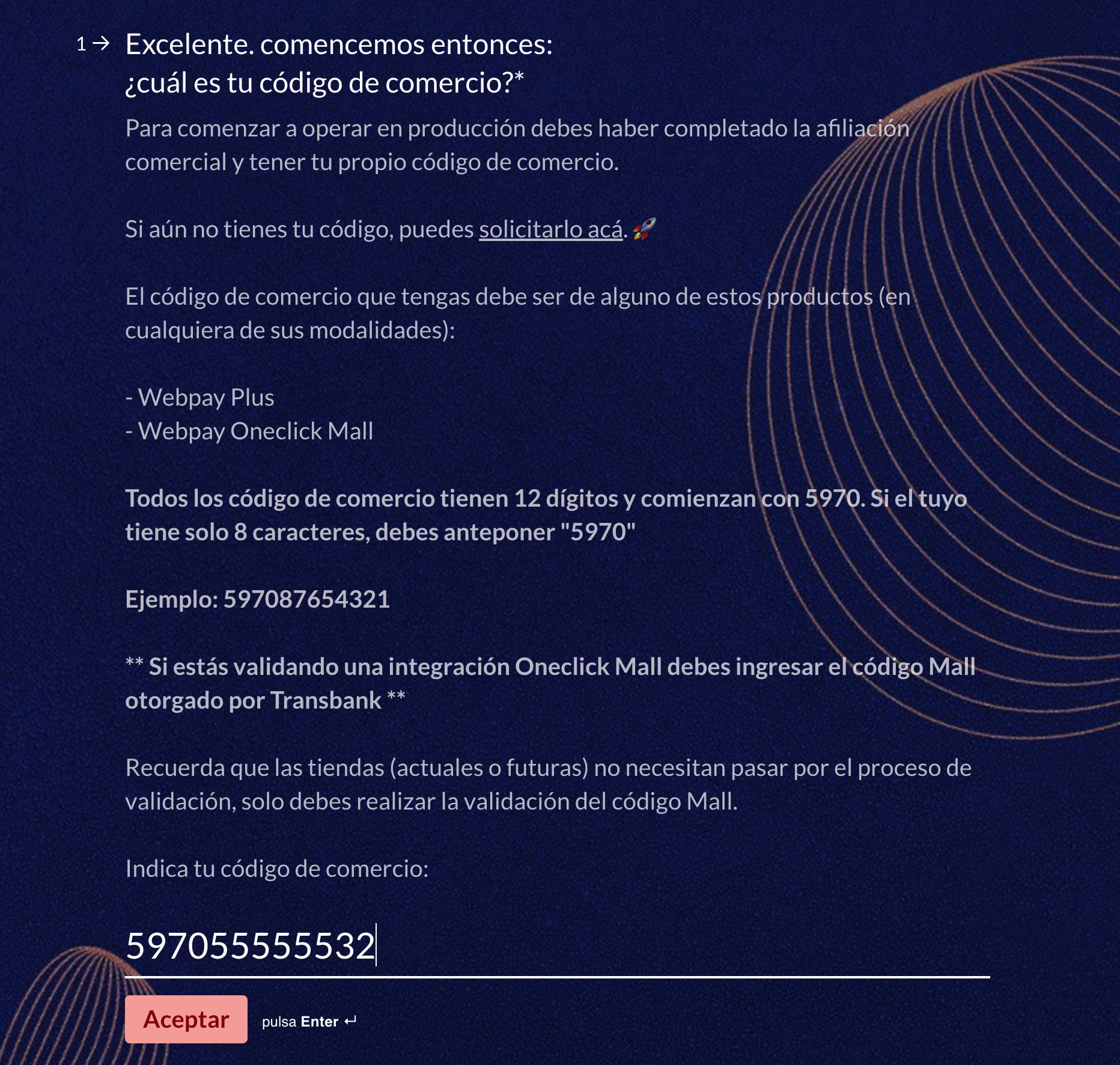
Key ID: 597055555532
Key Secret: 579B532A7440BB0C9079DED94D31EA1615BACEB56610332264630D42D0A36B1C
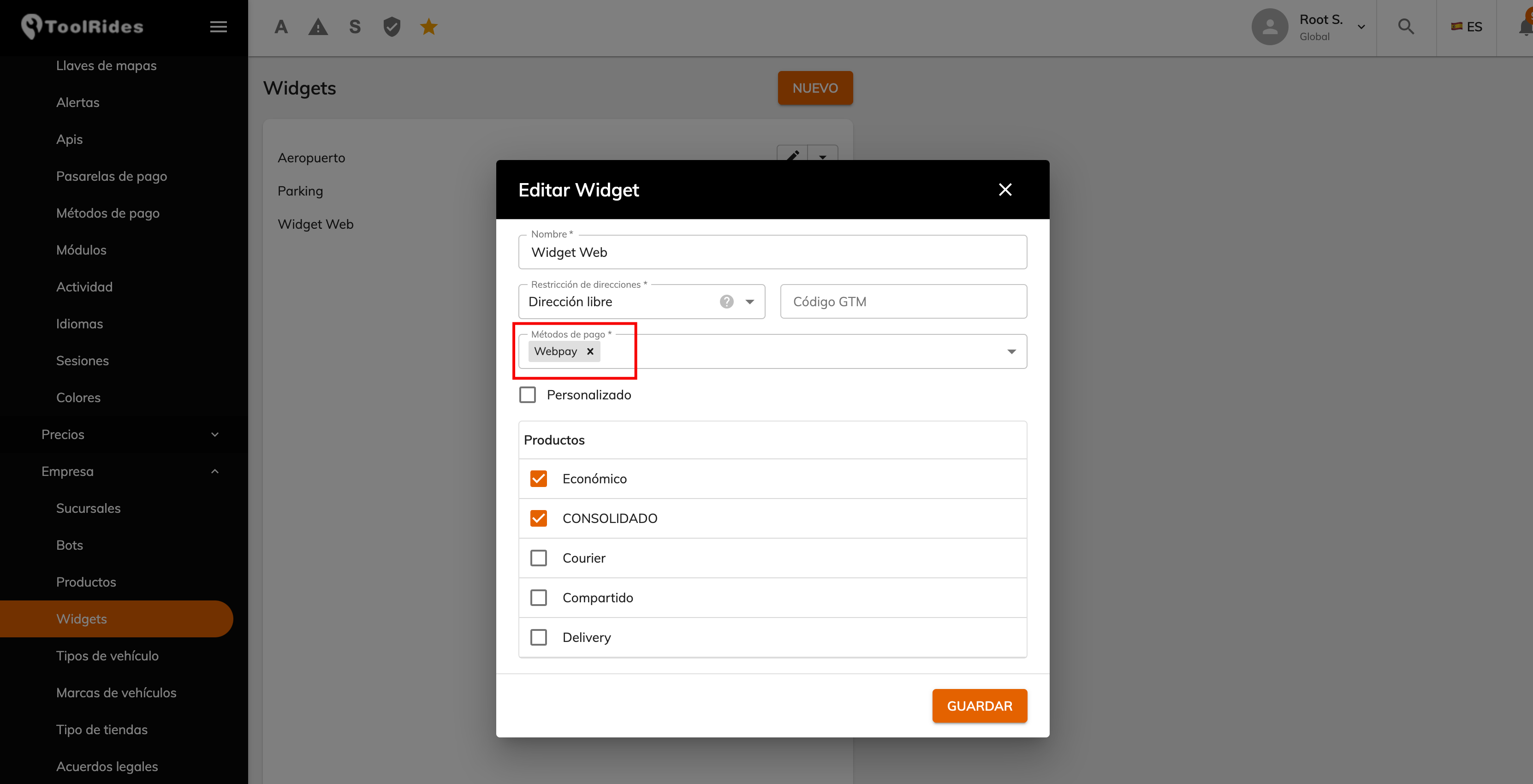
Go to the Widgets section and create one with a setup similar to this:
The link to access the Widget will be: https://[web_panel_url]/widget/1
Validation process:
To start the approval process for your WebPay account, you'll need to fill out the form below. You can find the link on the WebPay documentation site:
https://www.transbankdevelopers.cl/documentacion/como_empezar#el-proceso-de-validacion
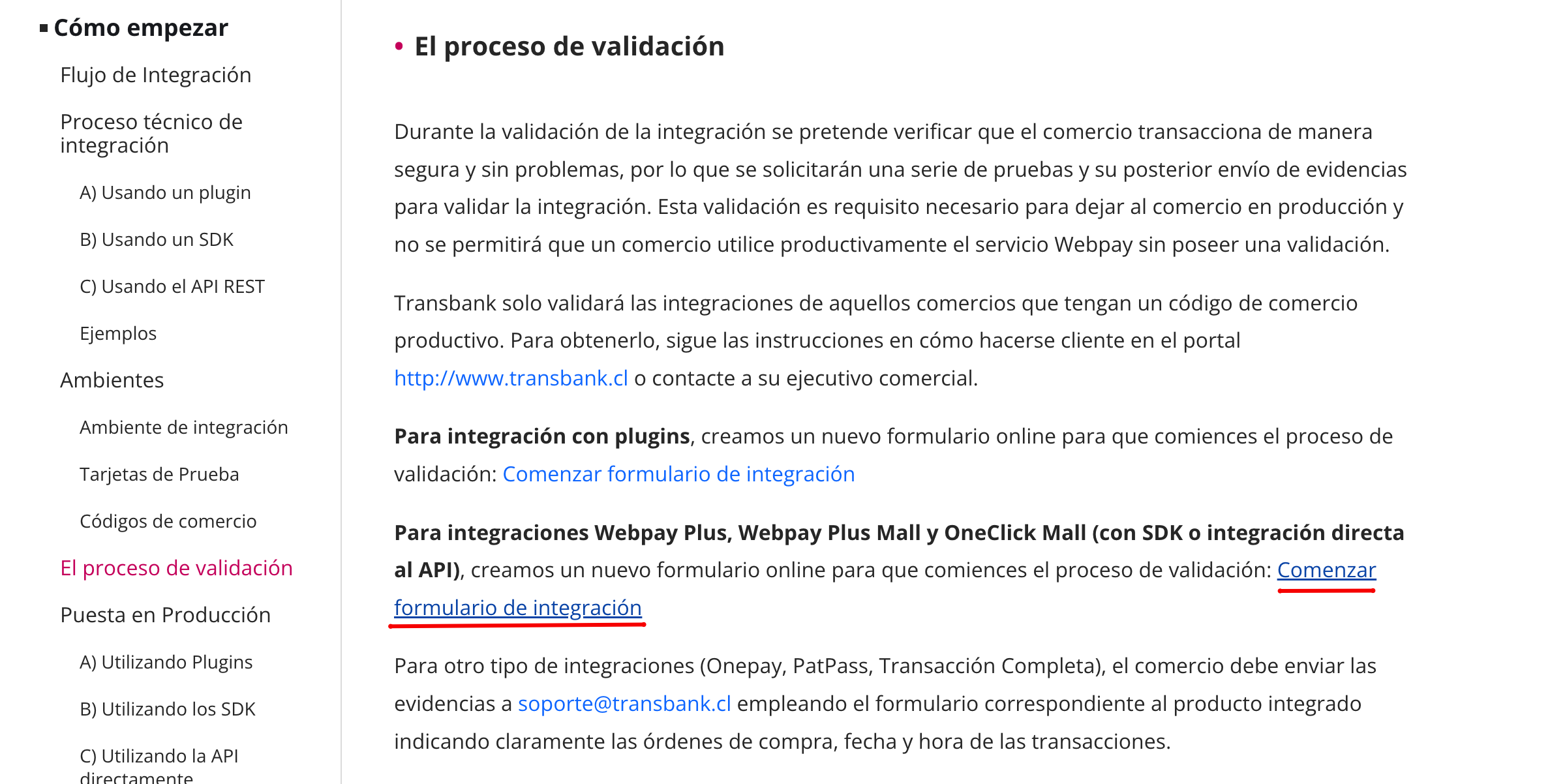
Click "Start integration form":
First, enter the test commerce code:
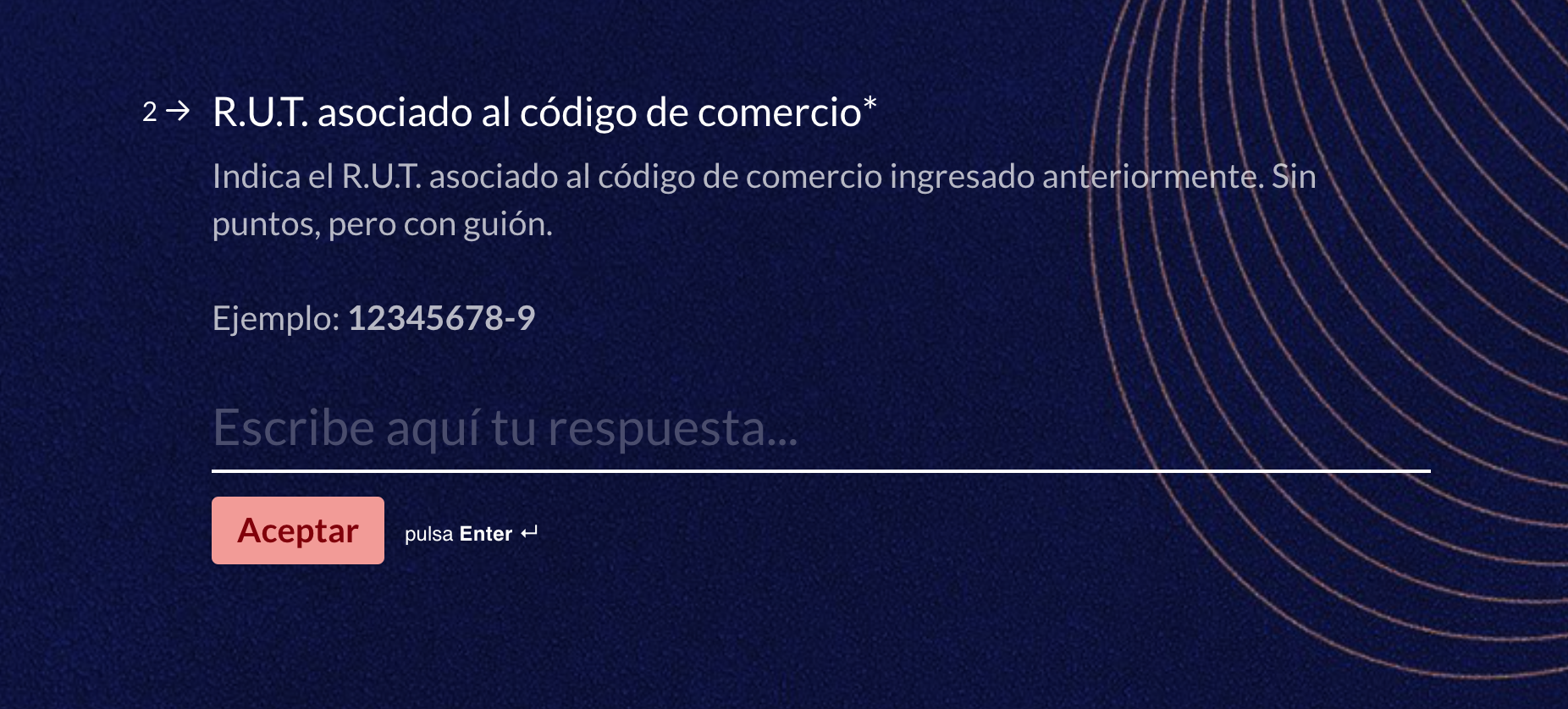
Now enter your company's Commerce RUT
In the following steps, you'll be asked for first and last names, email, and phone number. WebPay will use this information to contact you later.
Are you an integrator? Choose No.
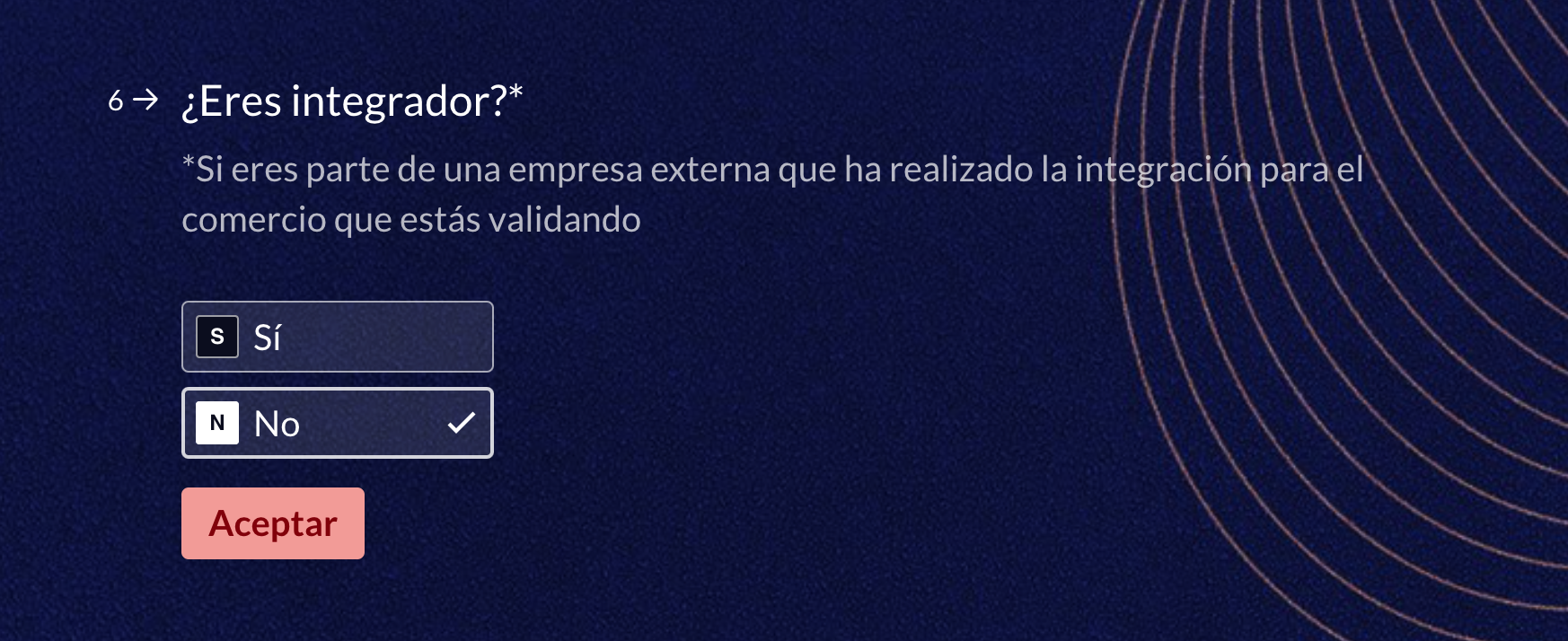
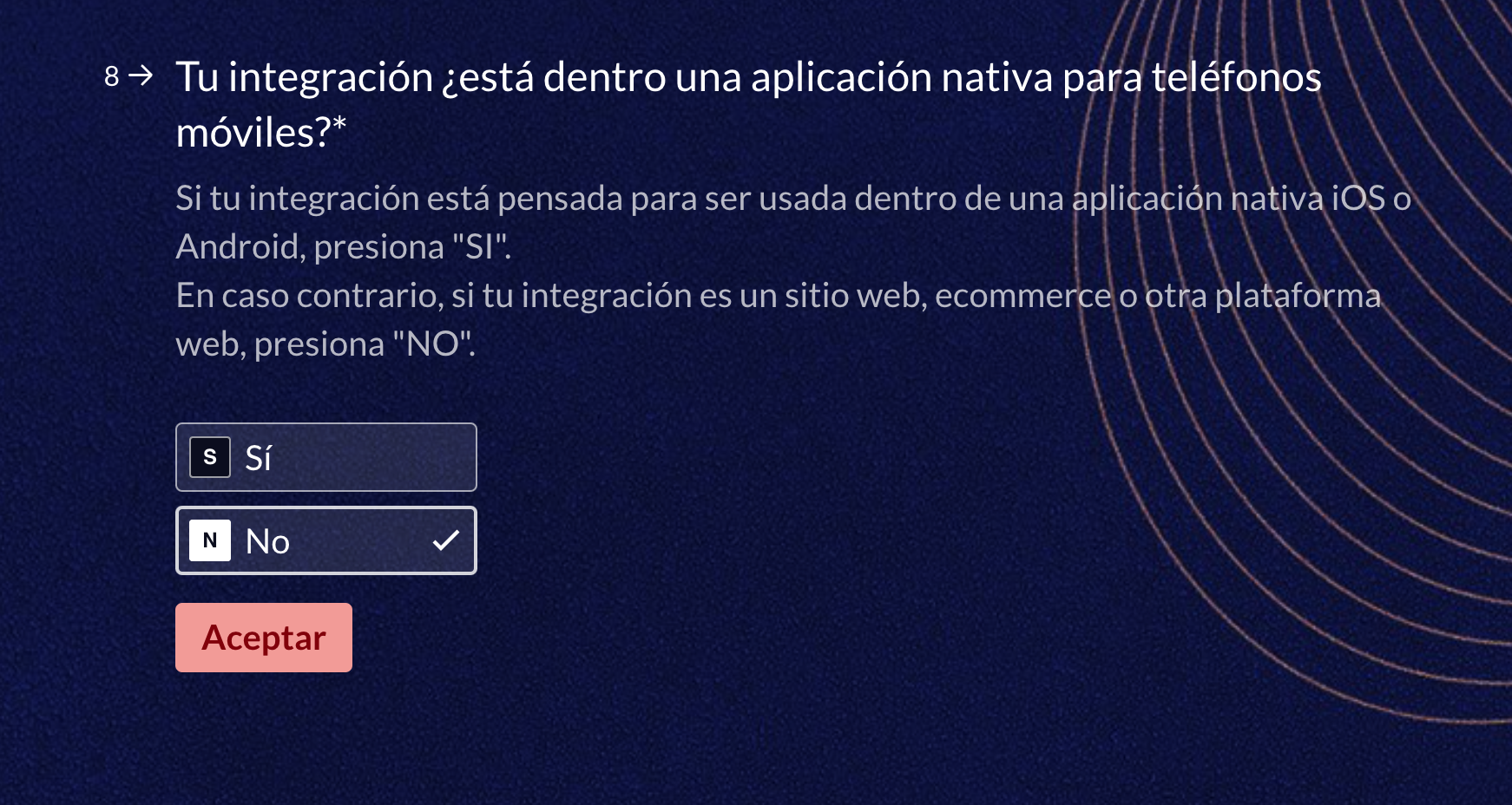
Is this for a native mobile app integration? Choose No
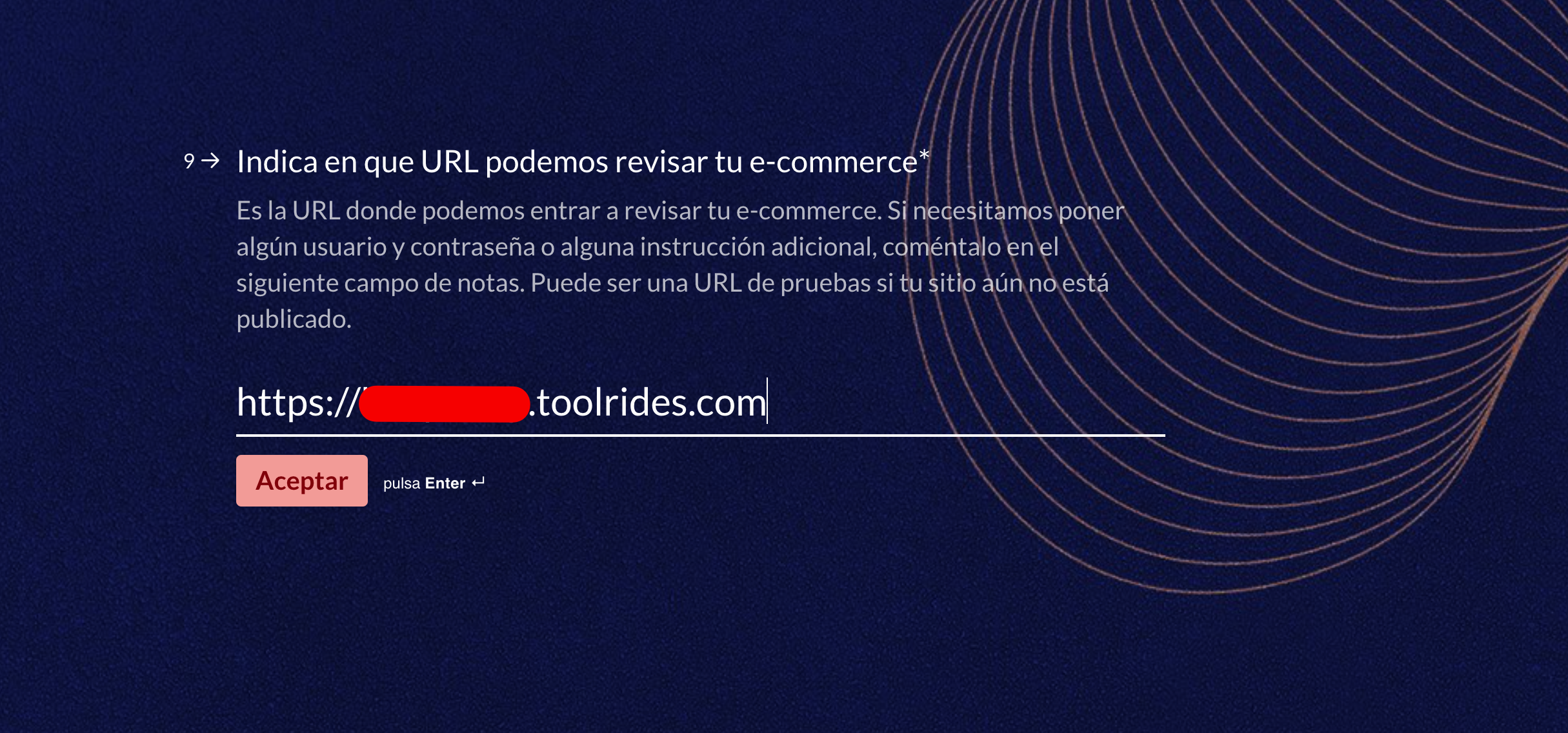
In this step, enter the address of your production web panel.
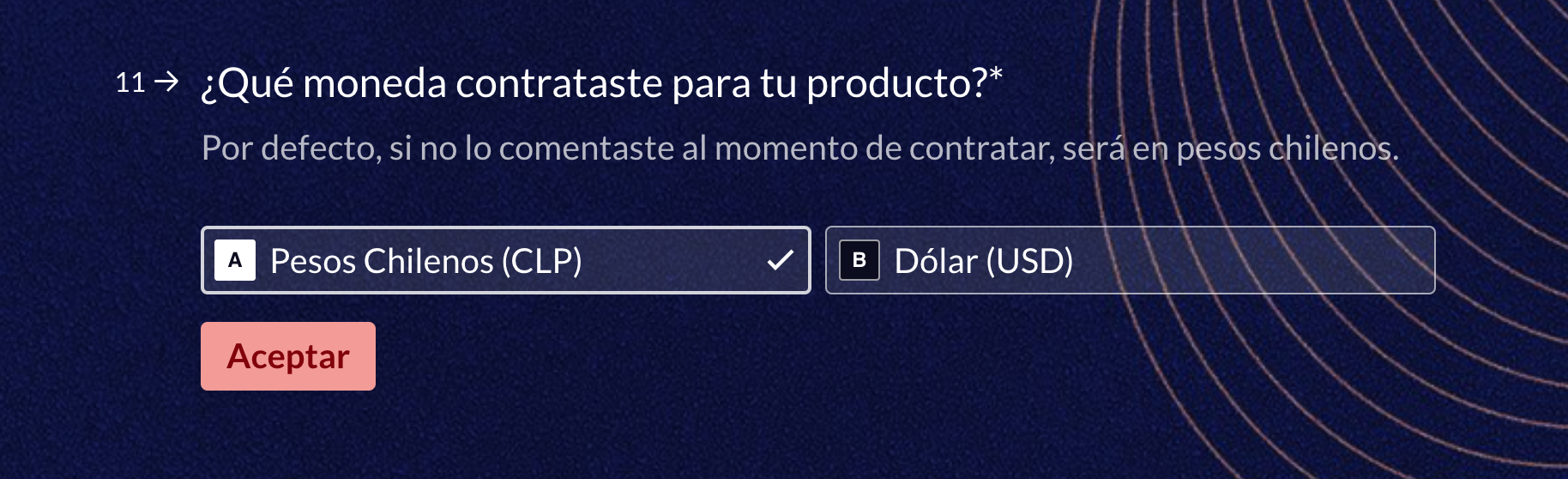
Enter the details of the currency you'll be charging in, usually Chilean Pesos.
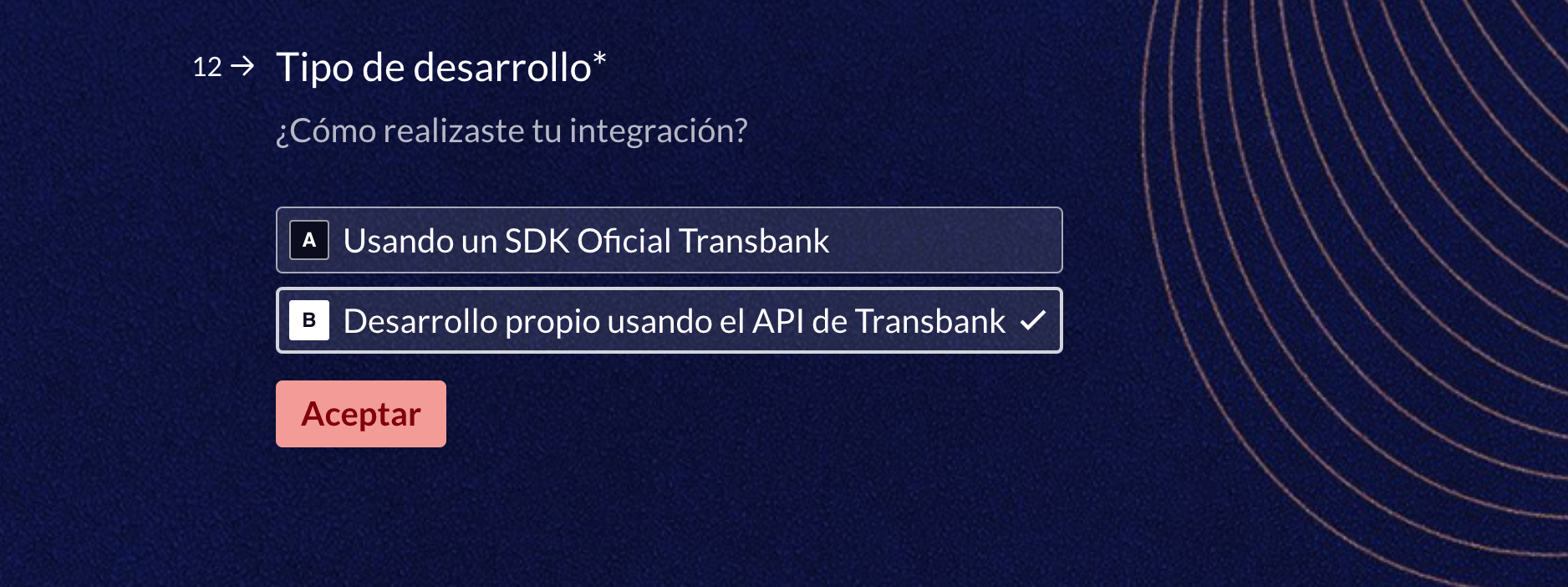
For the development type, choose the following option:
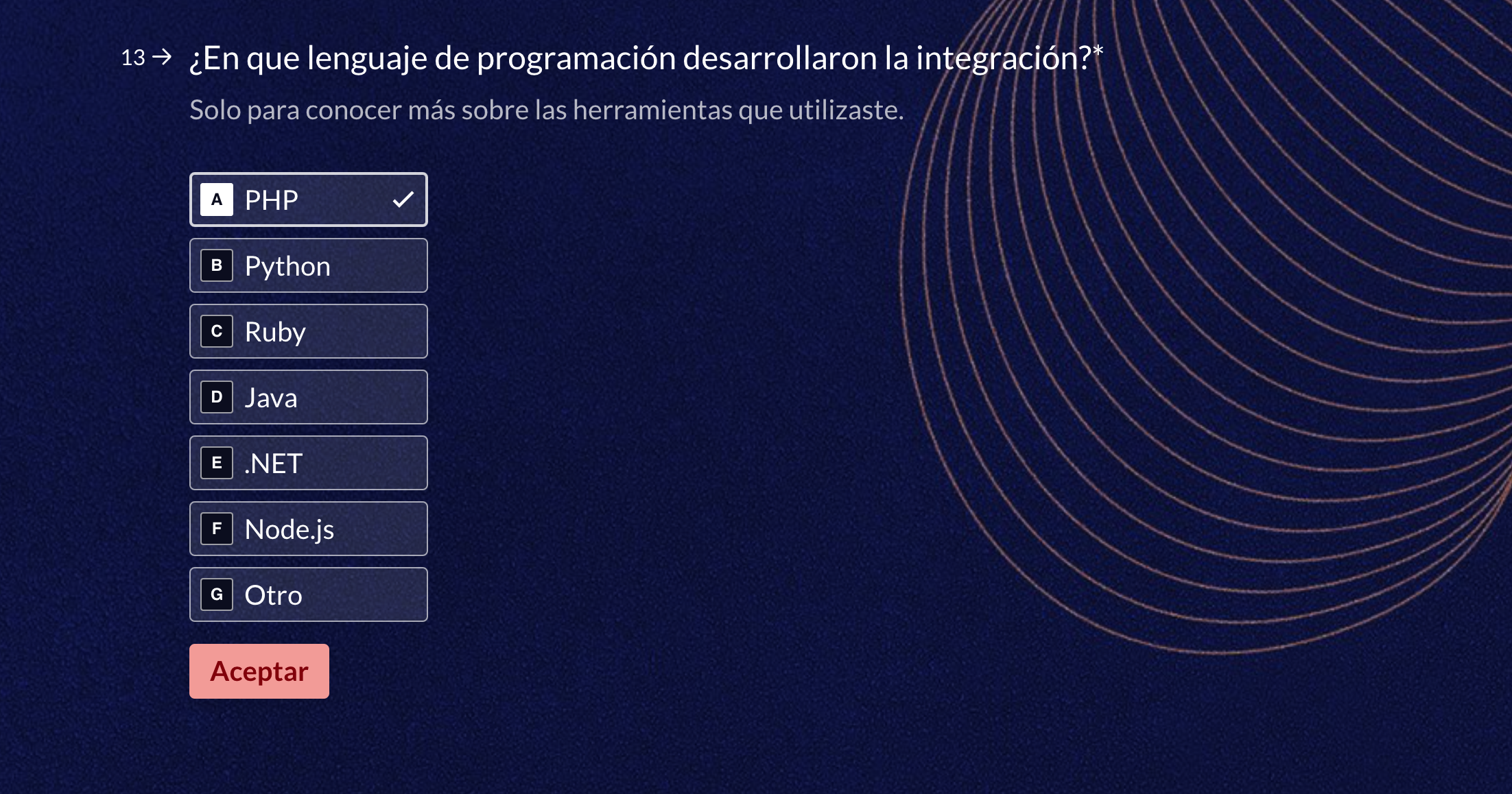
For the programming language, choose the following option:
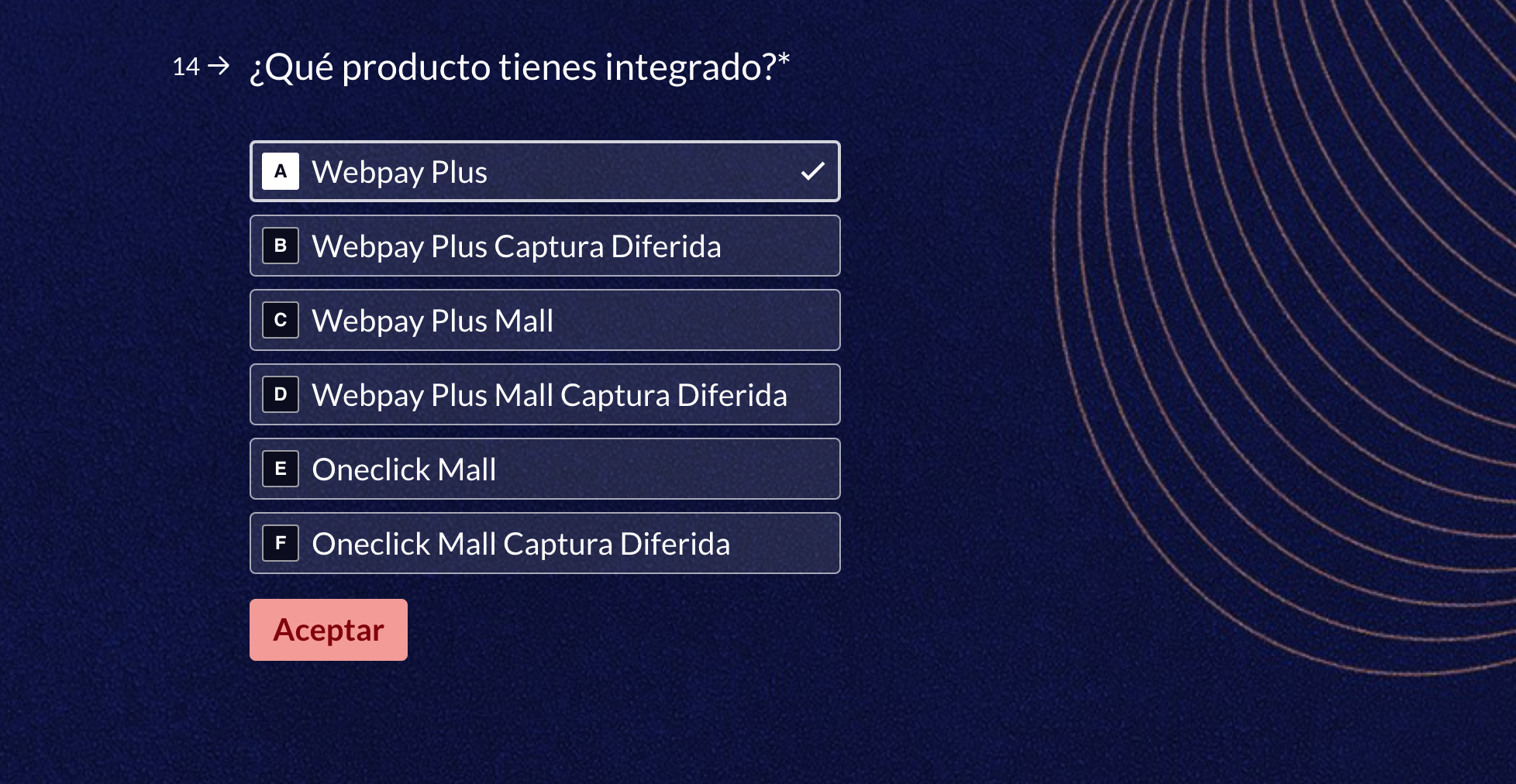
In this step, choose the following option:
Transaction testing:
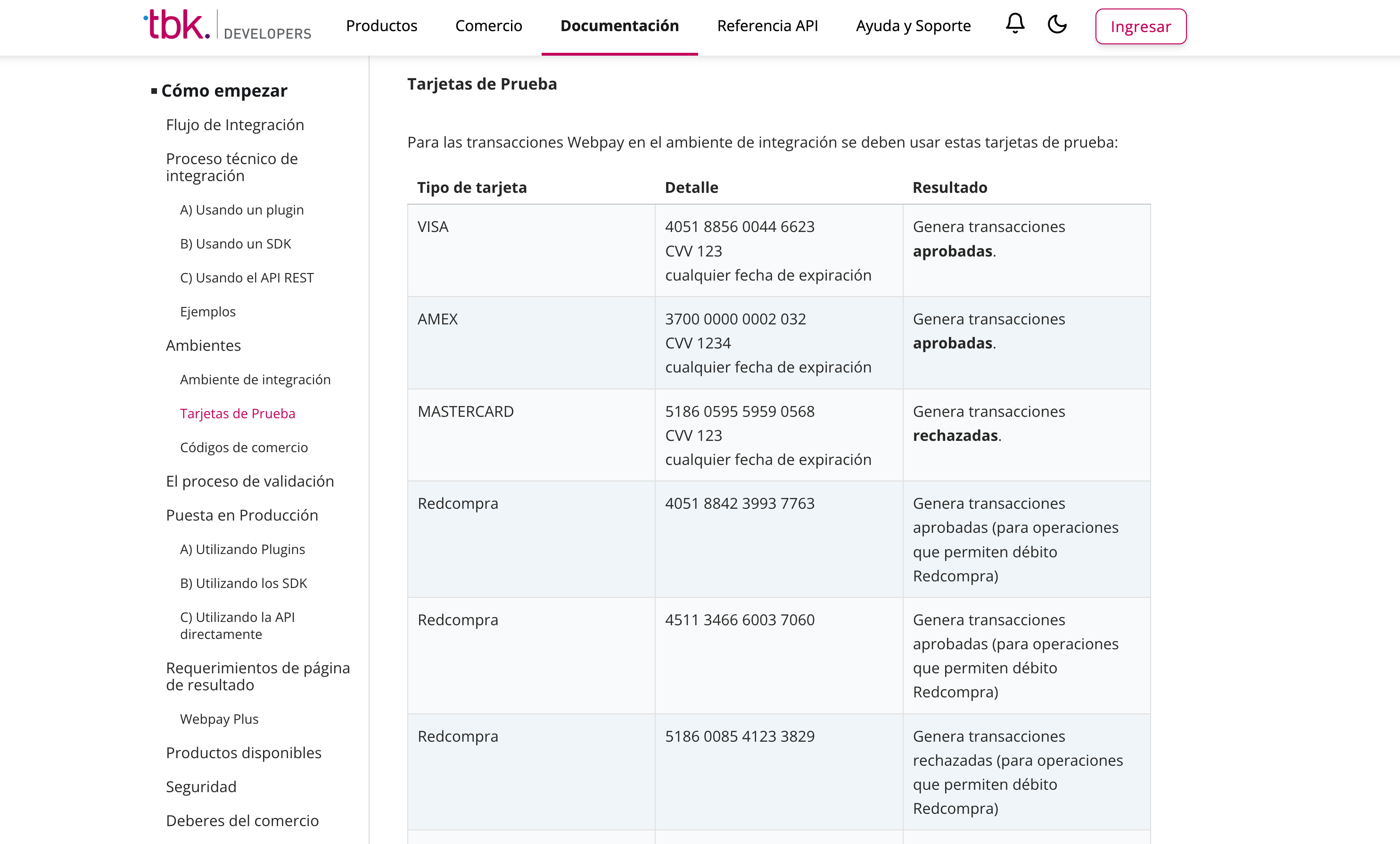
Keep in mind the following test cards listed in the documentation: https://www.transbankdevelopers.cl/documentacion/como_empezar#tarjetas-de-prueba
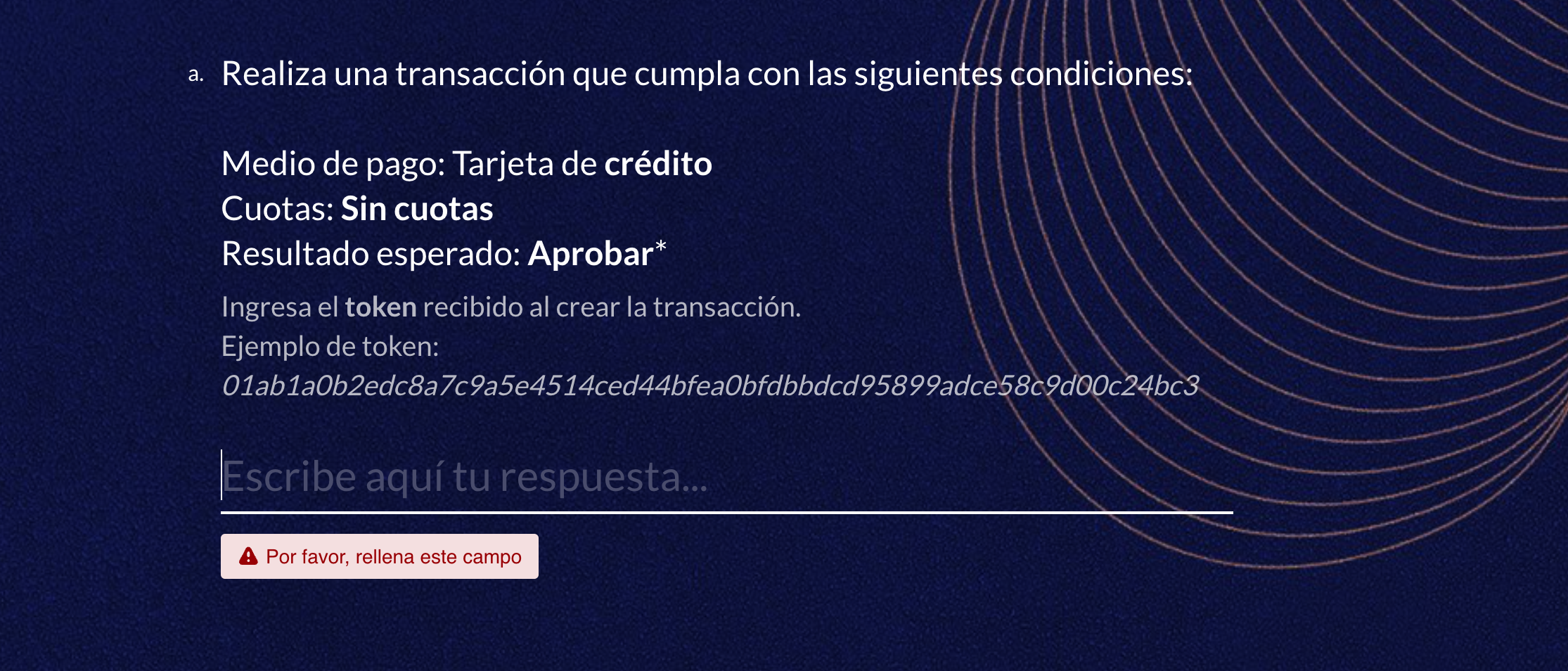
In this step, you'll test from the Widget or the Mobile App, generating test trips with WebPay as the payment method. At each step, you'll be told which payment method and which result to use within WebPay
When you select WebPay as the payment method and complete the booking, you'll be redirected to the following WebPay form. Choose the options indicated in the form:
Credit card: 4051 8856 0044 6623
Expiration date: 10/28
CVV: 123
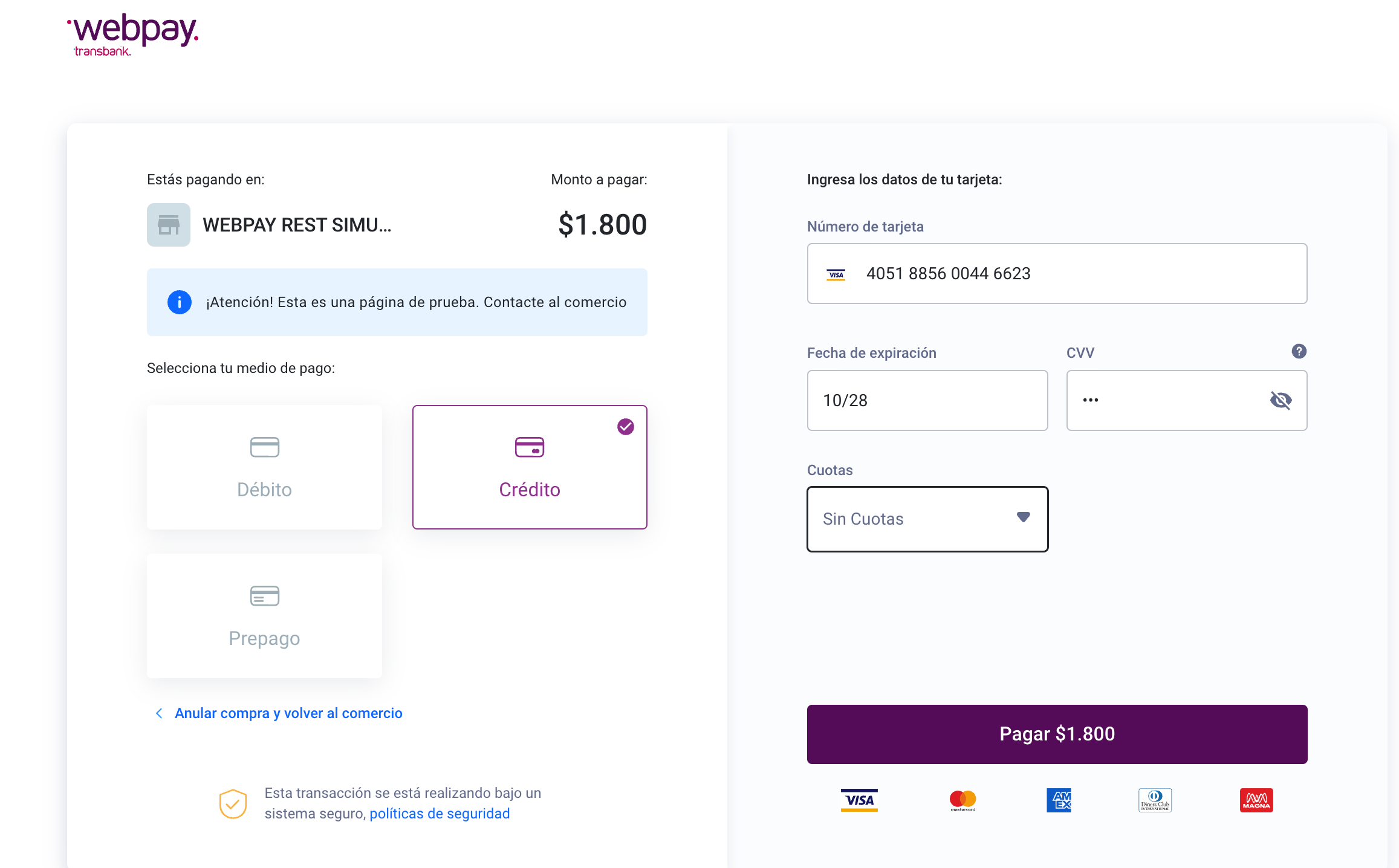
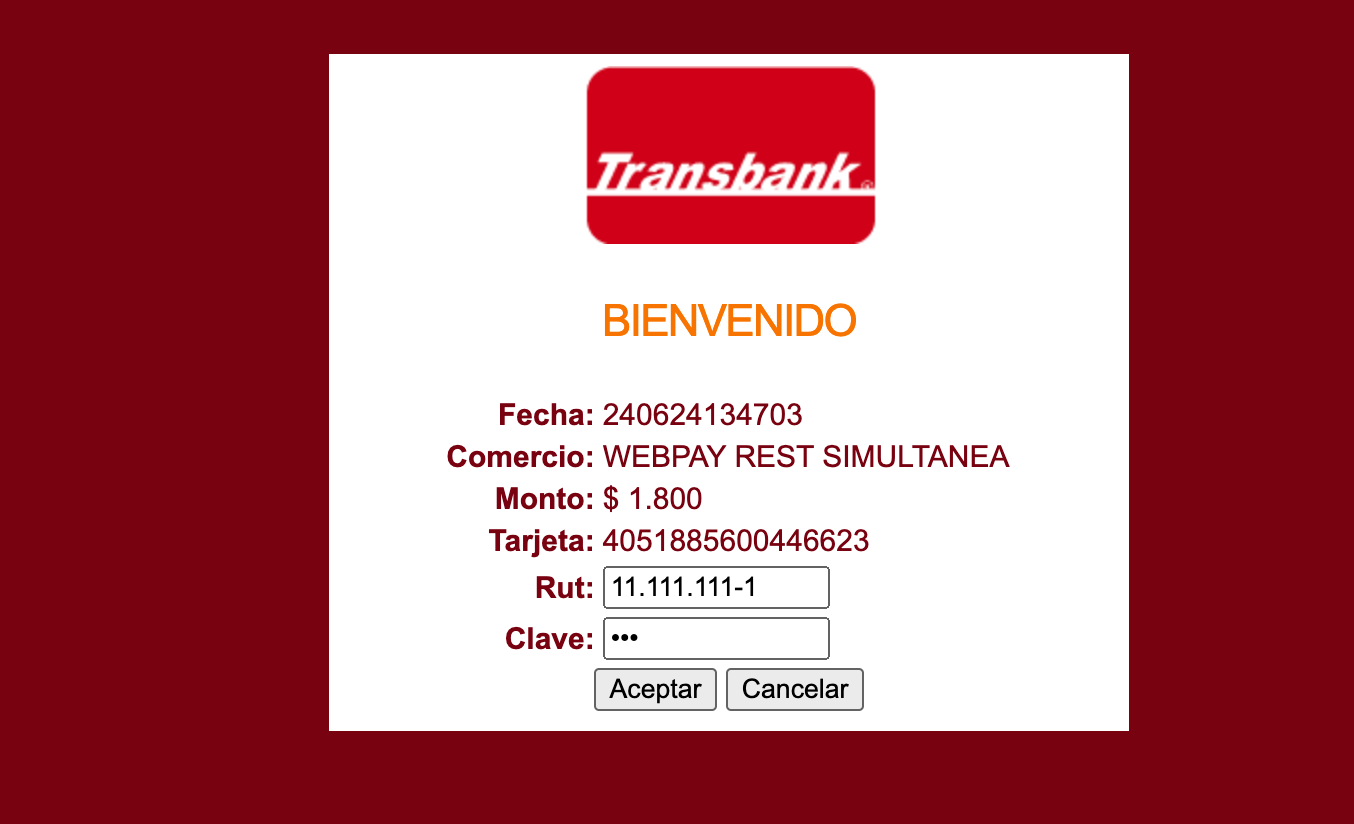
When you click Pay, this form will appear, where you need to enter the test credentials
RUT: 11 111 111-1
Password: 123
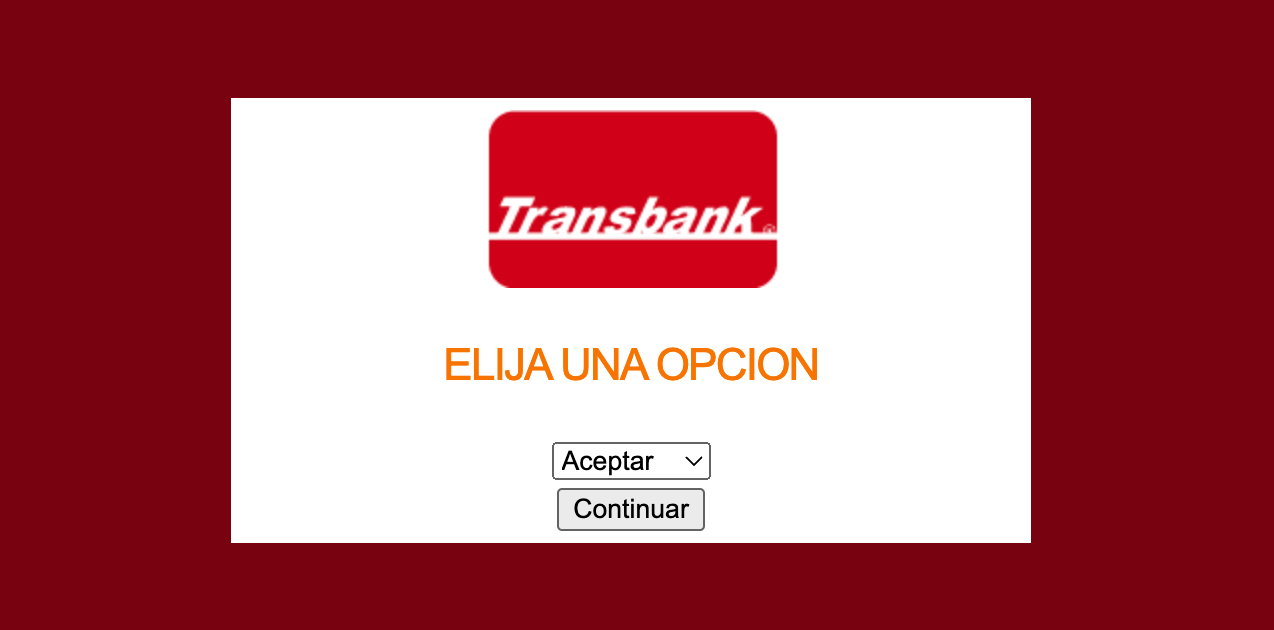
For this step, the form asks you to choose the accept option:
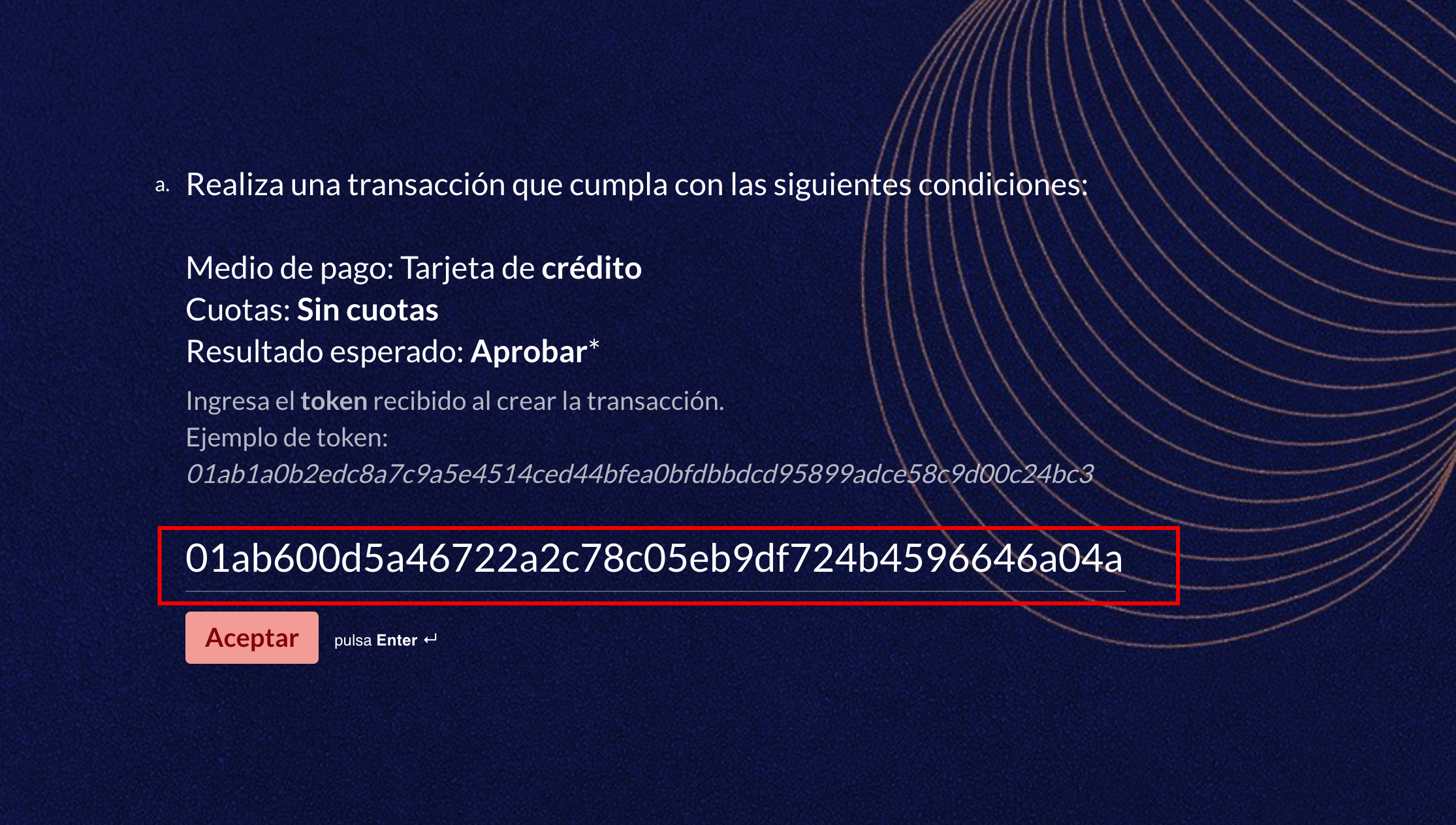
Once the payment is complete, you'll be redirected to the next screen, where you'll see the token requested in the form. You need to copy and paste it for each step.
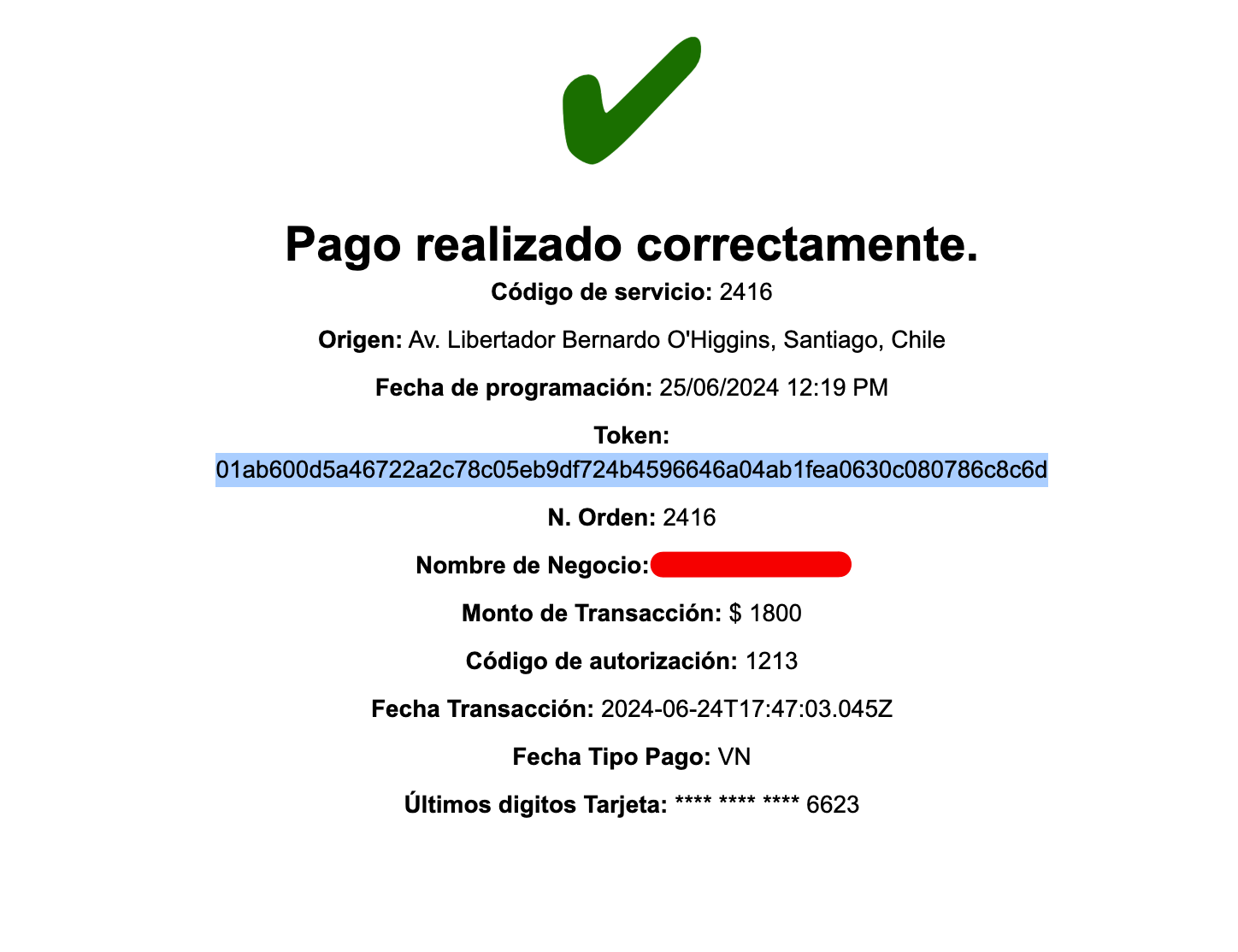
The resulting token must be entered into the form:
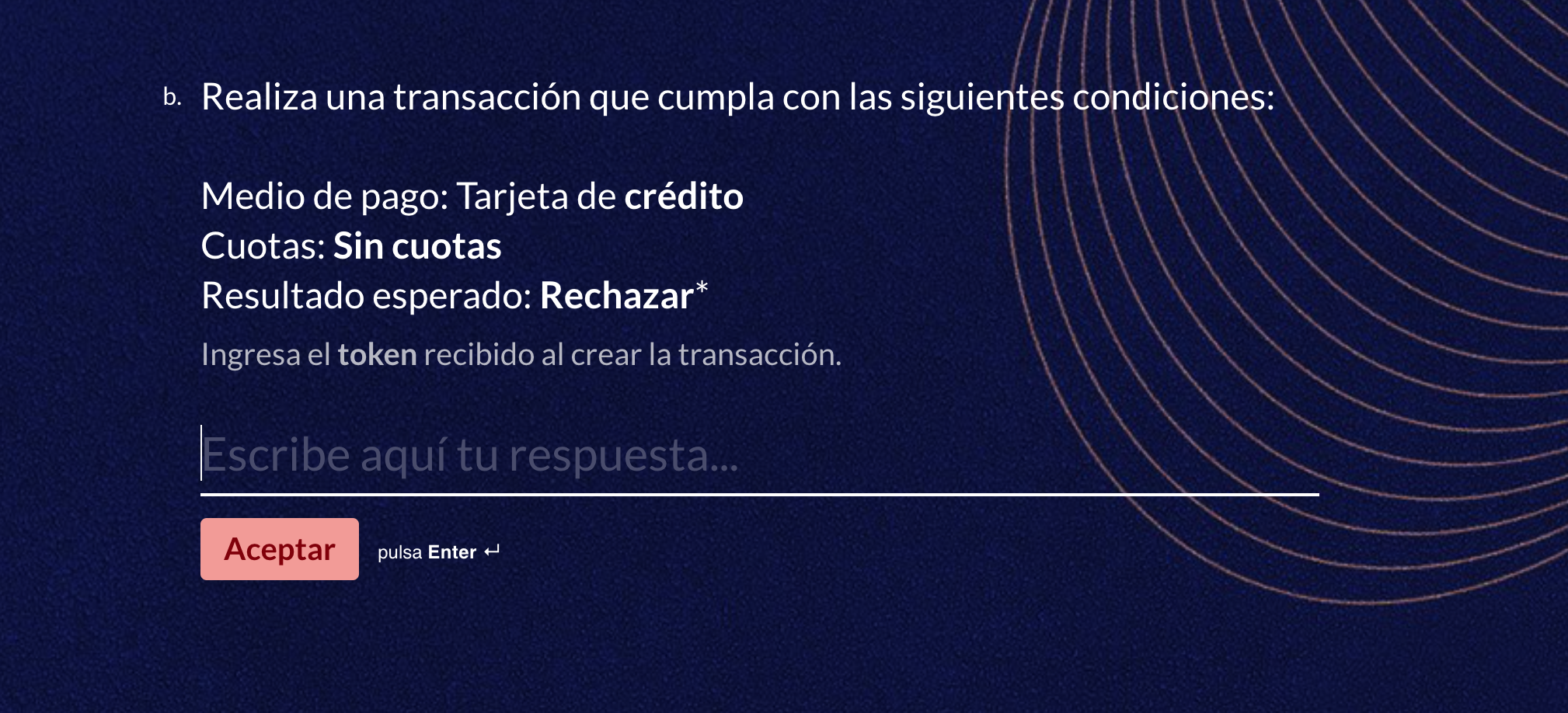
Declined Payment
The next question is for a declined payment. Here you need to use a different test card:
Credit card: 5186 0595 5959 0568
CVV: 123
Expiration date: 10/28
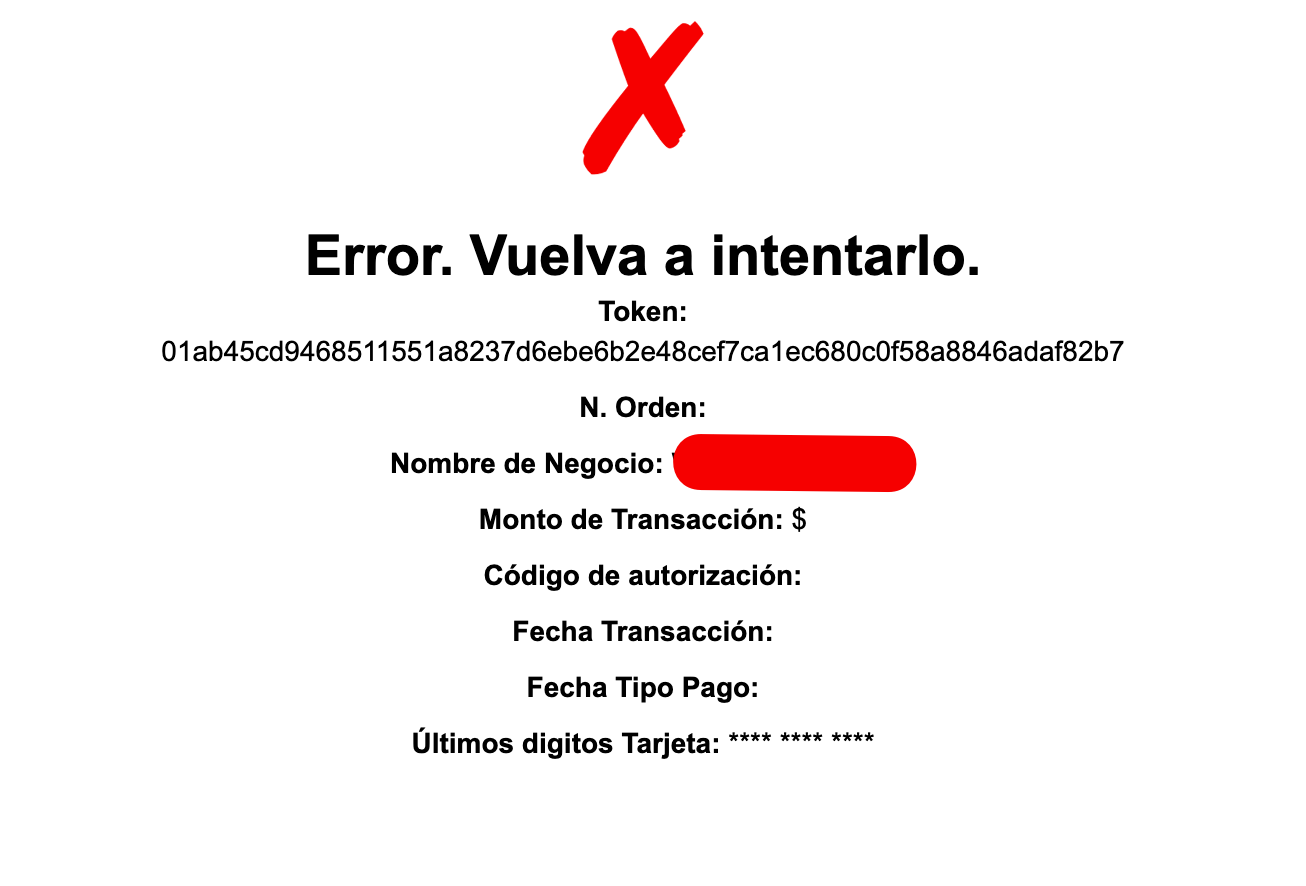
The following message will appear. As in the previous step, copy the token and paste it into the form.
Credit card payment test, in installments, approved result
Credit card: 4051 8856 0044 6623
Expiration date: 10/28
CVV: 123
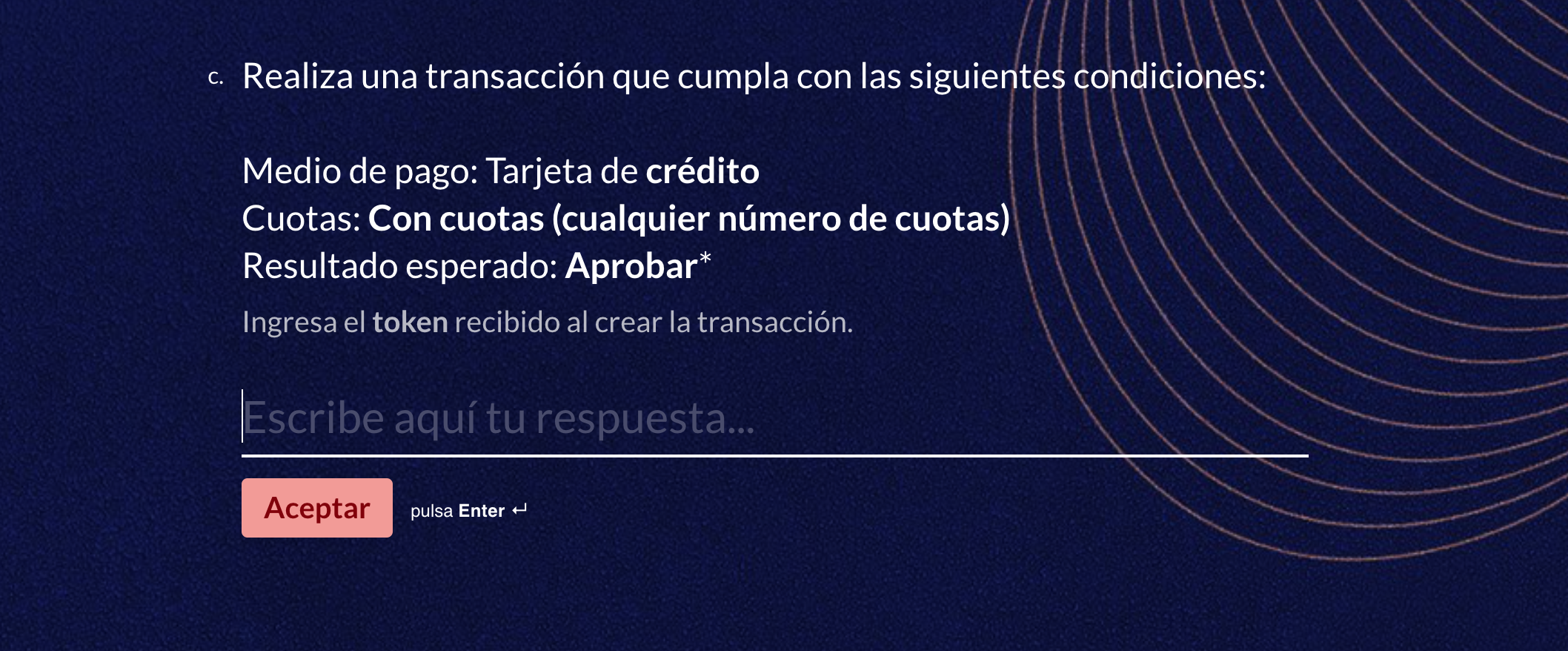
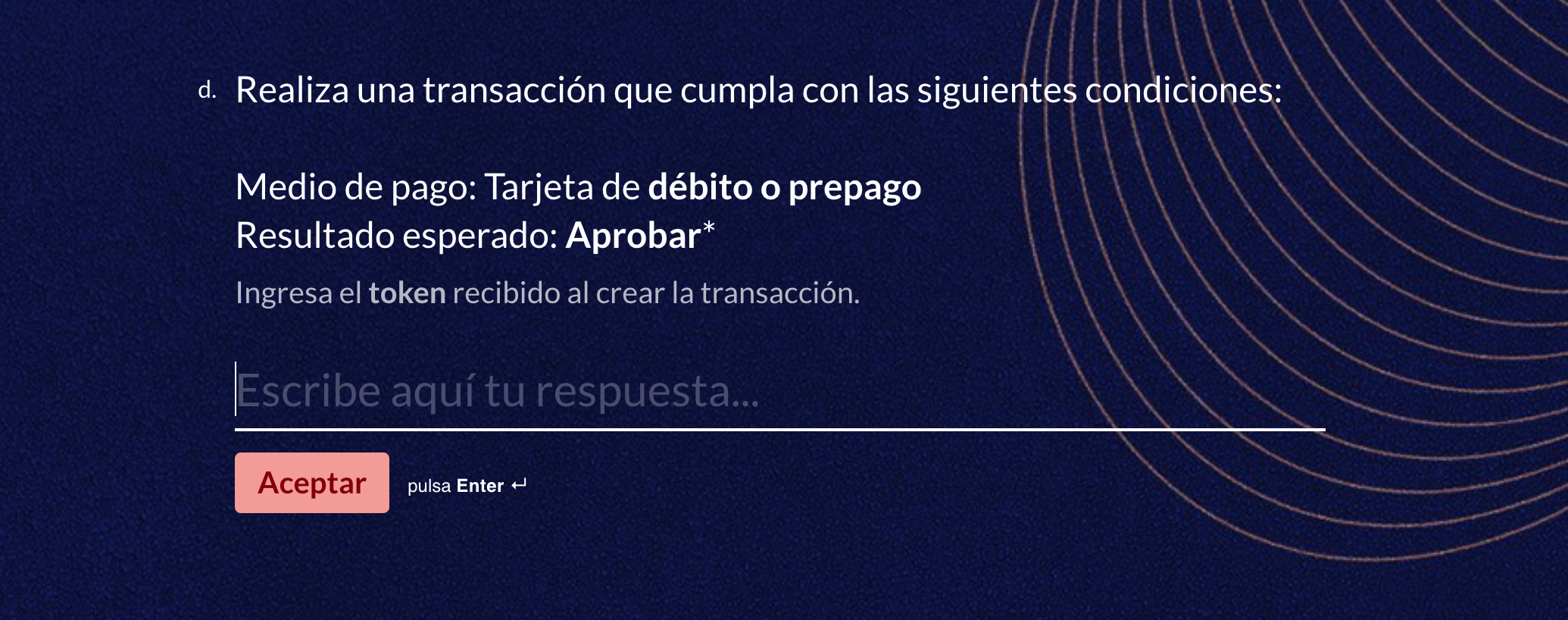
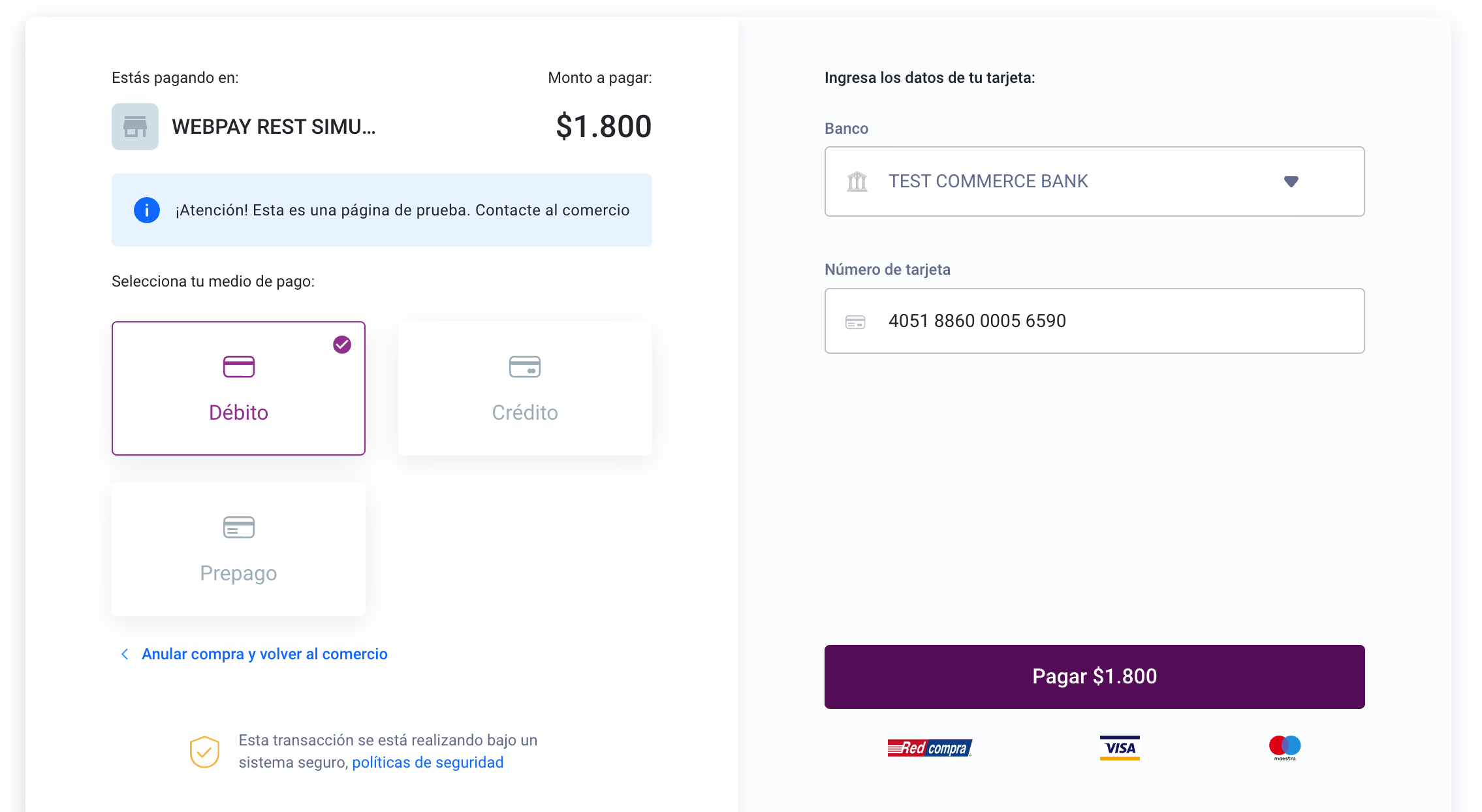
Tests with a debit or prepaid card, approved result
Card: 4051 8860 0005 6590
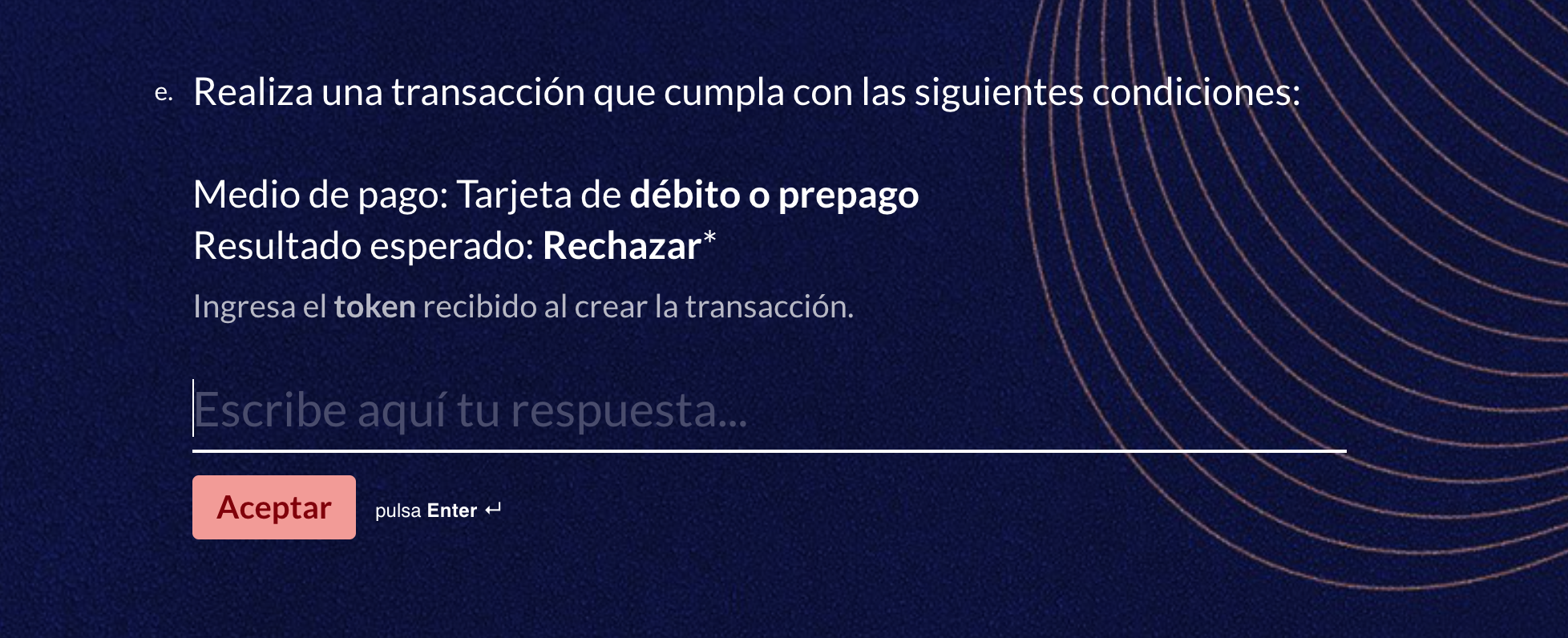
Declined payment with a debit or prepaid card, declined result
Card: 5186 1741 1062 9480
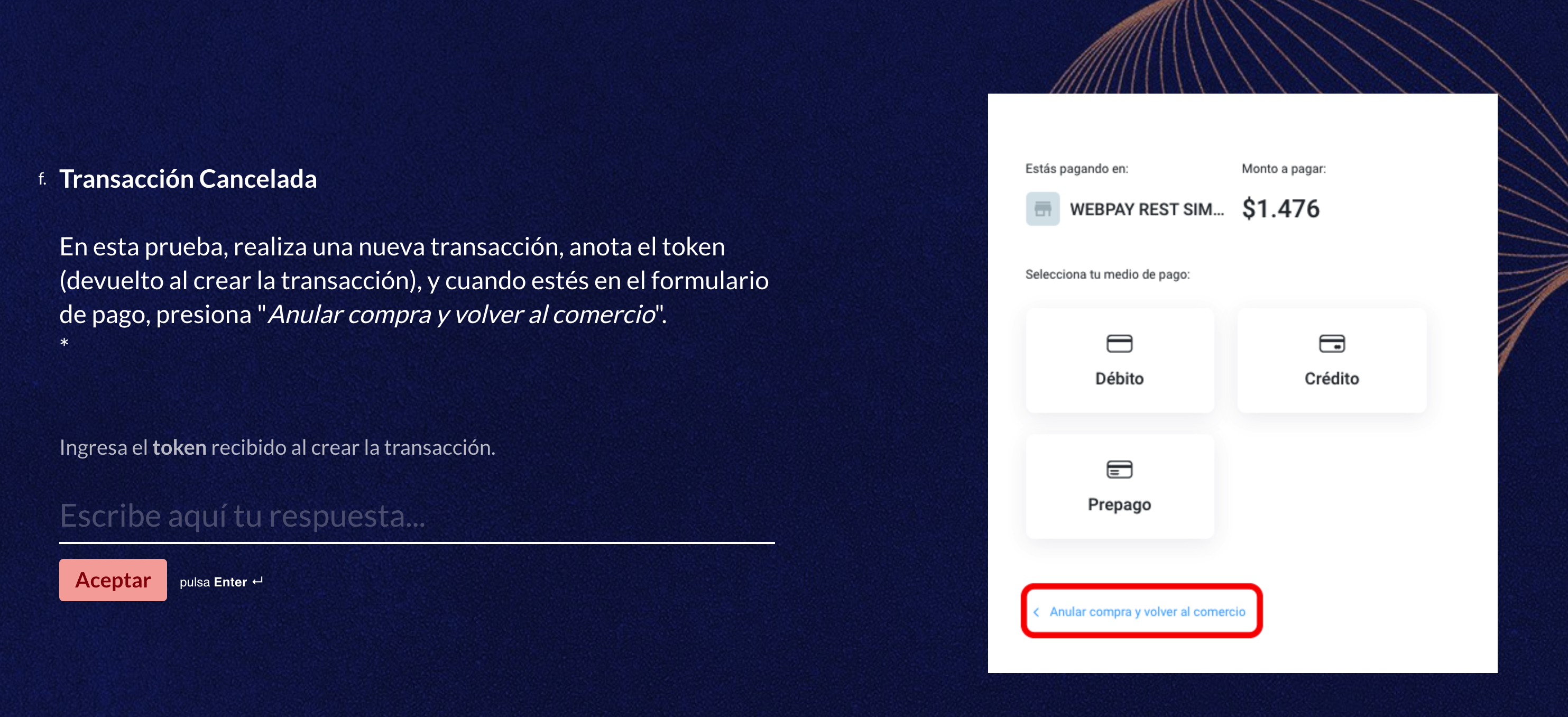
Voided Transaction test: when you reach the payment method selection screen, click the "Cancel purchase" button:
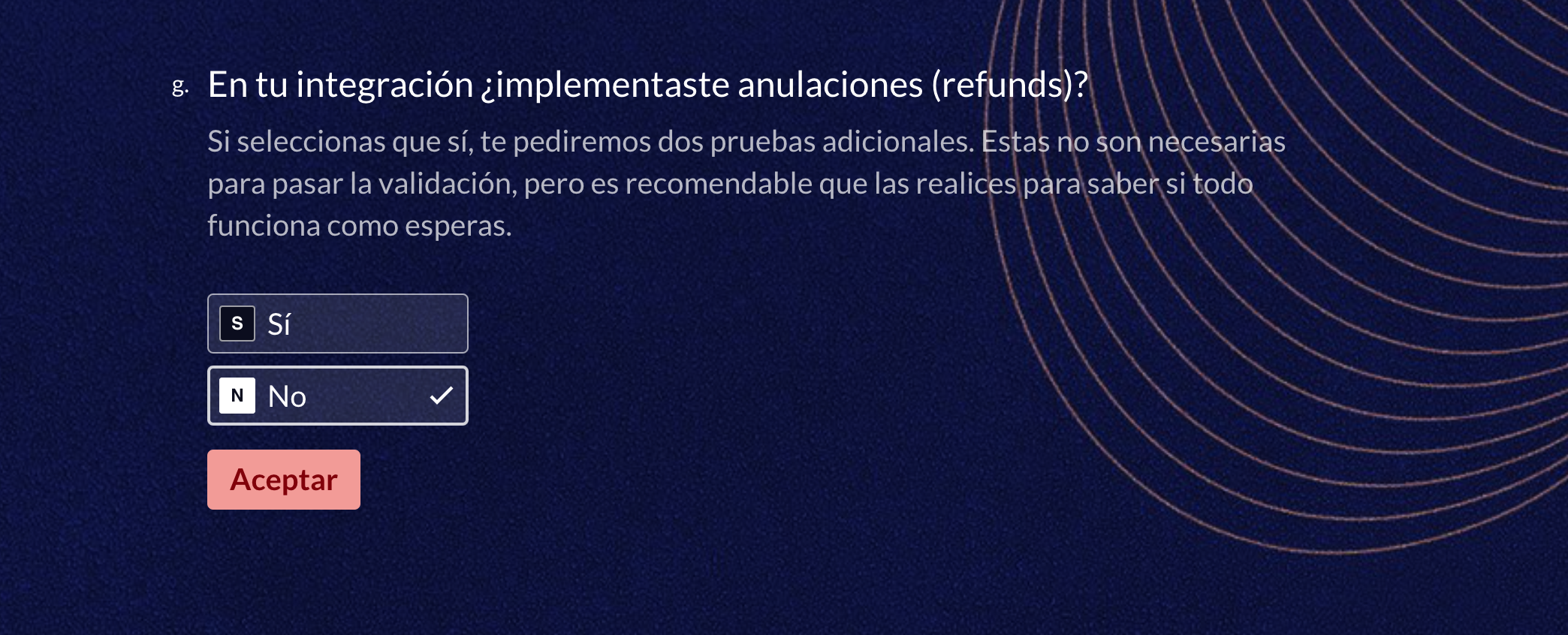
For the next question, choose the option:
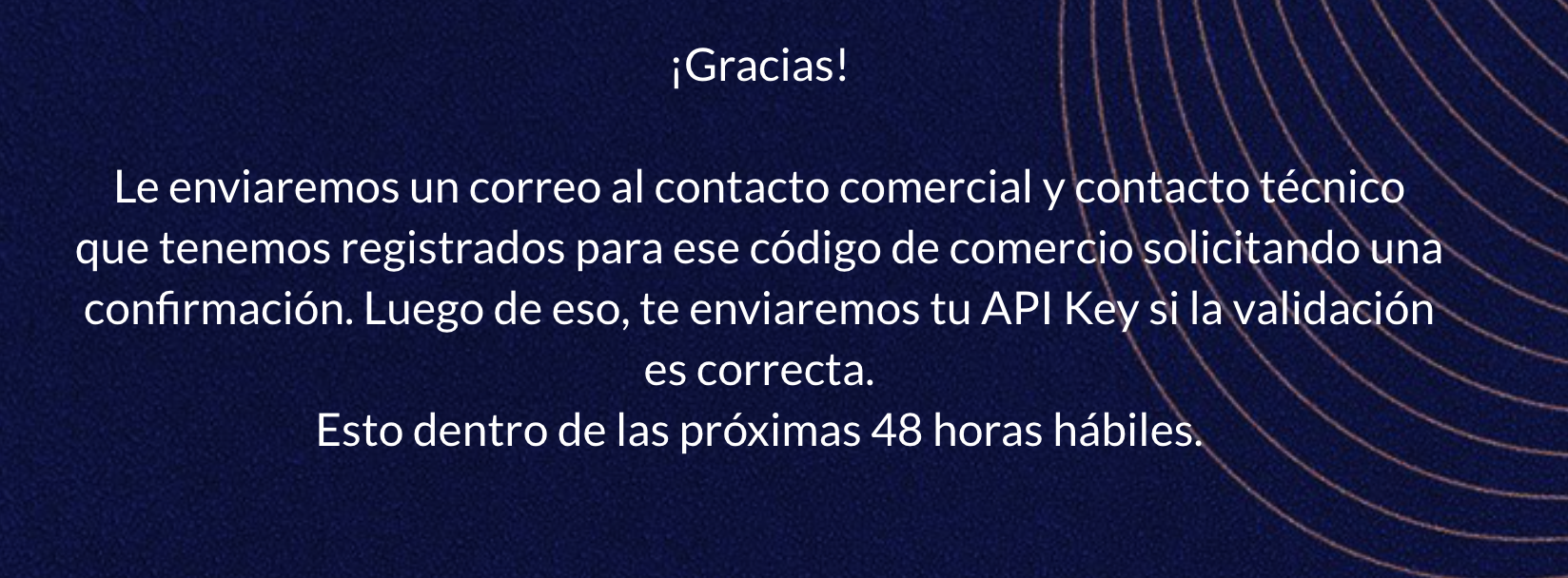
Once you've answered all the questions, the following message should appear. At that point, the form has been submitted for review by WebPay. Within minutes, you'll receive an automatic confirmation stating that it will be reviewed within the next 48 hours
Was this article helpful?