
 Use cases
 Messaging
 Taxi Companies
 Private Transport
 Transportation Entrepreneurs
 Last Mile
 SuperApp
 Software
 Taxi dispatch
 Corporate transportation
 Auction
 Products
 Booking Software
 Dispatch Platform
 Driver App
 Passenger App
 Web Widget
 Functions
 Schedule & Booking
 Driver Management
 Custom
 Corporate Portal
 Security & Support
 Resources
 Learn
Learn



Setting up a distance-based fare (price per KM)
You can create as many fares as you need, with no limit, and associate each one with different service types, branches, and/or companies / accounts.
First, go to the Fares subsection under Maintenance > Settings > Prices > Fares:
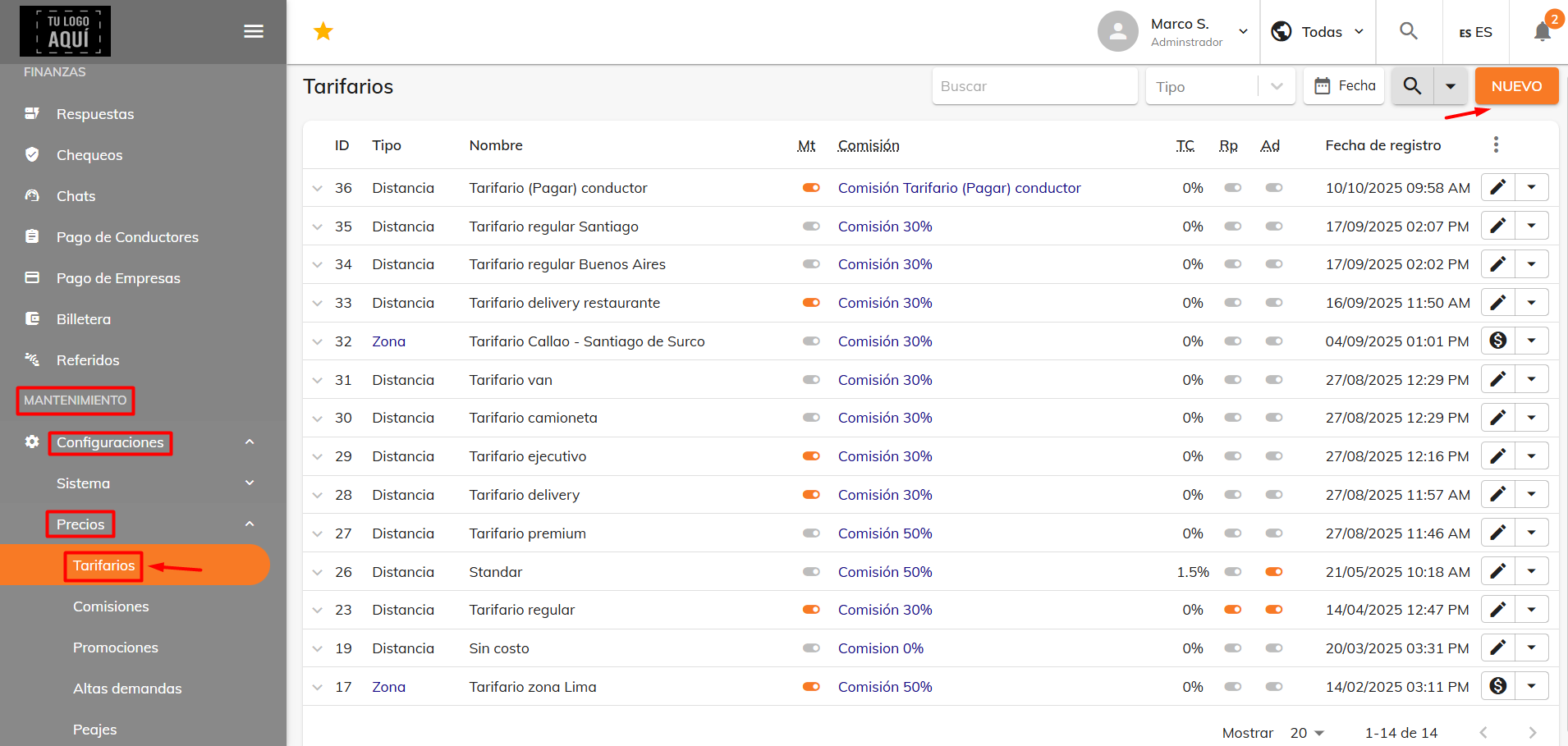
In the form below you can configure the fare. As a first step, choose the distance type.
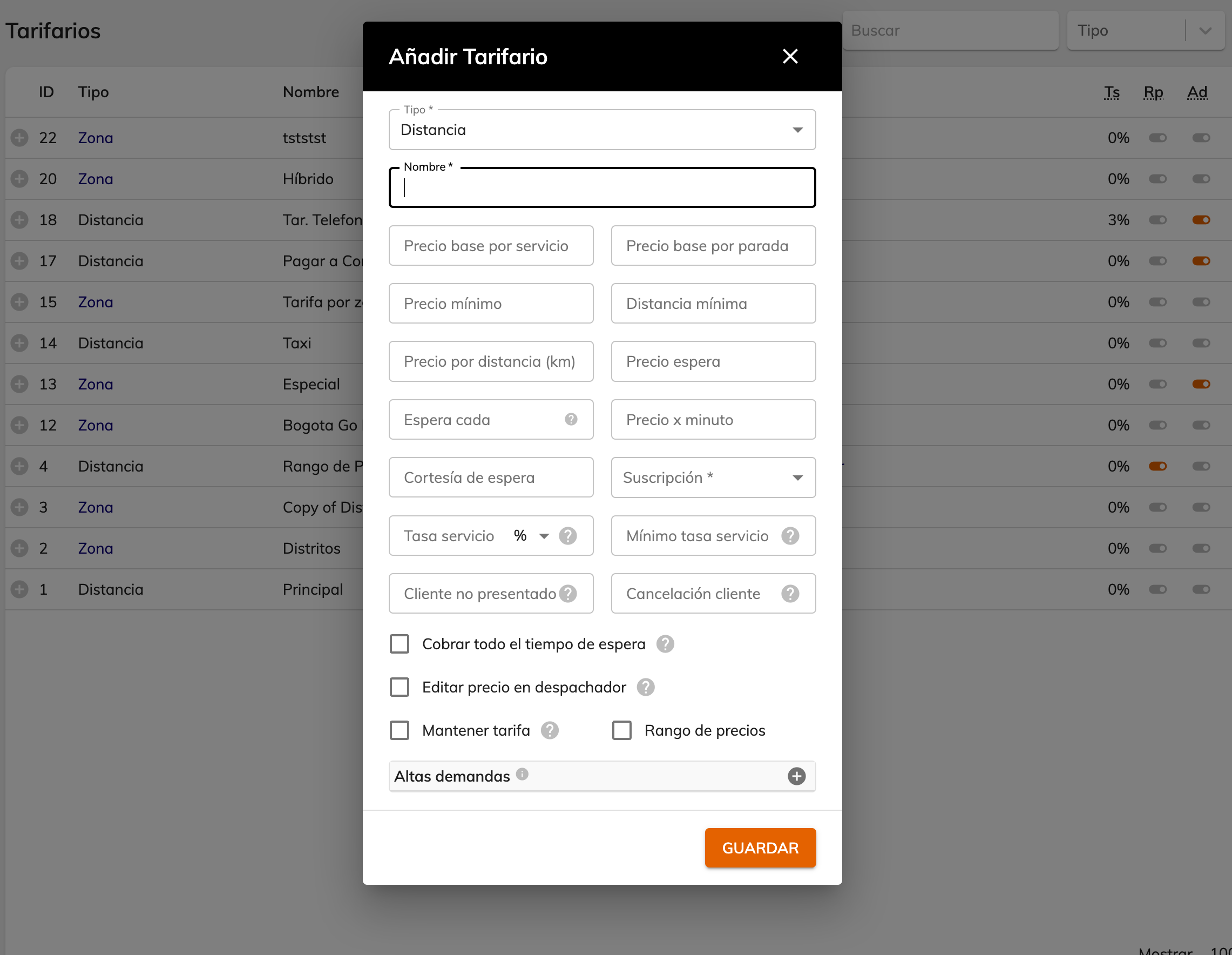
Distance:
A fare type that calculates trips based on distance and time.
Name:
A reference label for the fare so you can identify it more quickly. For example: Standard Fare.
Base price per service:
The price the trip starts at, also known as the starting fare or flag-down fare.
Base price per stop:
The price added for each stop on the trip. If the trip has 3 destinations, this value is multiplied by 3.
Minimum price:
The minimum price for a completed trip. When the trip ends, the system checks whether the calculated cost is below this amount in order to apply it. If the "Price ranges" option is enabled, this value has no effect.
Minimum distance:
This value lets you charge the distance price only from a certain kilometer onward. For example, if you set 2 km and the trip was 5 km, it will only charge the distance price for 3 km (5 km - 2 km).
Price per distance:
This price is multiplied by each kilometer traveled along the optimal route.
Price per minute:
This price is multiplied by each minute traveled along the optimal route.
Complimentary wait:
The grace period to wait for the user to board the vehicle.
Wait price:
This value is multiplied by the time interval defined in the “Wait every” field, which can be every minute or “x minutes”.
Wait every:
The interval, in minutes, used to charge for waiting time.
Commission: The amount charged to the driver for each service they complete; it can be a fixed amount or a percentage.
Service fee or corporate fee:
An amount that can be added on top of the driver's commission charge. This amount is deducted from the trip first, and the commission is then applied only to the remaining balance.
Minimum service fee:
This setting charges the service fee only when the trip cost is higher than this value.
No-show customer:
A charge applied to the customer when the driver waits at the pickup point and the passenger doesn't show up.
Customer cancellation:
A charge applied to the customer when they cancel the trip after a configurable maximum time has passed.
Extras
Keep fare:
When this option is enabled, the trip cost stays the same as the estimate. When it's disabled, the trip cost is recalculated once the trip is completed.
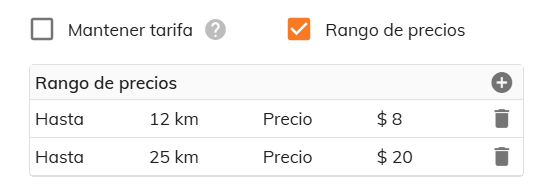
Price ranges:
This feature lets the fare keep fixed prices for specific distance ranges. In this example, you can see that from 0 km to 12 km a flat $8 is charged regardless of whether the trip was 1 km or 10 km; if it goes beyond 12 km, the trip costs $20 up to 25 km. And for longer distances, since no ranges exist, the fare is calculated by distance.
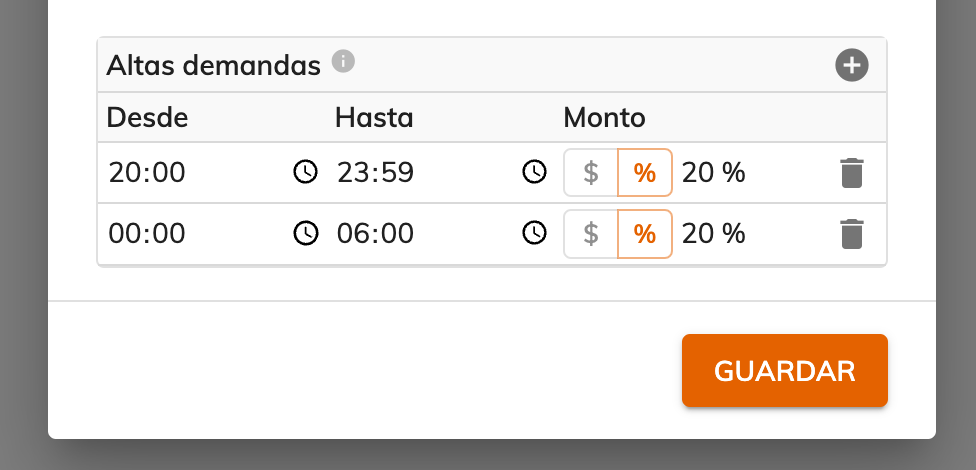
Surge pricing:
Surge pricing lets you increase a fare's price during certain hours. You can define multiple time periods and set different surcharge amounts for each. If you need to set up nighttime periods that run past 23:59, you'll have to create 2 periods, as shown in the example.
Was this article helpful?
Getting Started
- General Settings
- Customize your company information
- Create branches and assign rate tables by service type and company
- Setting up a distance-based fare (price per KM)
- Tolls (Tags): Setting Up Zones and Pricing
- Setting up zone-based pricing
- Setting up service types
- Trip grouping settings
- Configure your time settings in the panel