
 Use cases
 Messaging
 Taxi Companies
 Private Transport
 Transportation Entrepreneurs
 Last Mile
 SuperApp
 Software
 Taxi dispatch
 Corporate transportation
 Auction
 Products
 Booking Software
 Dispatch Platform
 Driver App
 Passenger App
 Web Widget
 Functions
 Schedule & Booking
 Driver Management
 Custom
 Corporate Portal
 Security & Support
 Resources
 Learn
Learn



Tolls (Tags): Setting Up Zones and Pricing
Tolls (charge zones) let you create geofences and assign a price to each one. This extra charge is applied automatically to a trip whenever the route passes through that zone.
When the trip ends, the toll is recalculated to verify that the route the driver actually took matches the one Google Maps suggested.
To set them up, go to the Tolls section under Settings > Pricing > Tolls, and click the "New" button.
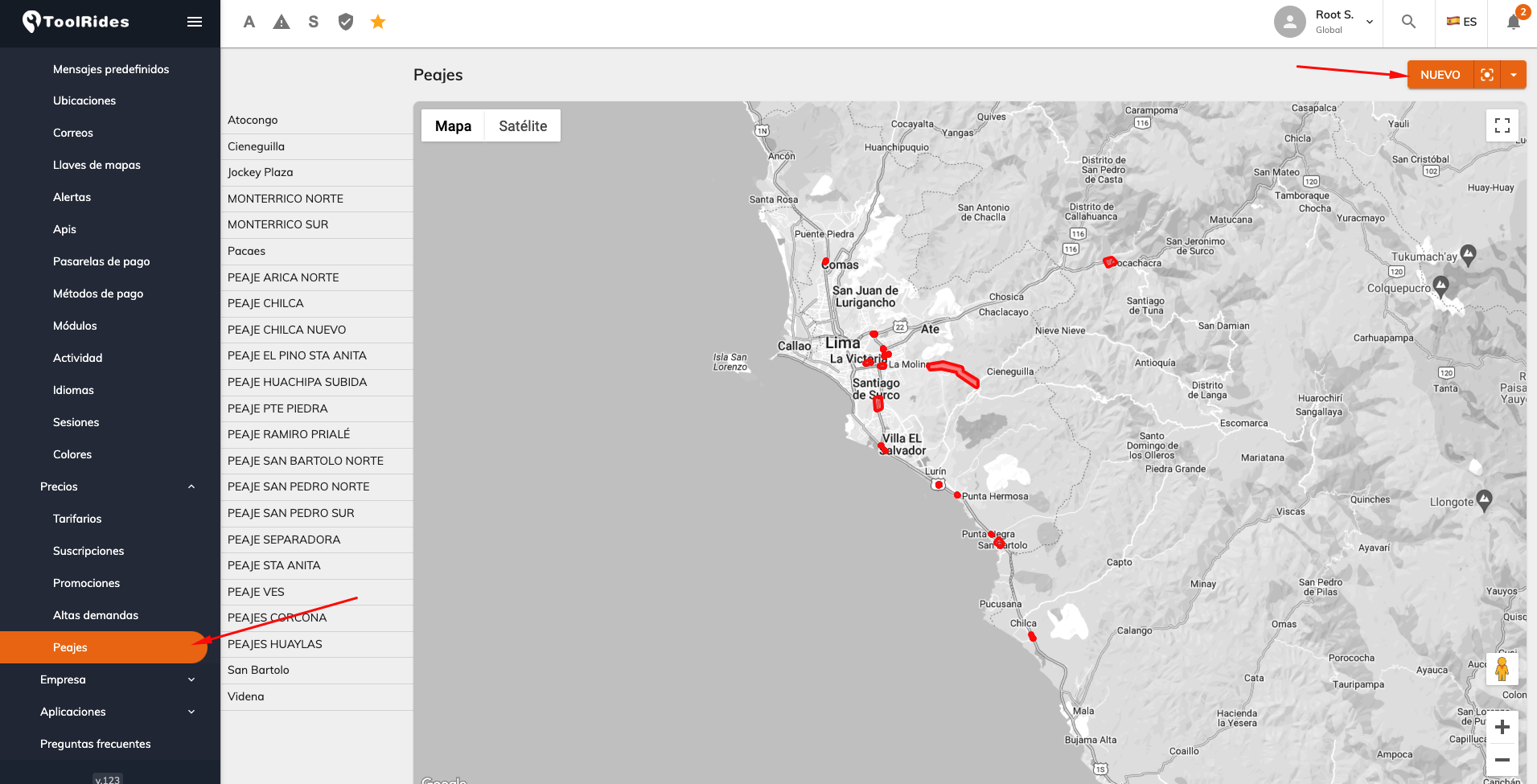
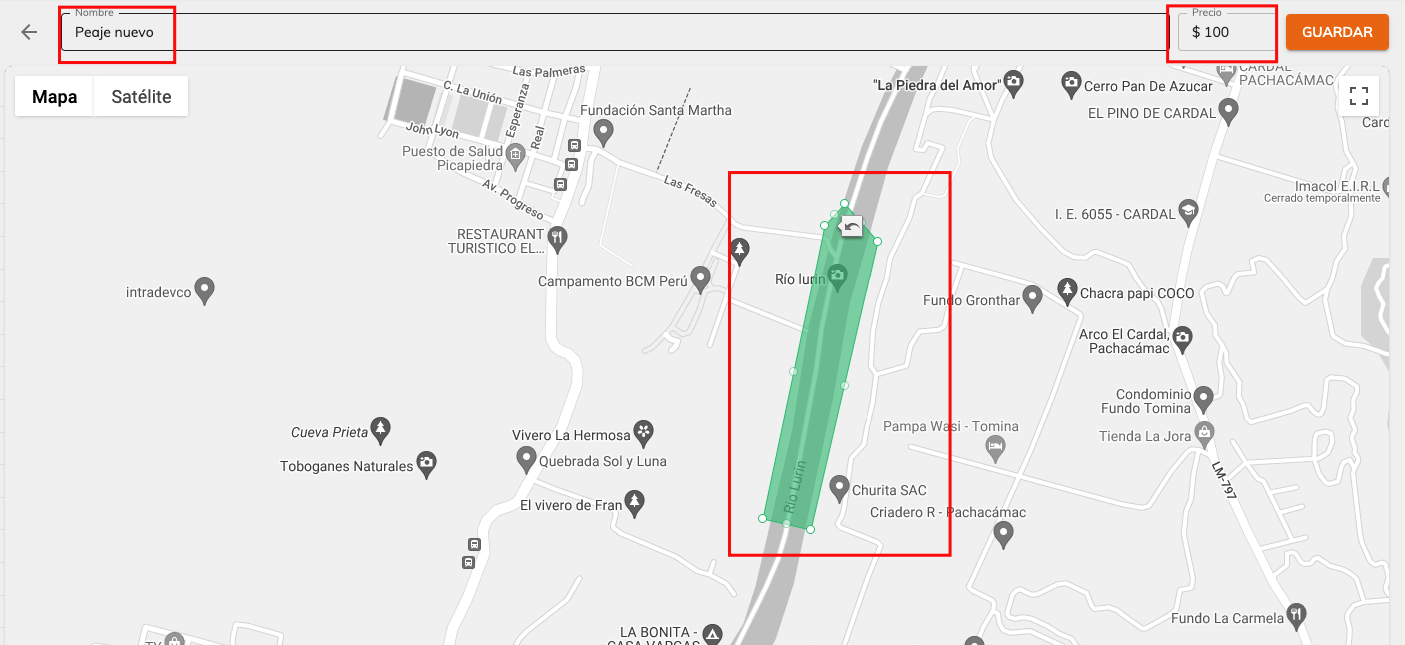
A geofence is created automatically, which you can reshape however you need. Assign a price to the zone you've created and then click the "Save" button.
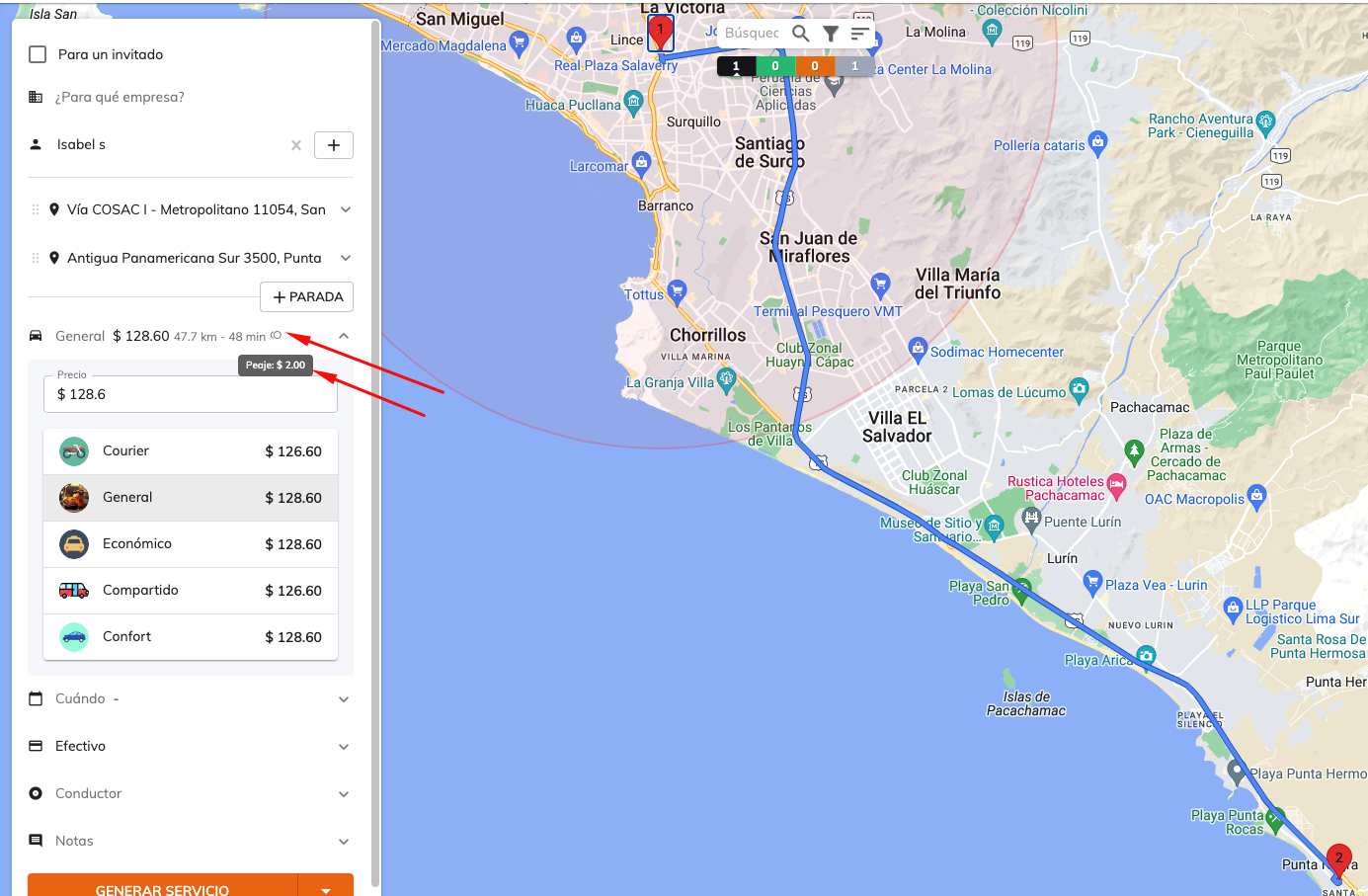
To test it, open the dispatcher and confirm that the toll cost icon appears next to the price.
Was this article helpful?
Getting Started
- General Settings
- Customize your company information
- Create branches and assign rate tables by service type and company
- Setting up a distance-based fare (price per KM)
- Tolls (Tags): Setting Up Zones and Pricing
- Setting up zone-based pricing
- Setting up service types
- Trip grouping settings
- Configure your time settings in the panel